


Every now and then you are made to work on an Excel workbook that has 15 spreadsheets. It drives you crazy going back and forth those 15 sheets trying to figure out where the information is.
Does this sound familiar ?
Once in a while I work on excel files that have as many as 15 worksheets. In this post, we will see 4 simple ways in which you can stay calm when you have an insanely large workbook with a gazillion worksheets (ok, not gazillion, just a couple of tens of spreadsheets)
1. Excel Table of Contents

When you have lots of sheets, it often helps to build a table of contents spreadsheet with hyperlinks to other sheets. This will help the spreadsheet users to quickly switch between worksheets.
There are 2 ways to do this.
Simple way is to create ToC in Excel is to insert hyperlinks. Press CTRL+k to activate “insert hyperlink” dialog and select “place in this document”. Then select the sheet name and change the “text to display”. Click OK to insert the hyperlink in your workbook. Repeat this for how many ever sheets you have. Now you will have a neat looking table of contents sheet in your workbook.

A slightly elegant way to do this is to use HYPERLINK excel formula. You can write =HYPERLINK(“#’New York’!a1”, “New York”) to insert a link to the New York sheet. When you click on it, excel will take you to the A1 cell in the New York sheet. Remember to use the “#” symbol before the spreadsheet name, otherwise the link wouldn’t work.
2. Use color to differentiate sheets
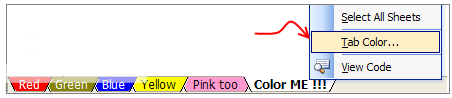
This is a very good way to know which sheet has what. For eg. you can color all your data sheets in blue and formula / calculation sheets in light yellow. Don’t over color as it looks weird (and that is purely because of Excel’s choice of colors)
3. Learn a few Key Board Shortcuts and Jump Between Sheets Quickly
Use CTRL + Page Down to go to the next spreadsheet
Use CTRL + Page Up to go to the previous spreadsheet
If you know which sheet you need to go, press CTRL + G and type the sheet name along with cell address. For eg. If you need to go to A1 cell in Sheet “London”, type: ‘London’!A1

4. Use the Right Click Menu

This is my favorite trick, right click on the sheet scroll buttons on the lower left corner of the Excel window and select the sheet you want to activate. Click on “More sheets” to see the entire list of sheets and navigate to the one you want.
This post is part of our Spreadcheats series – Learn how to be an Excel Superstar in 31 days, read the rest of the posts in this series.
Photo credit to lorenzo_stupid_kid AKA rockito


27 Responses
Or you can use utilities from http://www.asap-utilities.com to create a index worksheet for you. Just click and bang your index worksheet is created at once. The only negative about the util is it forces upgrade twice a year.
I wrote an add-in that lets you browse worksheets and switch between them. It’s called Sheet Picker and you can find it on the Add-Ins page on my blog.
Nice tips, as always. Now I wonder when will Excel allow viewing multiple worksheets in separate panes (as you can do with multiple /workbooks/?
@Maharishi, JP: thank you for sharing the add-in idea. Personally I have never really used them, but I imagine they would very useful when you work a lot with multiple sheets.
@AndyH: Thank you. Viewing multiple sheets is possible using New windows.
In Excel 2003, press Alt W+N (should work in excel 2007 as well). This creates a new window for the same workbook. Now arrange both windows either vertically or horizontally tiled. Press Alt W+A.
Use different sheets in each window and that is all. Any updates you make will be reflected in both places.
I personally use your Table of Contents notion…and with Excel you can make a decent TOC at that.
Shot for the third trick! Never knew about that 🙂
I have used ASAP quite a bit…it certainly has decent time saving techniques and then some.
I use the first two quite a bit. I never knew about the tip #3, which I will be able to use a lot. Thanks for the tip!
@Adam: While I love working on excel, I try to avoid add-ins for multiple reasons (like computer change, security restrictions at work) At home I constantly experiment with add-ins. Never tried the ASAP utility though, I guess I will install it next weekend.
@Tony Rose: You are welcome. Btw, once you specify a range in Go To dialog, it kind of remembers it, so next time you ctrl+G, it shows all the previously “Go to”ed places. Although, this doesn’t seem to work when you go to other sheets.
ASAP is excellent. I’ve used it for a year or so. It has some great time savers. I would try each function and then put them in your favorites area.
Also note that you should use the Web toolbar when using hyperlinks … the green back button is helpful in going back and forth – easier than creating a back button or link on each page.
I hope this is int he right place…..
I have got all my spreadsheets set up and working, what I want to know is, is there a way to link all the spread sheets together into one nice looking dashboard where the dashboard is automatically updated as I change data in the spreadsheets.
@Paul: You are at the right site.. Welcome 🙂
We have put together an excellent set of tutorials, examples and downloads for making excel based dashboards.
You can find them here: http://chandoo.org/wp/management-dashboards-excel
Let me know if you have few more questions…
In addition to ctrl + pgup/dn, you can use ctrl + tab or ctrl + shift + tab to move between spreadsheets.
@Spotpuff.. thanks alot for sharing this nice tip with us.. Welcome to PHD.. 🙂
Hi,
I liked tip #3 until I found out that with more then ca 15 sheets one must click the option “More sheets ” and show another even smaller window with annoying scroll bar… Does anyone in MS know what “ergonomy ” means?
Is there any way to expand such menus/windows and force them to show all sheets’ names?
Andy H “Nice tips, as always. Now I wonder when will Excel allow viewing multiple worksheets in separate panes (as you can do with multiple /workbooks/?”
In 2007 go to view and click new window.
Didn’t know about the ctrl-k shortcut. But then I will admit I have learned only a few of them, ctrl-x, ctrl-c, and ctrl-v being the ones I use 99% of the time.
And this page was #3 in the search results returned by Bing when I Googled!
Well, learned one thing – in Excel 2003, the hyperlink dialog box doesn’t see chart sheets (those created by using the chart wizard). And since this is a work project, I can’t use any add-ins that might solve this little wrinkle.
Hi,
For worksheet’s internal hyperlinks I like to use function since does not whenever I change the name of worksheet:
E.g. (Just Change “Sheet2!A1” and “Link text”)
=HYPERLINK(“#”&CELL(“address”,Sheet2!A1),”Link text”)
I want the user to navigate back to the table of contents for other views as needed so I created a macro to achieve this:
Sub back()
‘
‘ back Macro
‘
Sheets(“Sheet1”).Select
Range(“A1”).Select
End Sub
@Preet.. it might be even more easier to create a linked text box to first sheet cell a1 and then copy paste it on every other sheet. That way you would have avoided the macro thingie…
this site is excelent. i saw this site through google search. it explains neatly
Thanks so much for the post. Saved me in a 60 page exel! Now I’m not looking that much confused :))
Hi there
Chandoo’s tip is excellent and started using it.
I was just wondering (and i am not a programmer) if there is a way instead the hyperlink pointing to cell reference A1, to point to the last active cell of the worksheet?
Thank you in advance for anybodys solution
Thanks man!