

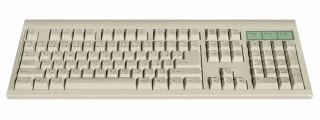
When I published the comprehensive list of excel shortcuts few weeks back, I thought I had them all. Boy, I was wrong. I am pleasantly surprised to find a new shortcut, one that takes away my manic mouse scrolling in one feel swoop. Often, when I am working with large tables of data, I scroll down or right and want to get back to active cell. This is where CTRL+Back Space is very useful. It will bring you back to active cell.
Other keys you can use to quickly jump around:
- Use CTRL+Arrow keys to last cells in the direction of arrow (if you have blanks in between, you go to the cell before blank)
- Press CTRL+G and type the address of a cell you want to go to
- Use CTRL+Page Dn, Page Up to access next and previous sheets
- CTRL+Tab, CTRL+SHIFT+Tab to access next and previous workbooks
- More navigation shortcuts
What are your favorite shortcuts for navigation?
Learning how to navigate with keyboard alone can be a huge time saver. I would love to know what shortcuts you use to navigate faster when you are working with excel sheets. Please share your tips using comments.


8 Responses to “Introducing PHD Sparkline Maker – Dead Simple way to Create Excel Sparklines”
This looks like it could be very useful for a project I'm putting together right now, thank you so much. Quick & silly question, how do I copy & paste the sparkline as a picture?
Question answered. For anyone else:
Select chart>Hold Shift key & select Edit/Copy Picture>Paste
[...] more information about PHD Sparkline Maker, please read this article and to learn more about Sparklines, read this article from Microsoft Excel 2010 blog. Also there [...]
Am I right in thinking that the y-axis is set automatically by excel?
That makes it possible to get the column chart not to start at zero.
Andy - yes, it is currently set to 'auto', which defaults to a zero base for positive values, but you can change that by left-clicking the chart, then choosing (in Excel 2007):
"Chart Tools/Layout/Axes/Primary Vertical Axis/More Primary Vertical Axis Options"
PUBLIC SERVICE ANNOUNCEMENT: When manually editing a chart's minimum/maximum axis values, PLEASE be sure there's a valid reason and that doing so won't skew the message shown by the data (e.g. by exaggerating differences). If in doubt, go back and read Tufte. (W.W.T.D.?)
[...] gridlines, axis, legend, titles, labels etc.) and resize it so that it fits nicely in a cell [example]. This is the easiest and cleanest way to get sparklines in earlier versions of excel. However this [...]
thanks for the work creating the template!!!!
looks good