

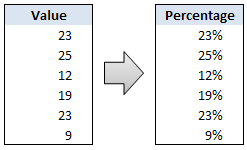
Sometimes we get values in our Excel sheets in such a way that the % sign is omitted. So instead of the value being 23%, it is 23. Now, you can very easily correct this by editing the cell and adding a % sign at the end. But what if you have 100s of rows of data. You can’t do this to every cell. (You can not just format the cells to % format either, excel shows 23 as 2300% then). There must be some simple and intuitive solution for this … umm.
Of course there is..
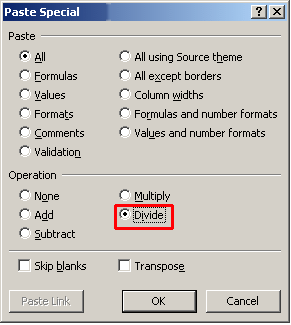 To clean up incorrect percentages just follow these 4 steps.
- Type 100 in an empty cell. Now copy the cell by pressing CTRL+C
- Select cells with incorrect percentages, and press ALT+E S (alternatively right click and select Paste Special)
- Now, Select “Divide” from operation area. See it aside.
- That is all. We have divided all the values in incorrect percentage cells by 100. Make sure the cells are formatted in % style to show 0.23 as 23%.
Bonus: You can remove % signs by multiplying cell values with 100.
Bonus*Bonus: You can convert a bunch of hours to days by dividing them with 24, minutes to hours by dividing with 60 etc.
Bonus Bonus: 15 more ways to use Excel’s paste special. Do you know all of them?


11 Responses
I’ve just taught yesterday to a colleague of mine how to convert amounts in local currency into another by pasting special the ROE.
great thing to know !!!
Chandoo – this is such a great trick and helps save time. If you don’t use this shortcut, you have to take can create a formula where =(ref cell /100), copy that all the way down, covert it to a percentage and then copy/paste values to the original column. This does it all much faster. Nice job!
I was just asking peers yesterday if anyone know if an easy way to do this, I’ve been editing each cell and adding a % manually vs setting the cell to Percentage for months and just finally reached my wits end. What perfect timing! Thanks, great tip!
If it’s just appearance you care about, another alternative is to use this custom number format:
0″%”
By adding the percent sign in quotes, it gets treated as text and won’t do what you warned about here: “You can not just format the cells to % format either, excel shows 23 as 2300% then.”
Dear Jon S. You are the reason I love the internet. 3 year old comments making my life easier.
Thank you.
Here is a quicker protocol.
Enter 10000% into the extra cell, copy this cell, select the range you need to convert to percentages, and use paste special > divide. Since the Paste > All option is selected, it not only divides by 10000% (i.e. 100), it also applies the % format to the cells being pasted on.
@Martin: That is another very good use of Divide / Multiply operations.
@Tony, @Jody: Thank you 🙂
@Jon S: Good one…
@Jon… now why didnt I think of that.. Excellent
Thank You so much. it is really helped me.
Big help…Thanks
Thanks. That really saved me a lot of time!
Is Show Formulas is turned on in the Formula Ribbon, it will stay in decimal form until that is turned off. Drove me batty for an hour until I just figured it out.