

Here is an interesting way to edit formula ranges. This time using mouse.
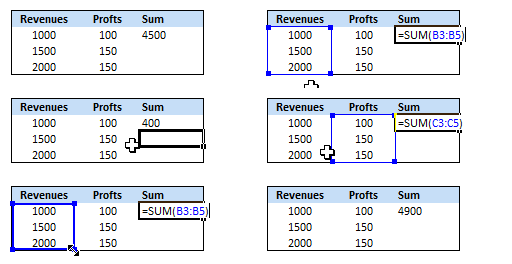 1. Select the formula for which you want to edit the range.
2. Press F2.
3. Now you see borders around all the ranges for that formula. Just select one of the ranges by clicking on its border and start dragging / resizing it.
4. When you are done, press Enter.
5. That simple.
It seems like a fun way to edit formulas.What do you think ?
More on formulas: 5 areas where mouse kicks keyboard’s butt | Edit formulas in bulk using Find / Replace | Excel Formulas Online Help


12 Responses
Nice one. I had no idea this could work. :-O Thanks for tip. 🙂
@Struzak… You are welcome.
What?
Why did no-one tell me this before?!
Nice tip 🙂
Is there a way to do this when the ranges are on different sheets?
Chandoo,
nice tip (as always). I am using this all day long.
A short amendment: the technique works with the data source of a chart as well. Instead of F2, simply click on the data series of the chart and you will see the colored border around the data source cell range (as long as chart and data source are on the same worksheet).
A time-saving feature if you have to create a lot of charts (same format, different data sources): Create one chart, format and resize it the way you need it, copy and paste the chart and simply change the data source of the new chart by dragging the colored border to the desired cell range.
thank nice method.
in 4 you can click other cell replce press Enter when done.
I feel identified with Robert; the best use I give to this feature is to change data source in charts.
Other way to use it is when you insert rows above a SUM formula and need to expand the sum range.
A final note: be aware that this method does not work with named ranges
Thank You so much for all your hard work gathering & documenting this wealth of information.
Most of all THANK YOU for sharing.
These busy days don’t allow much time to study.
Over time You have been there & answered questions & taught me a great amount of understanding.
You are a respectable value!
All the best,
Charly
Chan,
How do you make the gif animations which you display in your posts to illustrate your examples? Please write a tutorial on that also.
thanks
Jay
Ironically, I learned this technique when I was teaching a coworker some intermediate Excel training. She edited a formula this way and it blew me away. I asked her where she learned this and she replied, “I don’t know, I’m kinda new at Excel and have always edited formulas this way”. I guess you can learn new things from just about anyone!
Keith
I had been using this but today its now allowing me to change cell reference using mouse. Is there anything which causes deactivation of this formula
Found the solution!
If you are unable to edit formula using mouse –
Go to File manu >> excel options >> Advanced >> Editing options >> Enable Fill Handle and cell drag-and-drop. Activate the flag here.
This resolves above issue. Now i am able to edit edit formula using F2 & mouse.
Thanks for providing this platform to gain & share knowledge.
Reg
Dhananjay Jadhav
Cost & Management Accountant – India.
dhananjaypjadhav@gmail.com