

Last week we discussed a fun and easy way to compare two lists of data in excel using conditional formatting. In that post, Artem commented,
The quickest way to find all about two lists is to select them both and them click on Conditional Formatting -> Highlight cells rules -> Duplicate Values (Excel 2007). The result is that it highlights in both lists the values that ARE the same. Then in one list non-highlighted are values that are not present in the second list, and opposite for the second list. I think it is sell “geeky”, but it gets job done very very quickly when you don’t want to mess around.
Artem must be an Excel Yoda. I somehow missed this beautiful and dead-simple way to compare lists in Excel. So here, I am documenting that technique so we all remember it and use it.
A Ridiculously easy and fun way to compare 2 lists
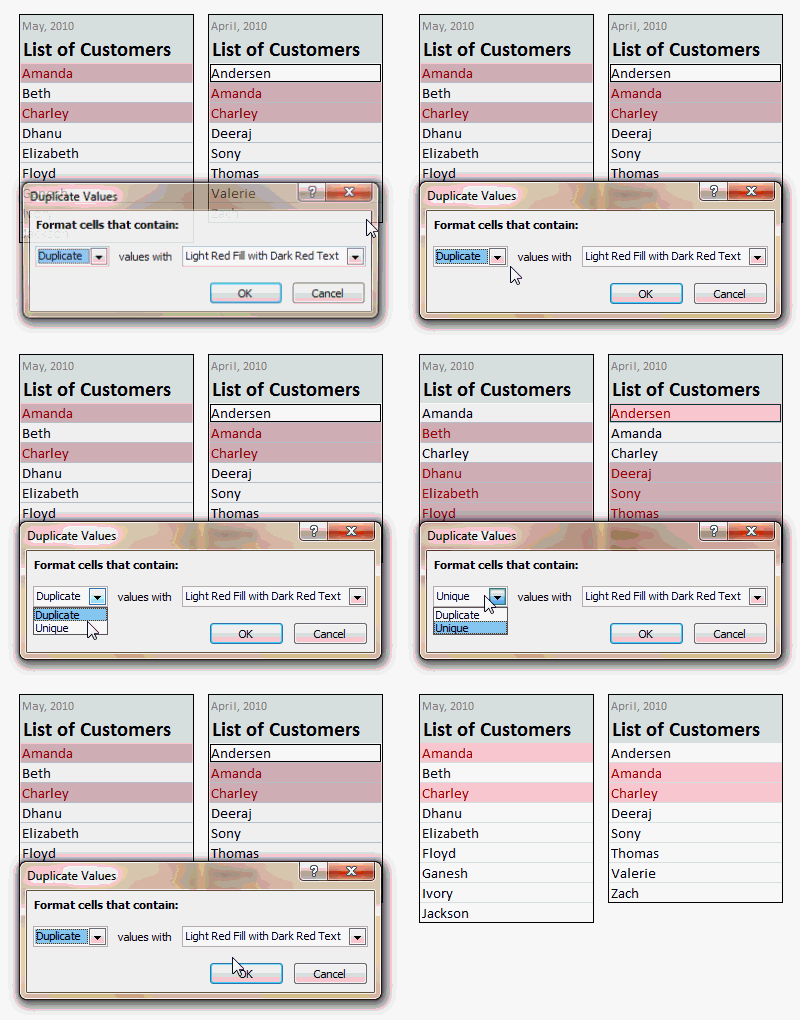 [works only Excel 2007+, use the above technique if you are on excel 2003 or earlier]
- Select cells in both lists (select first list, then hold CTRL key and then select the second)
- Go to Conditional Formatting > Highlight Cells Rules > Duplicate Values
- Press ok.
- There is nothing do here. Go out and play!
See the screencast aside to see how this works (click here for a detailed demo).
Hats off to Artem for sharing this beautiful tip with us. Thank you 🙂
Spare a minute to become superawesome at work – Read a Quick Tip.


137 Responses
Thank you
I have very useful this formula.
Thanks again!
Nice trick but doesn’t work on 2003′
Great timing! I needed to do something like this just last night, and ended up doing it manually. I’d alpha-sorted two lists of names and I needed to put unique ones from one list into the other. This trick would have helped, but I’d still have had to move the lists to make room for the unique entries from one going to the other, which needed to be updated.
Any thoughts on a way to automate this merging, so that the unique items from one list can be inserted into the other?
@Philip,
Actually there is an idea: after you’re done with conditional formatting you can go in and sort the items by color. By default you will have unique items non-highlighted, so just copy filtered items into the other list to synchronize. It’s again quick and dirty. Macros generally would be much easier to work with.
This works great, except if there are duplicate names within each column. Excel will display these records as duplicates as well. Conditional formatting in Excel 2007 is a great tool!
So what do you do in this case? I experienced the same problem, I want to compare data from one list to another but not considering if they are duplicate within the same column… I only need unique (or duplicate) from column vs the other.
Use PivotTable to summarise data. Then you won’t have duplicate values on one column
In that case, you will know duplicate values in your pivot. But, you still would have to manually go back and mark duplicates in your original list. Is there an easy work around for that?
in this case highlight for unique values only. these values will never be found twice in whole sheet
so then all you have to do is highligt the list >> Data>> remove duplicates
any way to do this when comparing columns from different sheets in the same workbook?
I am trying to accomplish the same goal. I am able to do this with a formula and extra columns but not with the simple conditional formatting. It seems that once you click on two different sheets the conditional option is no longer available.
http://chandoo.org/wp/2010/05/19/new-features-in-excel-2010-conditional-formatting/
The very first addition to excel 2010.
please tell me that formula .. i want to compare two sheets according to two columns . i want the unique records which are not same according to that two columns.
Now that’s clever!
ALT + HLHD for highlighting duplicates
or
ALT + HLHDU for highlighting uniques
Useful if you are checking for data in both colums or rows but the previous method of highlighting duplicates is better for a row by row comparison. Either way is quicker than writing a function.
Hi! you can go here to know how to make conditional lists:
http://runakay.blogspot.com/2011/03/conditional-lists-on-excel.html
MASTER!! Super cool! Thank you very much.
Kind regards,
Anthony Martina
Saved my work by hours, very sweet trick, thanks for sharing!
Thank you so much for sharing! This is extremely useful.
THANKS FOR THIS INFORMATION, SAVED ALOT OF USEFUL TIME
You are the bomb! Thank you for sharing – it saved me a ton of time!!!
you saved my day with this hint !!!! thank you very very much.
WOW!!!! Soooo Simple and Easy
Hats off to you(Chandoo.org) and Team Microsoft Office…….
This worked perfectly!!!! Thanks buddy!
After seeing this and playing with it a bit, I was happy to discover that I could use this method to select multiple columns to compare. (I’m using Excel 2010)
I had to find the rows in a second spreadsheet that were not in an original spreadsheet.
In the first spreadsheet I selected all the rows and changed the font to red.
Then I selected all the rows in the second spreadsheet, copied them and pasted them at the end of the rows in the first spreadsheet.
You should now have one spreadsheet with two different colored rows – red ones from original spreadsheet, black ones from second spreadsheet. (makes them easier to identify later)
Then I selected 4 columns to use for the comparison… that’s right, 4 columns: date, invoice#, product, qty.
Now from the Home tab, select Conditional Formatting, ‘New Rule’, ‘Format only unique or duplicate values’. Change Format all: to ‘unique’ Select a highlight color Click OK
I now had every row highlighted that was NOT in both files, regardless of which file it started in. Next was to sort the data by cell color to group all the ‘missing’ rows together. The color of the font also told me exactly which set of data had that row so that I could make sure I only added the right rows to the original spreadsheet.
Now I’m going to play with it some more and see if I can get this to work without having to merge the data into one spreadsheet.
Hats off to your great help, keep sharing and keep helping us
This option works. Really smart and quick way to compare two column in EXCEL
Awesome trick.
Would you know if there is a limit this method can handle? I have to compare 175,000 lines of a 578,000 lines list (folder security report)…and the workseet totally freezes now, even if I close Excel then open the workbook again. It seems the conditional formatting is not a ‘one shot deal’, but always a work in progress.
Thanks,
You saved a lot of my time. Thanks a Ton buddy.
Here is another simple way to highlight differences between two lists. This approach works with lists that are each comprised of multiple columns.
Use the COUNTIFS formula to compare the corresponding columns in each list, and check if the total is greater than zero. If the total is non-zero, then the corresponding row is different between the two lists.
Example:
Worksheet1: Columns to compare: A, B, C, D
Worksheet2: Columns to compare: E, F, G, H
Assuming that columns A and E have similar data, columns B and F have similar data, etc.
Put the following formula into a cell on row 1 on worksheet2
“=countifs(WorkSheet1!$A:$A,Worksheet2!$E1, WorkSheet1!$B:$B,Worksheet2!$F1, WorkSheet1!$C:$C,Worksheet2!$G1, WorkSheet1!$D:$D,Worksheet2!$H1)=0” will return TRUE if the values in row 1 on Worksheet2 are missing from Worksheet1.
You can set this formula in a conditional format rule to highlight the missing rows on Worksheet2, if desired.
-Sajan.
On a weekly basis I use two excel windows to copy data from one file to a pivot table file. However, I was not aware of the “side-by-side” button on the View ribbon. What I’ve been doing since Excel 97 days is to open both files, then go to Window, then Arrange, then select Vertical or Horizontal. In Excel 2010, the sequence is View, then Arrange All, then select Vertical or Horizontal.
I will be using the “side-by-side” button in the future. Thanks for the tip.
Very nice way to compare lists
Hi
Very useful information,
sofar i am doing this by using toggle key
Thanks of info
Ramachendir
awesome….is it possible same in excel 2003?
Hi Atul, Please check http://spreadsheetpage.com/index.php/tip/comparing_two_lists_with_conditional_formatting/. content in this link shows how to do the same in excel 2003.
I have been looking for hours for this and it’s so simply! THANK YOU! You saved me manually going through 4000 records 🙂
Thanks for sharing this tip. You saved me a lot of trouble!
great and thnx
I am using this brilliant method! However there are some items in my list across different columns that match exactly letter by letter but somehow is picked up and highlighted upon as ‘unique’??? Any help on this?
Imagine there are three columns. A few cells match in the first two, a few in the second and the last, and a few in the first and the last. This function would let me know all the duplicates, but would not tell me the duplicates across any of the two columns. How to rectify this issue. any thoughts?
O Hi ,,
Thanks for the cool tip.. I wanted to open a web page inside an excel cell
how could I do that
So multiple cells I can use different pages …IS their a way
Excellent one it really helped a lot
Nice one! I also really like the fast and neat keyboard shortcut version MiceMustDie sneaked in above:
___
ALT + HLHD for highlighting duplicates
or
ALT + HLHDU for highlighting uniques
___
For uniques, on my Vista I have to use ALT + HLHD, then U for highlighting uniques, ie without the ALT for the last keystroke.
OMG thank you!!!!!!!!!!!!!!!!!!!!!!!!!!!!!!!!! I was too tired to understand anyone else’s directions on how to do this. you just made my night less painful.
Really helped, Thanks!
Thanks a lot for this; you opened a wall I was hitting every day….. thanks a looooooooooooooottttttttttt
I have two lists, one in column A with over 2000 records, and one in column B with fewer than 200 records.
When I select column A, and then CTRL select column B, and
Go to Conditional Formatting > Highlight Cells Rules > Duplicate Values
Press ok.
ALL fields are highlighted in both columns–even the extra fields in Column A where there are no matches in column B.
WTFish? Did I misunderstand something?
UPDATE
That should read, “…column B with fewer than 2000 records.”
Can someone help me out
I am using this excellent idea but I need some customization in this. I want to highlight each duplicate value with different colours
For example my numbers data has three duplicates i.e. 15, 20, 25
I want to highlight 15 with blue, 20 with red and 25 with yellow
Gr8 help, thanks a lot for sharing…….
I think it is really cool but it also highlights the duplicates in the single list alone… it does not just do cross reference…it does duplicates within the single column… How do we prevent it from highlighting additional duplicates on single column that are not on second list?
Worked beautifully for what I needed. Thank you soooo much!
Nice explanation
this doesnt help much as it doesnt compare two list. it just finds out if the same number is repeated twice in ANY of the column and not in the second column. tried using randbetween() function in two columns. pls enlighten me if i m missing something. office 2003
oh, just read it again. works only in office 2007+. apologies
great! thaNK YOU IT HELPED
Ok WOW that was ridiculously easy.
Ty ty ty 🙂
Awesome stuff !!!! really appreciate it, now I can be awesome too !
YOU HAVE SAVED MY LIFE!!! THANK YOU!!!!!!!
damnnnnnnnn sooooo good.. saved me like 2 hours of work now 😀 thanks mate!
Grt technique my friend..
This is one of the single most useful tricks I have ever seen shared. Thank you guys!!!!
Thank you! This just saved me a lot of time.
THANK YOU!!!!!!!
Very helpful, in stark contrast to the microsoft page, which just confused me
Give that Man a C Gar…!!!
That is an awesome tip..Thank you so much!!
very thank full to all i’m searched more over 100 sites but there is no easy answer to this finally i got it here. thank u so much
i need the same in ms office 2003 also will u please post me
Hi
I have 5 Different columns, I want to check each column one text available or not? Example. all the five cells text shows closed.
Then I need in a separate cell value is closed, if not closed or any other text available there then pending text should show there .
Can you help me.
@Khursheed
What about something like:
=If(counta(a1:a5)>0,”Available”, “Not Available”)
But I suspect your problem is more complicated than that
Can you better define what the problem is?
really really awesome .Thanks a ton
Thank you very much!!!!
Very Great Indeed. Made life easy!!@1
Thank you, just what i was looking for. !!!
A million times THANK YOU!
Great. Thank you for this very useful tip.
YOU ARE JUST A REAL DINOSAUR!
THANKS, BRUNO
Thanks alot 🙂
This is a very easy and quick way to identify (2) lists in Excel.
Thanks for sharing the simple approach. Beats creating Visual Basic rules or =IF formulas !!
Someone showed me how to compare spreadsheets by using concatenate and v-lookup tools – there were about 20 steps involved – ugh! Using this method (along with concatenate) took only 5 steps – thank you, thank you for this awesome tip!
Is there any way I can force Excel to take into account the casing for the text while comparing? For example; if in column A I have ‘ABC LLC’ and in B I have ‘ABC Llc’ ; then I do not want these two to be marked as dupes. Currently Excel is highlighting them as dupes.
Hi,
Am using excel 2010.
I have 2 lists of emails. Want to know which emails are there in List a that are not in list B and vis-a-versa. So that I in the end have 3 lists.
1. the ids that are in both lists. 2. The ids that are in list a and not in b
3. the ids that are in list b and not in a.
The tip on conditional formatting has not worked.
Any suggestions?
Oh my word!! Thank goodness I thought to search “how to compare two lists in Excel”!! I had a 7 page and a 43 page list that I needed to compare and had started off doing it by hand.
You can also dictate what color you want the font and background colors to be by choosing the “custom format” option in the drop down box that has “red highlight” as the first option. I chose to highlight the unique items and chose an orange background with black text since I print on fast draft and wasn’t sure if the other choices would show up right.
LIFE SAVER!!! Now that I’ve wasted almost 2 hours doing it the other way, I’m able to print out the lists together and get to work. 🙂
Thanks! Worked like a charm in Excel 2010!
THANK YOU!!
Thanks a lot this made my life much easier.
This function has a catch…it also selects duplicate values in the same list as well. For example if list one has Amanda mentioned twice than Amanda will be selected irrespective of its existence in 2nd list
Hi Chandoo,
Very nice tip for duplicate values.
I love to use CF.
Thanks , its very useful function, please help me on this i have those values in separate two worksheet, with this same function its work out.
Just awesome. I used to write Vlookup or match to find. this one is much faster.
your thoughts are always different…..
amazing ways !!!
How to do it when the lists are on two different workbooks?
Nice trick, it saves a lot of time. Thanks
Excellent Post !!! Very Helpful. Thank You.
Another tip: I have to update a running list I have every week, and I color my current yellow, and the updated list green. I run the above process, and anything left over that is green, I add to my list. Anything in yellow, I investigate why it has been dropped. This has saved me at least an hour compared to how I used to do it. I LOVE THIS!!!!!
I wrote a Excel plug in that makes this super simple. It’s always accessible for people who often need to find differences between two sets of numbers.
Thanks.
Thanks this is a much simpler way to accomplish what I need than what I had been doing.
This trick works well, but has a couple of drawbacks…
1) Both lists of data must be in the same workbook. I had data in two separate files (“original data” and “new data”), and had to copy the records from one file to the other in order to do the comparison using the highlight duplicates approach.
2) If you have a lot of data, the large number of conditionally formatted cells can cause Excel to hang/crash.
The comparison I was doing was checking over 150,000 serial numbers on my “new data” file to see if they appeared in the “original data” file (any that did not appear needed the entire row, spanning about 40 columns of data, to be merged into the original).
I had been using COUNTIF which was taking about 50 seconds to calculate. Using VLOOKUP (which returned the serial number of records where there was a match, and #N/A for no match/new records) took just over 14 seconds, and for my requirements was actually quicker than using the conditional formatting method.
yes, exactly. I’ve found that VLOOKUP is a much better option with large data sets. Then filter for the values needed.
Guys ! I need your expert advise .I’m working on a crusie ship and at the moment I’m trying to compare 2 voyages (Passenger Lists) and find out which one are in transit (sialing with us for 2 back to back cruises)..Therefore I’m trying to create a macro in excel, as I could use this list every time..Pls advise
I strongly urge you to try http://crusherrors.com. Just paste in the two data sets and compare. It’s entirely web based. It works instantly with very large datasets. There’s a tour that will help you figure it out. If you have any confusion, please let me know. It’s a new product and there are improvements happening all the time.
The problem with this is that it’s resource intensive. So, if you’re working with large data sets, Excel has to run through the formula for every cell in the list, and thereby renders useless sorting and filtering of any kind.
Really helpful tips thank you
Do the 2 list have to match up? I have one list of names that go first, last. The other list goes last, first so I am wondering if that is why it is giving my so many unique highlights. Any thoughts?
Brilliant!!! Simple &very helpful!
This really was ridiculously easy and, yes, even fun – even for an Excel-phobe! Thank you so much.
Seemed great by the description, but didn’t quite do what I expected when I attempted it in 2007+. Lots of extra items highlighted. From what I can tell, it checks every cell in the first worksheet against every cell in the second worksheet. So for example, if cell A1 on sheet 1 matches cell A3 on sheet 2, that would be considered a duplicate.
This would be fine in most cases, but I have multiple columns with some common dollar amount responses, so this is highlighting more or less than I want.
In my desired scenario, what I would like to do is select both entire worksheets and compare cell to matching cell. For example, A1 on sheet 1 is compared to ONLY A1 on sheet 2, etc… Then allowing the highlighted choice of either unique or duplicate indications.
Any help here is appreciated!
Thanks,
Doug
i am working in 6 diffrent sheets at a time
i want to match data in entire excell work book
any help here is appreciated!
thanks,
veeru
you wont believe how much time that has saved me, thank you very much
Excellent ideas….its really helped a lot…
thanks a lot…
I actually love you. Thank you!!
REALLY VERY GOOD IDIEA
Awesome-Thank You
I tried this twice but it did not work.
This method finds duplicates throughout both lists, not just between the 2 lists. Cells in list 1 are highlighted because they have duplicates within list 1 even though they have no duplicate in list 2. There may also be a duplicate in list 2 but there is no way to tell.
Its awesome , help very much.
Thanks buddy. It saves me a lot.
Very good trick!
Bravo!!!
Looking for a function that will match names to tracking numbers of customers from two lists and sort them. Is this possible?
I am too. Have you found a method?
Thank you, thank you, thank you!!
I was just about to start manually looking for duplicate emails (approx 1000 out of 8000), this has just saved me a lot of time!
Thank you so much for this tip. After highlighting the matching cells in the two columns, is there a way to pair selected data into a third, new, column or sheet? For example, on sheet has name and email, the other sheet has email and invoice. I want name, email, and invoice to all be matched up in one sheet. I’m a newbie! How would I do that?!!!
I have two lists . If LIST B IS ONLY APPLE FOR LIST A ID’S THE COUNT SHOULD BE 1. IF LIST B HAS OTHER THAN APPLE or APPLE FOR LIST A ID’S THAT SHOULD NOT BE COUNTED. PLEASE HELP
List A List B COUNt OF ONLY APPLE FOR LIST A ID’s ARE : 4
111 APPLE
111 APPLE
111 APPLE
111 APPLE
112 APPLE
112 ORANGE
112 GRAPE
113 GRAPE
113 ORANGE
114 APPLE
114 APPLE
114 APPLE
115 APPLE
115 APPLE
116 APPLE
117 ORANGE
117 APPLE
Hi Gabriel,
Welcome to Chandoo.org and thanks for posting your question. I am not sure I understand the requirement clearly. Can you please explain how the answer “4” is arrived at?
Now the issue is how to consolidate multiple files in to one(consolidate the quantities of each of the items in multiple list).Please help
I have two lists; one a list of names that has numerous instances of each (e.g. list of cars by make at my offices), so we have: Ford, Ford, Ford, Holden, Datsun, Datsun, Opel, Opel, Opel, Datsun etc.
Next a list of all car makes that have had repair work. Only one instance of each car make: Ford, Datsun, Toyota, Bentley.
I want to know which items in the first list are not in the second. IE which cars have not had a repair.
Thanks a lot!!!!!!!!!!!!!!!!!!!!!!!!!!!!
THIS DOES NOT WORK. It compares the two sections selected as one list. So if one list has a duplicate value that will show up as a duplicate. It should show up only as a duplicate if it is duplicated in the other list.
Absolutely Brilliant!!!
I used to vlookup from List A and then again from List B to understand what were duplicates and unique data items. This will save a ton of time!
Thanks again!
DATA HYGIENE is first step,
As long as each list it’s self doesn’t have duplicate entries,
append two columns in excel 2007 I think advance filter should do it
Filter unique values to o a new sheet
Remove duplicate too would work wonderfully
My personal favorite pre 365 was Merging and creating a pivot work’s too well
Adding the name in count will help sort all cases where it’s twice
But since 365 my new personal favorite is shifting to the best easiest solution function UNIQUE in 365