

Here is a very simple & fun way to replace formulas with values.
(Earlier, we talked about how to do this with keyboard)
Just wiggle.
Wiggle what?
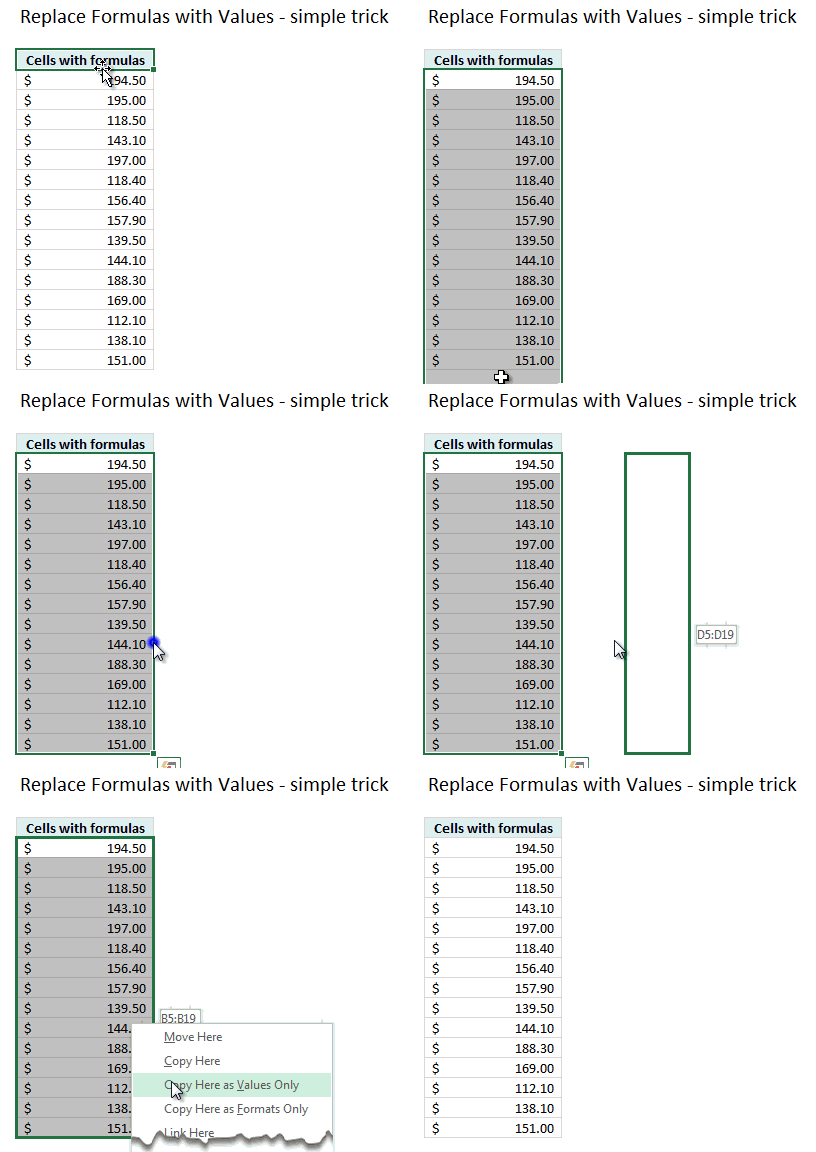 Follow these steps
- Select all the cells that contain formulas
- Right click on the selection border (your mouse pointer changes to 4 sided arrow)
- Right click + Drag the selection a few cells away and drop them back at original place (ie wiggle)
- A menu appears. Select Copy here as values only.
- You are done
See the demo aside.
More fun & productive ways to use mouse in Excel
You can do a lot of powerful & useful things in Excel with mouse. Check out our Mouse shortcuts section.
- 5 areas where mouse kicks keyboard’s butt
- Do you know these double click tricks
- Use mouse to edit formula ranges quickly
- Insert multiple columns at once with mouse
Say thanks to John if you like this tip
This is one of the most fun mouse shortcuts I have ever learned. Thanks to John for teaching me this wiggle technique.
If you too enjoyed it, please say thanks to John.


One Response to “How to compare two Excel sheets using VLOOKUP? [FREE Template]”
Maybe I missed it, but this method doesn't include data from James that isn't contained in Sara's data.
I added a new sheet, and named the ranges for Sara and James.
Maybe something like:
B2: =SORT(UNIQUE(VSTACK(SaraCust, JamesCust)))
C2: =XLOOKUP(B2#,SaraCust,SaraPaid,"Missing")
D2: =XLOOKUP(B2#,JamesCust, JamesPaid,"Missing")
E2: =IF(ISERROR(C2#+D2#),"Missing",IF(C2#=D2#,"Yes","No"))
Then we can still do similar conditional formatting. But this will pull in data missing from Sara's sheet as well.