

So who is up for a challenge? Can you use only formulas and extract dates buried inside text?
Your mission, if you choose to accept it,
- Download this file.
- In column C, write a formula such that you can extract the date in column B
- If you succeed, post your solution here as a comment.
- If you fail, drink some coffee, start afresh.
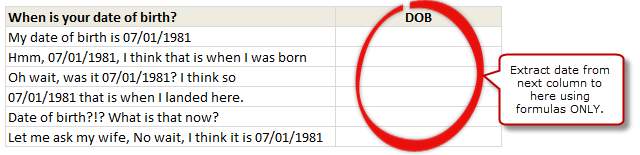
What are you waiting for? Start extracting!
Need some help?
If you want some clues, check out below links:
- Extract numbers from text using formulas
- Working with date & time in Excel – Basics
- Excel array formulas – examples & explanations
- More examples on date & time
Want more challenges? We got’em too
You better have access to lots of coffee or something strong, cause it going to get tough.
PS: If you feel like cheating, here is a solution.


165 Responses
Something like
=IFERROR( DATEVALUE( MID( B4 , FIND( “/” , B4 ) – 2 ,10 ) ) , “” )
How can i get last date from the below text?
I need last date as 29/08/2018 from formula
“Agnes Juszkiewicz – 29/05/2017 9:56:04 : under query with sarah barrow
Magda Glowacz-Tones – 28/11/2017 14:48:45 : This is for Zurich Assurance and needs re-allocating. Emailed Receipts to check is the team can do it.
Rajeev Ranjan Mallick – 29/08/2018 14:08:35 : Received remittance 20/08/18_sent details to David Wan( Claims manager) on 23/08/2018 for assistance23/08/2018_received response on 28/08/2018- its not RIsk management or CH fee.
Rajeev Ranjan Mallick – 29/08/2018 15:25:03 : Details sent to Sarah Barrow for assistance 29/08/2018.
works with cells with 07/01/1981:
=MID(B4,FIND(“/”,B4)-2,10)
Short-Simple-Sweet!
=MID(B4,MAX(1,FIND(“/”,B4)-3),11)
This is the formula I used… it works assuming that the DOB will always be in MM/DD/YYYY format
=IFERROR(DATEVALUE(MID(B4,FIND(“/”,B4)-2,2)&”/”&MID(B4,FIND(“/”,B4,1+FIND(“/”,B4))-2,2)&”/”&MID(B4,FIND(“/”,B4,1+FIND(“/”,B4))+1,4)),””)
the is the formula, starting from C4 then drag down
=IFERROR(MID(B4,(FIND(“/”,B4)-2),10),”No DOB Found”)
only drawback is that if a / is found without a date (if an entry in column B contained “/i love excel more than flying ninjas ” for an example) the formula will return rubbish
can be solved by double checking we have two / and the distance between them is 2, if so, formula would be:
=IF(COUNTIF(B4,”*/**/*”)=0,”No DOB Found”,IFERROR(MID(B4,(FIND(“/”,B4)-2),10),”No DOB Found”))
If there are two / in a cell in column B and the distance between them is 2 and yet not a date this is doable but now we are getting ridiculous…
Regards,
Ahmad
It did work! but i’ve got one problem.. how can i remove the colon and semi colon?
here’s my text:
ER: VICTORIA COURT (2/26/16)
and i use your formula:
=IFERROR(MID(F620,(FIND(“/”,F620)-2),10),””)
the answer is:
(2/26/16)
the problem is that the -2),10 portion of the formula indicates to return the text that starts 2 positions befor the / and ends 10 positions after it (that is a ful 10 character date: 12/12/2012). In your text, the 10 characters incude the two parentheses. You can fix it by:
A: changin the -2),10 portion of the formula for -1), 7, but that would return an incorrect value if the date is more than 7 characters long
B: this is my solution that wil work whenever you need to remove parenthesis. You substitute text ( and ) for nothing:
=SUBSTITUTE(SUBSTITUTE(IFERROR(MID(E11;FIND(“/”;E11)-2);10);””);”(“;””);”)”;””)
I know there has to be a more elegant way to put it, but this will return the date like this: 2/26/16
I think this works:
=IFERROR(DATE(MID(B4,SEARCH(“/”,B4)+4,4),MID(B4,SEARCH(“/”,B4)-2,2),MID(B4,SEARCH(“/”,B4)+1,2)),”Gadheda!!”)
I think the simplest is with MID() and FIND():
`=IFERROR(MID(B4,FIND(“/”,B4,1)-2,10),”..”)`
I’d use =IFERROR(DATEVALUE(MID(B4,FIND(“/”,B4)-2,10)),””)
=IFERROR(MID(B4,SEARCH(“/”,B4)-2,10),””)
Interesting approaches everyone. How would you write the formula if there can be a / without date too?
Already done so, fifth comment
em português ficou assim:
=SEERRO(EXT.TEXTO(B9;LOCALIZAR(“/”;B9;1)-2;10);”No Answer”)
Well i don’t know quite how I would write it, but i’m sure there is an approach that would use an array and the code function. This would have the advantage that / & . & – and the numbers are all consecutive from 45 to 57.
One could probably use this to isolate a date. I would be interested to see what someone with better skills than I could do with this approach.
If only this format is used, I’d go with:
=IFERROR(DATEVALUE(MID($B5;SEARCH(“??/??/????”;$B5);10));””)
Very interesting. I did not know that SEARCH can find patterns. Thanks for sharing it here 🙂
Doesn’t work.
With a little adjustment I think Roger’s approach works great.
=IFERROR(0+MID(B5,SEARCH(“??/??/????”,B5),10),””)
Regards
This was my initial approach:
=WENNFEHLER(DATWERT(TEIL($B5;SUCHEN(“??/??/????”;$B5);10));””)
I used a German Version of Excel 2010 so I had to manually translate the function, but wildcards in SEARCH do work.
See http://office.microsoft.com/en-us/starter-help/search-searchb-functions-HP010342873.aspx?CTT=1
You can use the wildcard characters — the question mark (?) and asterisk (*) — in the find_text argument. A question mark matches any single character; an asterisk matches any sequence of characters. If you want to find an actual question mark or asterisk, type a tilde (~) before the character.
A little tweak … type “,” instead of “;”
Probably just using =MID($B5, SEARCH(“??/??/????”, $B5, 1), 10) should solve the issue.
-DG
I’ve tried to tackle in a different vein as below:
{=MAX(IFERROR(DATEVALUE(MID(B4,ROW($A$1:$A$200),10)),0))}
So, looking at each set of 10 characters (length of date in format mm/dd/yyyy) and trying to use the datevalue function to change the text into an actual date. Then removing the error values using the IFERROR.
Finally, I use the MAX function to obtain the greatest date (using MIN returns the 1st of the month required, as datevalue returns a result for a mm/yyyy string).
The only thing with this formula is when a date is not apparent – in these cases, it seems to return a 0 (and I haven’t quite worked out why yet) – I can remove this by using an IF(…..=0,””,…..), but wanted to find a cleaner way – any ideas?
ps.
This formula should work with additional numbers or / in the text string – if there are two or more dates, it will obviously pick the biggest as using the MAX function.
My entry:
=IFERROR(
DATEVALUE(MID(B4,MIN(FIND(“0”,B4),FIND(“1”,B4)),10)),
“No date entered!”)
I can’t believe I didn’t think to search for the “/”. And now I see Chandoo’s challenge about other numbers in the string, I think mine fails.
Rogers gets my vote for best answer so far. I didn’t know about the search for patterns either. Awesome tip!
Unfortunately SEARCH only uses ? and * as wildcards. Regular expressions would be a really neat improvement
I hope this formula works for this table. The formula is as follows:
=DATE(0+MID(B4,FIND(“/”,B4)+4,4),MID(B4,FIND(“/”,B4)+1,2),MID(B4,FIND(“/”,B4)-2,2))
I hope this is useful. The output for this formula is:
When is your date of birth?
DOB
My date of birth is 07/01/1981
1/7/1981
Hmm, 07/01/1981, I think that is when I was born
1/7/1981
Oh wait, was it 07/01/1981? I think so
1/7/1981
07/01/1981 that is when I landed here.
1/7/1981
Date of birth?!? What is that now?
#VALUE!
Let me ask my wife, No wait, I think it is 07/01/1981
1/7/1981
This formula also works:
=MID(B4,FIND(“/”,B4)-2,10)
almost same as Radhish Thekkute suggested.
Vikas, your function looks great. Need a small tweak though.
Try the date “01/14/1978”. I get the output “01-02-1979”.
Check the function arguments (click the fx icon before the formula bar). It shows the DATE arguments Year, Month, and Date. It looks like you have given the Month formula in the Date and Date formula in the Month.
Change them and it works like a charm.
-DG
Thanks Mr. Dolphin Godfred. You are correct.
I appreciate your knowledge.
This looks better:
=DATE(0+MID(B4,FIND(“/”,B4)+4,4),MID(B4,FIND(“/”,B4)-2,2),MID(B4,FIND(“/”,B4)+1,2))
How to extract if the dates are as follow :
‘9/25/14 4:20 PM
’10/6/14 9:47 PM
’10/6/14 6:52 PM
’10/6/14 2:53 PM
’10/5/14 7:21 PM
’10/5/14 10:29 AM
’10/5/14 10:07 AM
’10/4/14 1:50 PM
’10/4/14 8:28 AM
’10/3/14 7:20 PM
’10/3/14 5:09 PM
’10/3/14 4:49 PM
’10/3/14 4:45 PM
’10/3/14 12:36 PM
’10/2/14 12:46 PM
’10/1/14 3:18 PM
’10/1/14 9:51 AM
’10/12/14 10:07 PM
’10/12/14 7:27 PM
’10/11/14 9:13 PM
’10/11/14 12:05 AM
’10/10/14 4:41 PM
’10/10/14 4:31 PM
’10/10/14 12:43 AM
Quickest way to convert to dates in your situation is to copy a blank cell, then paste special and add. Then reformat the cells as dates. This GIF shows the process: http://i.imgur.com/obQmGcx.gif
@Swastik
I would use the Data, Text To Column menu
Select the data
goto Data, Text to Column
Fixed Width
Click in the window so that there is a vertical line just after the first ‘ and a second one just before 4:20
Next
Select each column and adjust the number format
The date format should be MDY
Change the Destination to suit
I Try… work fine:
Spanish version…
=SI.ERROR(FECHANUMERO(EXTRAE(B4,HALLAR(“/”,B4,1)-2,10)),”No hay DOB”)
Regards.
Luis Fdo.
=IF(ISERROR(MID(B4,FIND(“/”,B4)-2,10)),”No date”,DATEVALUE(MID(B4,FIND(“/”,B4)-2,10)))
=MID(B4,SEARCH(“/”,B4)-2,10)
As simple as
=RegExFind(B4;”\d\d/\d\d/\d\d\d\d”)
!!!
There is a wonderful add-on Regexp Search and Replace for Excel that can be downloaded from http://www.codedawn.com/excel-add-ins.php
This add-on allows to use aadditional worksheet functions like the one above
as well as to search via Ctrl+F dialog using regex wildcards.
Em portugues – criei uma formula no gerenciador de nomes
=SEERRO(PROCURAR(“/”;’extract-dates’!B4);0)
em cada célula usei
=SE(formula1;EXT.TEXTO(B4;formula1+1;2)&”/”&EXT.TEXTO(B4;formula1-2;2)&”/”&EXT.TEXTO(B4;formula1+4;4);””)
abs
Eduardo Chamon – Brasil
Em gerenciador de nomes criei uma fórmula
=SEERRO(PROCURAR(“/”;’extract-dates’!B4);0)
e para cada célula usei
=SE(formula1;EXT.TEXTO(B4;formula1+1;2)&”/”&EXT.TEXTO(B4;formula1-2;2)&”/”&EXT.TEXTO(B4;formula1+4;4);””)
=IF(ISERROR(MID(B4,SEARCH(“??/??/????”,B4,1),10)),”No Date”,MID(B4,SEARCH(“??/??/????”,B4,1),10))
Here is what I got:=IFERROR(MID(B4,FIND(“/”,B4)-2,10),”No Date”)
I couldn’t help but think of this in terms of the “getNumber” public function that I learned on here not too long ago. By putting this as a public function, I could reuse it at will and not have to remember the formula. Unfortunately, I’m no VBA expert. But I think someone one here could use this idea and modify the code into something better.
Public Function getdate2(fromThis As Range) As String
‘Extract the date from a cell and return it.
Dim retVal As String
Dim ltr As String, i As Integer, datecheck As Boolean
retVal = “”
getdate2 = “”
datecheck = False
On Error GoTo last
‘Check if the range contains a date
If fromThis.Value Like “*/*/*” Then
datecheck = True
ElseIf fromThis.Value Like “*-*-*” Then
datecheck = True
End If
For i = 1 To Len(fromThis)
ltr = Mid(fromThis, i, 1)
If IsNumeric(ltr) Then
retVal = retVal & ltr
ElseIf ltr = “/” And datecheck Then
retVal = retVal & ltr
ElseIf ltr = “-” And datecheck Then
retVal = retVal & “-”
End If
Next i
getdate2 = Format(retVal, “mm/dd/yyyy”)
last:
End Function
Same as the last post
=SI.ERROR(FECHANUMERO(EXTRAE(B4;ENCONTRAR(“/”;B4;1)-2;10));””)
Esteban
Similar but longer than Luis’s solution:
=IFERROR(DATE(MID(B4,FIND(“/”,B4)+4,4),MID(B4,FIND(“/”,B4)+1,2),MID(B4,FIND(“/”,B4)-2,2)),”No Date!”)
En español:
=SI.ERROR(FECHA(EXTRAE(B4,ENCONTRAR(“/”,B4)+4,4),EXTRAE(B4,ENCONTRAR(“/”,B4)+1,2),EXTRAE(B4,ENCONTRAR(“/”,B4)-2,2)),”No hay fecha!”)
=DIREITA(ESQUERDA(B4;LOCALIZAR(“/”;B4)+7);10)
=IF(ISERROR(DATE(MID(B9,FIND(“/”,B9)+4,4),MID(B9,FIND(“/”,B9)-2,2),MID(B9,FIND(“/”,B9)+1,2))),””,DATE(MID(B9,FIND(“/”,B9)+4,4),MID(B9,FIND(“/”,B9)-2,2),MID(B9,FIND(“/”,B9)+1,2)))
=IFERROR(MID(B4,SEARCH(“0″,B4,1),10),”no date in here :)”)
A] Following entered as ARRAY FORMULA will work:
=MID(B4,MIN(IFERROR(FIND({0,1,2,3,4,5,6,7,8,9},B4,1),LEN(B4)+1)),10)
will give erroneous results in case of non-date numbers and will leave blank if there is no number.
B] This non-array formula should have worked (cell formatted as date) but it fails when a character other than space is placed next to it.
=LOOKUP(9.99E+307,TRIM(MID(SUBSTITUTE(B4,” “,REPT(” “,100)),(ROW($A$1:$A$20)-1)*100+1,100))+0)
I would do something like this: {=MID(B3,MATCH(TRUE,ISNUMBER(–MID(B3,ROW(INDIRECT(“$1:$”&LEN(B3))),1)),0),COUNT(–MID(B3,ROW(INDIRECT(“$1:$”&LEN(B3))),1))+2)}.
This would allow for different formats of the date and different seperators like / – ,.
As i m going through the given file my simplest formula is as below.
=MID(B4,FIND(“/”,B4)-2,10)
not think more.
may be there should be more solution.
Take a cup of coffee guyssssss..
regards
isti
=IFERROR(MID(B8,SEARCH(“/”,B8,1)-2,10),”NA”)
=IFERROR(MID(B4,MIN(IFERROR(FIND({0;1;2;3;4;5;6;7;8;9;”/”},B4),””)),10),””)
Jeet, that’s a good one. And, easy to remember, kind-of.
– DG
I learned about the Mid function from this homework, and also a better use of wildcards with the search function!
The original formula I used was this: =IFERROR(IF(SEARCH(“*/*/*”,B4),LEFT(RIGHT(B4,LEN(B4)-SEARCH(“/”,B4)+3),10),0),”No Date Found”)
I’ve simplified it to this: =IFERROR(DATEVALUE(MID(B4,SEARCH(“??/??/????”,B4),10)),”No Date Found”)
Here is the formula,
=IF(ISERROR(FIND(“/”,B4,1)),””,MID(B4,(FIND(“/”,B4,1)-2),2)&”/”&MID(B4,(FIND(“/”,B4,1)+1),2)&MID(B4,(FIND(“/”,B4,1)+3),5))
=IF(ISERROR(MID(B9,SEARCH(“0″,B9,1),10)),” “,MID(B9,SEARCH(“0”,B9,1),10))
=IFERROR(MID(B4,FIND(“/”,B4,1)-2,10),”No Date Found”)
=IF(ISERR(SEARCH(“??/??/????”,B4)),”No valid date format found”,MID(B4,SEARCH(“??/??/????”,B4),10))
Some very interesting replies, and I have already learnt a lot, but none of them seem satisfactory to me, and many simply fail because of my locale — I am in the UK, so any solution using DATEVALUE will assume that the input format is DD/MM/YYYY and hence fail in locales using that structure as their standard, as will any that coerce the result into a date (eg using “0+”).
I also assumed that the homework required a date (ie a serial date) as opposed to simple text, but I could be wrong. (My assumption here is reinforced by the cells being already formatted by Chandoo as Date).
Finally, I assumed that the formula would have to cope with other strings containing “/”, eg “I said /what/?”, so I was looking for a formula containing “??/??/????” (I would have preferred a tighter constraint but as noted elsewhere such pattern matching is not available in Excel formulae).
Anyway, my offering is
=IFERROR(DATE(MID(B5,6+SEARCH(“??/??/????”,$B5),4),MID(B5,SEARCH(“??/??/????”,$B5),2),MID(B5,3+SEARCH(“??/??/????”,$B5),2)),”no date”)
It only allows dates in the MM/DD/YYYY format, it returns a date (as opposed to a string that looks like a date), and it works in any locale (I think — I can’t check!).
I am hoping there is a shorter formula that meets my assumptions.
Sorry, formula chopped up a bit. It is, on two lines, as follows:
=IFERROR(DATE(MID(B5,6+SEARCH(“??/??/????”,$B5),4),MID(B5,SEARCH(“??/??/????”,$B5),2),
MID(B5,3+SEARCH(“??/??/????”,$B5),2)),”no date”)
{=IFERROR(DATEVALUE(MID(B4,MIN(IFERROR(FIND({0,1,2,3,4,5,6,7,8,9},B4),99)),10)),”n/a”)} works
Sorry, this fails in the UK since DATEVALUE for me assumes the date is DD/MM/YYYY.
{=IFERROR(MID(B4;MATCH(“B*”;IFERROR(“B”&DATEVALUE(MID(B4;ROW($A$1:$A$500);10));””);0);10);”N.A.”)}
Supposed text has not more than 500 characters.
Sorry, again this fails in the UK since DATEVALUE for me assumes the date is DD/MM/YYYY.
A more challenging question is to select all dates within a cell given a specific date format dd/mm/yyyy for example. I can do it with a UDF, but that’s cheating.
E.g.
“Let me ask my wife, No wait, I think it is 07/01/1981 or 09/01/198”
Returns
“07/01/1981, 09/01/1981”
=IFERROR(MID(B4,SEARCH(“??/??/????”,B4),10),””)
This is the same as Rogers’ elegant solution but slightly shorter, omitting the DATEVALUE, which does not seem necessary…
=IFERROR(MID(B4,SEARCH(“??/??/????”,B4),10),””)*1
Same as before but the added “*1” turns it into a number data type…
Sorry, but again this does not work in my locale — it says the answer is 7 January 1981.
Yes, I tried but in the end came up with the same formula as the one you originally posted using DATE. If there is a shorter one, I’d like to see it too…
Sorry, this last one should have been:
=IFERROR(MID(B4,SEARCH(“??/??/????”,B4),10)*1,””)
sir,
simply i used right, mid, mid, left, right(i used first row ),right, formulas in each row in colume C,
thank you sir,
nizar ahamed khan.k
Hi,
Here is my solution….
IFERROR(MID(B4,FIND(“/”,B4)-2,10),”No Dates here”)
Mohammed Mustafa
Thanks Chandoo,
Mine would be:
=IFERROR(- -(MID(B4,FIND(“/”,B4)-2,10)),”Not Available”)
🙂
Should be double negative before MID
(Edit by Hui) I added a space for you
I’ll stop replying soon, but: sorry, but again this does not work in my locale — it says the answer is 7 January 1981.
When is your date of birth?
DOB
My date of birth is 07/01/1981
07/01/1981
Hmm, 07/01/1981, I think that is when I was born
Hmm, 07/01/1981
Oh wait, was it 07/01/1981? I think so
ait, was it 07/01/19
07/01/1981 that is when I landed here.
07/01/1981
Date of birth?!? What is that now?
Let me ask my wife, No wait, I think it is 07/01/1981
07/01/1981
=IFERROR(MID(B9,(SEARCH(“/”,B9)-2),10),”-“)
Assuming that the date format is always dd/mm/yyyy, I used this formula:
=IFERROR(MID(B4,FIND(“/”,B4)-2,10),””)
But the question explicitly says that the format is MM/DD/YYYY
=IFERROR(MID(B4,FIND(0,B4,1),10),””)
=IFERROR(MID(B4,SEARCH(“??/??/????”,B4),10),””)
I think this is the best formula…
I agree, if we want a textual result that looks like a date.
You just need to use the VALUE() function to turn it into a ‘real’ date.
=MID(B9,(FIND(“/”,B9)-2),10)
{=MID(B4,MATCH(TRUE,ISNUMBER(1*MID(B4,ROW($1:$255),1)),0),10)}
=MID(B7,SEARCH(“??/??/????”,B7),10)
=IFERROR(MID(B4,FIND(“/”,B4,1)-2,10),”No date in the cell”)
=IFERROR(RIGHT(LEFT(B4,SEARCH(“/”,B4)+7),10),”Date Not found”)
Assuming for any type of number :
Start position of a numeric from left
{=MATCH(1,–ISNUMBER(MID(B4,ROW($A$1:$A$2000),1)+0),0)}
End Position of numeric from Right :
{=MATCH(1,–ISNUMBER(LEFT(RIGHT(B4,ROW($A$1:$A$2000)),1)+0),0)}
above two coupled with mid and len command should give the desired result
Hi
=IFERROR(MID(B4,FIND(“/”,B4)-2,10),”There is no date in this Text”)
=MID(B1, SEARCH(“??/??/????”, B1, 1), 10)
or
=DATEVALUE(MID(B1, SEARCH(“??/??/????”, B1, 1), 10))
Okay, I’ll stop replying after this one but: sorry, but again the second solution does not work in my locale — it says the answer is 7 January 1981. This will happen for any formula that uses DATEVALUE or coerces a numeric into a date. To make it work internationally the solution has to explicitly mark the three parts of the string as Month, Day, Year.
Your first solution works well if the answer can be text that looks like a date, but you cannot do any arithmetic on it (well, no arithmetic that works in every locale).
Signing off now 😉
Hello from Russia:
=LOOKUP(9^9,MID(B4,ROW(INDIRECT(“1:”&LEN(B4)-9)),10)*1)
=IFERROR(MID(B4,FIND(“/”,B4,1)-2,10),”No DOB present”)
Not sure this exact formula has been found but if not here it is:
=MID(B3,FIND(CHAR(47),B3)-2,10)
I would like to use this one, in case there is any empty cell in the text ring,
MID(TRIM(CLEAN(B4)),FIND(“/”,TRIM(CLEAN(B4)))-2,10)
1. convert to lowercase
lower(A2)
2. =SUBSTITUTE(SUBSTITUTE(SUBSTITUTE(SUBSTITUTE(SUBSTITUTE(SUBSTITUTE(SUBSTITUTE (SUBSTITUTE(SUBSTITUTE(SUBSTITUTE(SUBSTITUTE(SUBSTITUTE(SUBSTITUTE(SUBSTITUTE (SUBSTITUTE(SUBSTITUTE(SUBSTITUTE(SUBSTITUTE(SUBSTITUTE(SUBSTITUTE(SUBSTITUTE (SUBSTITUTE(SUBSTITUTE(SUBSTITUTE(SUBSTITUTE(SUBSTITUTE(SUBSTITUTE(SUBSTITUTE (SUBSTITUTE(SUBSTITUTE(B2,””,””),”a”,””),”b”,””),”c”,””),”d”,””),”e”,””),”f”, “”),”g”,””),”h”,””),”i”,””),”j”,””),”k”,””),”l”,””),”m”,””),”n”,””),”o”,””), “p”,””),”q”,””),”r”,””),”s”,””),”t”,””),”u”,””),”v”,””),”w”,””),”x”,””),”y”, “”),”z”,””),”?”,””),”!”,””),”,”,””)
A lengthy substitution though…!
But it works ..:)
Thanks Chandoo!!
It should be like this :
=IFERROR(MID(B4,SEARCH(“/”,$B4)-2,2) & “/” & MID($B4,SEARCH(“/”,$B4)+1,2) & “/” &MID($B4,SEARCH(“/”,$B4)+4,4),”Date Not Found.”)
*$B4 – the cell containing text & date mixture.
=IFERROR(MID($B4,SEARCH(“/”,$B4)-2,2)&”/”&MID($B4,SEARCH(“/”,$B4,SEARCH(“/”,$B4)+1)+1,2)&”/”&MID($B4,SEARCH(“/”,$B4,SEARCH(“/”,$B4)+1)+1,4),”Date not found.”)
=IF(ISERROR(FIND(“/”,B4)),”No date found”,DATE(MID(B4,SEARCH(“??/??/????”,B4)+6,4),MID(B4,SEARCH(“??/??/????”,B4),2),MID(B4,SEARCH(“??/??/????”,B4)+3,2)))
I think that this may overcome Lewis’s comments about date format/regions (seems to work that if teh datestring is 06/31/1981, it converts is to 1st July.
Robert, Thanks, yes this gets around the regions/locale problems I have been highlighting, and is similar to the one I posted a few days ago, plus it actually delivers a date as opposed to a string that looks like a date.
Lewis
=VALUE(TEXT(VALUE(MID(B4, SEARCH(“??/??/????”, B4, 1), 10)),”mm/dd/yyyy”))
fyi, to make any string date into a value for arithmetic, you can wrap the text with the Value() function.
Use the Text function to shift the MM & DD around.
That’s clever — it only swaps the MM and DD around if they need to be swapped! I knew about using VALUE(), but using TEXT() like that leaves the MM and DD as they are if you are in the USA (etc) but swaps them if you are in the UK.
You just need to wrap it in IFERROR to cater for missing or invalid dates and you’re done.
My only nit-pick is that it relies on the Short Date format being DD/MM/YYYY or MM/DD/YYYY. I once worked on a client’s machine where their short format was YYYY-MM-DD and this solution would not work for them (whereas solutions mentioned above using the DATE function to pick out the three components of date would — as opposed to relying on default date formatting). But your solution will work for the vast majority of cases — thank you!
=IFERROR((LEFT((RIGHT(B4,(LEN(B4)-(FIND(“/”,B4)-3)))),10)),””)
Following the advice of extracting numbers from text:
=IFERROR(MID(B4;MIN(IFERROR(FIND(valD;B4);””));SUMPRODUCT(COUNTIF(valD;MID(B4;ROW($A$1:$A$200);1))));””)
where valD = {1,2,3,4,5,6,7,8,9,0,”/”}
=IFERROR(MID(B4,FIND(“/”,B4)-2,10),””)
Hi Chandoo,
While these formulas work great extracting dates formatted, I have a bigger date challenge where there is no format. The file contains over 10000 lines and the date formats are as many as 1000. For example your 07/01/1981 can be typed like this:
1981 July first, 1 Jul 81, July 1 81, 81 7 1, 81 1 7, 81-1-7, 1981-Jul-01, 1981/07/01, 1981, Jul, July, etc. You got the idea. By the way the dates are between 2010 and Aug 2012.
My approach was to create a table with as many combinations I found. Then I wrote a VBA application that populates an emptly column with the 1st match of the table date. Is not 100% accurate but works most of the time.
Is there a better solution?
Thanks,
Pablo
=DATEVALUE(MID($B4,MIN(IFERROR(FIND(CHAR(ROW($48:$57)),$B4),””)),10))
Hello from Mexico!!
=DATEVALUE(IFERROR(MID(B4,FIND(“/”,B4,1)-2,10),”..”))
I had the same thought as Shadow Jam and after a bit of trial and error, I found a way to do it with the Code function. It isn’t pretty, but it is working for me. Of course, it is coming back with text, so it would require a bit more work if you wanted to use the dates and I didn’t put the if error around it, but that would get rid of the NAs.
=MID(B4,MATCH(1,(CODE(MID(B4,ROW($A$1:$A$100),LEN(B4)))<58)*(CODE(MID(B4,ROW($A$1:$A$100),LEN(B4)))>47),0),10)
Basically, just looking for a code greater than 47 and less than 58 (ANSI between 0 and 9), finding the first occurrence and returning 10 characters from the beginning of that instance. Array formula and it isn’t very elegant, but it gets the job done.
Just couldn’t leave it alone. This gets rid of the NAs and converts it to a usable date:
=IFERROR(DATEVALUE(MID(B4,MATCH(1,(CODE(MID(B4,ROW($A$1:$A$100),LEN(B4)))<58)*(CODE(MID(B4,ROW($A$1:$A$100),LEN(B4)))>47),0),10)),””)
Although, this means the date would have to be in the format as shown–i.e. MM/DD/YYYY.
Sorry, I cannot resist — your use of DATEVALUE() also assumes that the default system date format is MM/DD/YYYY, so on my PC in the UK, the /result/ of your formula is 7th January 1981.
Good catch, Lewis. I guess I should have stuck with my first instinct to use the Date function:
=IFERROR(DATE(RIGHT(MID(B4,MATCH(1,(CODE(MID(B4,ROW($A$1:$A$100),LEN(B4)))<58)*(CODE(MID(B4,ROW($A$1:$A$100),LEN(B4)))>47),0),10),4),LEFT(MID(B4,MATCH(1,(CODE(MID(B4,ROW($A$1:$A$100),LEN(B4)))<58)*(CODE(MID(B4,ROW($A$1:$A$100),LEN(B4)))>47),0),10),2),MID(MID(B4,MATCH(1,(CODE(MID(B4,ROW($A$1:$A$100),LEN(B4)))<58)*(CODE(MID(B4,ROW($A$1:$A$100),LEN(B4)))>47),0),10),4,2)),””)
Kind of turns it into a monster formula, though!
my solution is:
=IF(ISERR(MID(B4;FIND(“/”;B4;1)-2;10)*1);””;MID(B4;FIND(“/”;B4;1)-2;10)*1)
Uh…
I have a solution and it is likely quite similar to some posted above.
However, I use Excel on a German PC, so I only have the German formula names.
is there an easy way to find out the English equivalents?
Cheers,
Chris
I have a sheet with all(?) commands translated in 7 languages, even Russian.
If you you provide me with you emailadres, I’ll send it to you.
Perhaps Chandoo can publish it on his site.
Simply:
=+IFERROR(VALUE(MID(B4,FIND(“/”,B4)-2,10)),”No date entered”), on the assumption that the input is always mm/dd/yyyy rater than /yy
=IFERROR(MID(B4,IFERROR(SEARCH(“0”,B4),SEARCH(“1″,B4)),10),””)
=iferror(LEFT(RIGHT(B4,LEN(B4)-FIND(“/”,B4)+3),10),”No DOB found”)
=IFERROR(VALUE(MID(B8,SEARCH(“??/??/????”,B8),10)),””)
=IF(LEN(B4)-LEN(SUBSTITUTE(B4,”/”,””))=2,MID(B4,FIND(“/”,B4)-2,10),”No Date Found”)
=IFERROR(EDATE(LEFT(RIGHT(B4,LEN(B4)-(SEARCH(“??/??/????”,B4)-1)),10),0),”No Date Present”)
Edate validates it as a seemingly possible date, and catches entries like:
– Hope it doesn’t re/tu/rn this entry.
– What is 20/50?
Returns 7th January 1981 on my PC, sorry.
=IF(ISERROR(MID(B4,SEARCH(“??/??/????”,B4,1),10)),””,TEXT(MID(B4, SEARCH(“??/??/????”,B4,1), 10),”MM/DD/YYYY”))
Using the TEXT function to convert the format so to “MM/DD/YYYY” and I guess this ensures that the date is displayed in the cell based on the date format on the system. 🙂
Can you use these type of string functions when evaluating a cell that has a formula? For instance I have a cell that has a function in it that is linked to another workbook (=SUMIFS(‘K:\CF Marketing\Month_End\Brice\FI Interface\[FI_Interface_20 Aug12.xlsx]L043 Backup’!$N:$N) and I would like to extract the file name out of the formula. Would that be possible using functions or would I need to use VB?
I have tried to extract a string from a formula without VBA and have yet to find a way to do it. Over in the MrExcel forums, I found a good bit of code that is pretty clean and easy to use, though: http://bit.ly/O8GtFi
Function CellFormula(Rng As Range) As String
CellFormula = Rng.Formula
End Function
I find it useful whenever I am dealing with poorly designed spreadsheets with useful numbers or text manually keyed into formulas.
=MID(B4,FIND(“/”,B4)-2,10)
=IF(IFERROR(FIND(“/”;B4;1);0)=0;”no date”;LEFT(RIGHT(B4;LEN(B4)-IFERROR(FIND(“/”;B4;1);0)+3);10)) – just another way to extract date 🙂
I found it more by accident.
So I can’t say it my merit.
It is sooo shamefull simple:
=SEARCH(0,B4)
and it came up with the dates!!!
=MID(A2;SEARCH(“/”;A2)-2;10)
=IF(ISERROR(MID(B9,FIND(“/”,B9)-2,10)),”07/01/1981″,MID(B9,FIND(“/”,B9)-2,10))
I find this as the simplest formula for this purpose:
IFERROR(DATEVALUE(MID(A2,FIND(“/”,A2)-2,10)),”No Date here!!!”)
Thank you
LOL,
long… but it gets the job done!
AS TEXT
=IF(ISERROR(LEFT(RIGHT(LEFT(B4,FIND(“/”,B4,1)),3),2)&”/”&LEFT(RIGHT(B4,(LEN(B4)-FIND(“/”,B4,1))),7)), “No DOB”, LEFT(RIGHT(LEFT(B4,FIND(“/”,B4,1)),3),2)&”/”&LEFT(RIGHT(B4,(LEN(B4)-FIND(“/”,B4,1))),7))
AS VALUE
=IF(ISERROR(LEFT(RIGHT(LEFT(B4,FIND(“/”,B4,1)),3),2)&”/”&LEFT(RIGHT(B4,(LEN(B4)-FIND(“/”,B4,1))),7)), “No DOB”, VALUE(LEFT(RIGHT(LEFT(B4,FIND(“/”,B4,1)),3),2)&”/”&LEFT(RIGHT(B4,(LEN(B4)-FIND(“/”,B4,1))),7)))
=IF(ISERROR(LEFT(RIGHT(LEFT(B4,FIND(“/”,B4,1)),3),2)&”/”&LEFT(RIGHT(B4,(LEN(B4)-FIND(“/”,B4,1))),7)), “No DOB”, LEFT(RIGHT(LEFT(B4,FIND(“/”,B4,1)),3),2)&”/”&LEFT(RIGHT(B4,(LEN(B4)-FIND(“/”,B4,1))),7))
All,
Please note that this website will convert your quotes… meaning when you type in a formula, you’re using Char(34). This website will convert your comment into char(147) and Char(148).
So if you copy and paste any formula from this board, make sure you convert the quotes back to the excel standard.
Assume that you have the data in in column A. insert the forumula in column B. but i have not used array formula.
=IFERROR(LEFT(RIGHT(A4,LEN(A4)-(FIND(“/”,A4)-3)),10),”-“)
=IFERROR(MID(B4,FIND(0,B4),10),”N/A”)
=IFERROR(TEXT(MID(B4,MATCH(1,ISNUMBER(MID(B4,ROW(INDIRECT(“1:”&LEN(B4))),1)+0)*1,0),10),”dddd,mmmm dd,yyyy”),”No date”)
=MID(B4,FIND(“/”,B4,1)-2,10)
=iferror(VALUE(MID(B4,MATCH(TRUE,ISNUMBER(MID(B4,ROW(INDIRECT(“1:”&LEN(B4))),1)*1),0),SUM(–(ISNUMBER(MID(B4,ROW(INDIRECT(“1:”&LEN(B4))),1)*1))))),””)
CTRL+SHIFT+ENTER
As simple as
=IFERROR(LEFT(RIGHT(B6,((LEN(B6)-FIND(“/”,B6,1))+3)),10),” Date Not Available”)
=IFERROR(MID(B4,FIND(“/”,B4)-2,10),”No Date Found”)
how to rewrite a word in excel, for example in Cell A1: RAHIM i have to change it like MIHAR
is there any technique in excel?
There is one big issue Chandoo
Search function cannot use an Array as far as I know.
I have made both find & search function for the criteria below:
———————————————-
my date of birth is 05/03/1989
my date of birth is 05/03/89
my date of birth is 05-03-1989
my date of birth is 05-03-89
my date of birth is 05/03/1989 & I like it
my date of birth is 05/03/89 & I like it
my date of birth is 05-03-1989 & I like it
my date of birth is 05-03-89 & I like it
———————————————-
Find:
=IFERROR(IFERROR(IFERROR(MID(A2,FIND(“/”,A2,1)-2,10)*1,MID(A2,FIND(“/”,A2,1)-2,8)*1),MID(A2,FIND(“-“,A2,1)-2,10)*1),MID(A2,FIND(“-“,A2,1)-2,8)*1)
Search:
=IFERROR(IFERROR(IFERROR(MID(A2,SEARCH(“??/??/??”,A2,1),10)*1,MID(A2,SEARCH(“??/??/????”,A2,1),8)*1),MID(A2,SEARCH(“??-??-??”,A2,1),10)*1),MID(A2,SEARCH(“??-??-????”,A2,1),8)*1)
However how would we tackle these variations:
05-Mar-1989
05-Mar-89
Hi all,
I know it is old one but have someone of you tried all those functions against a cell with just a date? like “07/01/1981”? or “07-01-1981” my excel shows all the time error. Just do not see the ??/??/???? pattern.
My spaghetti solution:
=IF(ISNUMBER(IFERROR(DATEVALUE(MID($A2,IFERROR(SEARCH(“??/??/????”,$A2,1),0)+IFERROR(SEARCH(“??-??-????”,$A2,1),0),10)),A2))=FALSE,”text”,IFERROR(DATEVALUE(MID($A2,IFERROR(SEARCH(“??/??/????”,$A2,1),0)+IFERROR(SEARCH(“??-??-????”,$A2,1),0),10)),A2))
=IF(COUNT(SEARCH(“07/01/1981″,B8)),”07/01/1981″,””)
Any answer to this from Chandoo? 😀
@Vlad
Work through the comments above
You will see simple formulas which work in some but not all cases
You will also see more complex formulas that work in all cases
Try it…working properly….
=IFERROR(MID(B2,FIND(“/”,B2,1)-2,10),””)
Try it…working properly….
=IFERROR(MID(B4,FIND(“/”,B4,1)-2,10),””)
sir,
How to convert Date of birth in excel sheet
exp: A1:12/12/1966 in A2 Twelveth Dcecmber nineteen sixty six
=IFERROR(MID(B4,SEARCH(“/”,B4)-2,10),”N/A”)
=RIGHT(LEFT(A1,FIND(“07/01/1981”,A1,1)+9),10)
I thought I would play around with a different solution… using left, right, Len and Find. I also use the date value to ensure that what is returned gets translated into the numeric date value (Excel hates text in it’s date fields!)
=IFERROR(DATEVALUE(LEFT(RIGHT(B4,(LEN(B4)-(FIND(“/”,B4)-3))),10)),””)
I found out by this formula
correct me if anything can go wrong in data with some different formula
=IFERROR(VALUE(MID(B4,(SEARCH(“/”,B4,1)-2),10)),0)
I’m trying a different version of this problem. I have a cell with a series of dates that are not separated like this:
05/04/201605/05/201605/05/201605/10/201605/12/201605/03/201605/12/201605/13/201605/16/201605/18/201605/19/201605/25/201605/25/201605/26/201605/27/2016
I would like to find the oldest date in the list. I feel like I’m close with this formula:
=MIN(MID(A4,FIND(“/”,A4,1)-2,10))
But the formula is not complete as it just returns the first date in the cell. I’m not sure how to write the rest of the formula so it sort of “loops” through the cell and finds the oldest date.
Any suggestions?
@Scuzzbopper
Can you post the question at the Chandoo.org Forums
http://forum.chandoo.org/
Please attach a file and you will get a more targeted response
I know there is an easier way but this is how i did it.
=IFERROR(MID(A9,FIND(“/”,A9,1)-2,(FIND(“/”,A9,1)+8)-FIND(“/”,A9,1)+2),”No date in adjacent cell”)
Good discussion – I was fascinated by the info , Does someone know if I could obtain a sample UK VAF1D example to use ?
What if you have the following data in column A:
A
1 | January 1 is first day of the year
2 | January 2 is second day of the year
3 | January 4 is fourth day of the year
and in column B you want to return the following:
B
1 | January 1
2 | January 2
3 | January 4
Q1. How do you search or lookup the date within the text string and return the date in column B?
Q2. Say the data for Column B is in a separate spreadsheet from the data in Column A. Is it possible to VLOOKUP the data (Lookup value: January 1) from the table array (January 1 is first day of the year) and if January 1 is in the text string, return “January 1 is first day of the year.”
Quite complex.
=IFERROR(MID(B4,SEARCH(“??/??/????”,B4,1),10),””)
or
=IFERROR(MID(B4,FIND(“/”,B4,1)-2,10),””)
SEARCH allows wildcards such as “*” or “?”; FIND does not.
=DATE(MID(B8,FIND(“/”,B8)-2+6,4),MID(B8,FIND(“/”,B8)-2+3,2),MID(B8,FIND(“/”,B8)-2,2))