

This is a guest post by Vijay, our in-house VBA Expert.
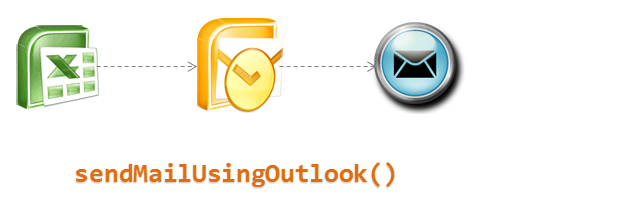
In this article we well learn how to use VBA and Microsoft Outlook to send emails with your reports as attachment.
Scenario
We have an excel based reporting template for the Customer Service Dashboard. We want to update this template using VBA code to create a static version and email it to a list of people. We will define the recipient list in a separate sheet.
Features
1. Code will automatically create necessary folders to save the output file.
2. Email sheet to contain the list of people who are going to receive the report.
3. Sending mail using Microsoft Outlook, primary target is corporate people who are using Outlook as their mail program.

On our VBA project we would need to add references to the below
1. Microsoft Outlook Object Library
2. Microsoft Scripting Runtime Library
Please note the Outlook library will be available depending on the version of Microsoft Outlook installed on your system, in the example workbook the reference is towards version 14 as available with Outlook 2010. If you have a different version of Outlook installed on your system, you need to point to the correct library installed.

We have assumed the data used to create the report is already available in the sheet called “rawData”.
We have then updated the “rawData” sheet with 2 new columns having the Date and Time.
Date has been calculated in the rawData sheets using the Date Function.
=DATE(YEAR(B2),MONTH(B2),DAY(B2))
The time has been calculated by converting the actual time of the call into the relevant 30 minute interval.
=INT((TIME(HOUR(B2),MINUTE(B2),SECOND(B2)))/(1/48))*(1/48)
If you need to setup your report into 15 minutes interval then replace 1/48 with 1/96.
We have then used the COUNTIFS and SUMIFS function to create the data view in the Interval Data sheet.

Understanding the VBA code to send mails
I will be discussing only the key elements of the code here.
Sheets(Array("Cover", "Interval Data", "rawData")).Copy
This list will create a new workbook containing the 3 sheets that we have included within the Array() parameter. If your report has more sheets feel free to add them.
Set objfile = New FileSystemObject
If objfile.FolderExists(xDir & xMonth) Then
If objfile.FileExists(xPath) Then
objfile.DeleteFile (xPath)
newWB.SaveAs Filename:=xPath, FileFormat:=xlOpenXMLWorkbook, Password:="", WriteResPassword:="", ReadOnlyRecommended:=False _
, CreateBackup:=False
Application.ActiveWorkbook.Close
Else
newWB.SaveAs Filename:=xPath, FileFormat:=xlOpenXMLWorkbook, Password:="", WriteResPassword:="", ReadOnlyRecommended:=False _
, CreateBackup:=False
Application.ActiveWorkbook.Close
End If
Else
xNewFolder = xDir & xMonth
MkDir xNewFolder
newWB.SaveAs Filename:=xPath, FileFormat:=xlOpenXMLWorkbook, Password:="", WriteResPassword:="", ReadOnlyRecommended:=False _
, CreateBackup:=False
Application.ActiveWorkbook.Close
End If
The above code checks if the correct folder exists for the report to be saved or not and creates one if not existing. This also takes cares of overwriting the existing report in case you need to re-run the report again during the same day.
Creating the List of recipients
currentWB.Activate

Sheets("Email").Visible = True

Sheets("Email").Select
strEmailTo = ""
strEmailCC = ""
strEmailBCC = ""
xStp = 1
Do Until xStp = 4
Cells(2, xStp).Select
Do Until ActiveCell = ""
strDistroList = ActiveCell.Value
If xStp = 1 Then strEmailTo = strEmailTo & strDistroList & "; "
If xStp = 2 Then strEmailCC = strEmailCC & strDistroList & "; "
If xStp = 3 Then strEmailBCC = strEmailBCC & strDistroList & "; "
ActiveCell.Offset(1, 0).Select
Loop
xStp = xStp + 1
Loop
The above code will create the list of people for whom the report is intended. We make use of the Do Until Loop here to update the 3 variables to hold the TO, CC and BCC list. The actual email addresses are captured from the Email sheet of the report template.
Please note: there should be no blanks in the list when you are defining the same.
Set olApp = New Outlook.Application

Dim olNs As Outlook.Namespace

Set olNs = olApp.GetNamespace("MAPI")

olNs.Logon

Set olMail = olApp.CreateItem(olMailItem)

olMail.To = strEmailTo

olMail.CC = strEmailCC

olMail.BCC = strEmailBCC

olMail.Subject = Mid(xFile, 1, Len(xFile) - 4)

olMail.Body = vbCrLf & "Hello Everyone," _

& vbCrLf & vbCrLf & "Please find attached the " & Mid(xFile, 1, Len(xFile) - 4) & "." _

& vbCrLf & vbCrLf & "Regards," _

& vbCrLf & "Chandoo.Org"
The above code creates a new instance of Outlook and then logs in to your default mailbox, using which we will be sending the mail out to the recipients. We also create the body of the mail and specify the To, CC and BCC list.
olMail.Attachments.Add xPath

olMail.Display
Finally we add the attachment to the email we have created and then using the Display method bring it on the screen. You may also use the .Send method to send the mail directly.
That is all the code we needed to create a copy of the report with selected few sheets and then send them out using VBA. There are a lot of other methods using which you may be able to send out mails, however this specifically helps out to create report templates to use within your organization and send out mails.
Do you also use VBA and Other methods to send mails, if yes please share the same for the benefit of everyone.
Download Excel File
Click here to download the file & save it on your system and use it to understand this technique.
Do you use Excel to automate emails?
I often use Excel to automatically email reports & messages. This is quite useful when you have to send a snapshot of a report to a large team, but need to customize the email for each recipient.
What about you? Have you used Excel to automate emails? What is your experience like? Do you use VBA or some other technique? Please share using comments.
More on VBA & Macros
If you want to learn more about using VBA to automate reporting & email tasks, read these:
- Automatically Generate Report Variations using Excel
- Birthday Reminder & Email in Excel
- What is VBA & Macros? Introduction
- Excel VBA Example Macros
- VBA tutorial videos
Join our VBA Classes
If you want to learn how to develop applications like these and more, please consider joining our VBA Classes. It is a step-by-step program designed to teach you all concepts of VBA so that you can automate & simplify your work.


55 Responses
I’ve written code for Excel to email Commission Statements to Sales People each month – so the commission is firstly calculated using a combination of Access (to manipulate Raw Data from a Mainframe System) and Excel (to put this data into a readable format and calculate commission due – each sales person then has his/her own statement). VBA is then used to run through a list of Sales People, attach the relevant spreadsheet file (sometimes zipping 2 or more files for Sales Team Managers etc) and email to the relevant sales person with a bespoke email message.
This used to be a manual task and take a small team the best part of an afternoon to manual complete.
VBA is fantastic in these situations.
THIS IS EXACTLY WHAT I AM TRYING TO DO ! I need help! Did you use Access to run through the list of people and attach the spreadsheet? Or was this all in excel?
Hi Chandoo and once again huge thanks for the website. It’s truelly awesome!
I was wondering what would be your solution for the notification that Outlook brings up when trying to automatically send the email via VBA? At least I get an notice that a program is trying to automatically send a email on my behalf when I use the .Send method.
Keijo,
Refer to the article from Microsoft on this issue.
http://office.microsoft.com/en-us/outlook-help/i-get-warnings-about-a-program-accessing-e-mail-address-information-or-sending-e-mail-on-my-behalf-HA001229943.aspx
~VijaySharma
Thanks Vijay and the rest of you all for your tips and advices. They are very much appreciated. I’ve already solved the issue with a application.sendkeys command to send the mail, but it isn’t a very “awesome” solution so I was just wondering about other solutions. I’ll be checking out those links that you all send, thanks!
I use the ExpressClickYes application. The basic version is free and works great for me.
For many year, I have used a combination of Excel, Access and Outlook to mail various reports to the proper team members. I use a combination of my own VBA code and email code from http://www.rondebruin.nl/sendmail.htm to help automate the process. I use data from the Excel sheets to determine things like: email suject, email priority, the body of the email, etc. I’ve used this method for so long, I don’t know if I could do it manually any longer.
thanks a ton for the link to this website
that website is awesome !!! such beautiful programs for sending mail with / without attachments
regards
Subu
Good stuff! For users who might want to also venture into creating things like Meetings and Task Requests as well as emails, or want to use additional properties/methods associated with the MailItem object, you might want to check this out:
http://www.experts-exchange.com/Software/Office_Productivity/Office_Suites/MS_Office/A_4316-Automate-Outlook-in-VBA-with-the-OutlookCreateItem-Class.html
Hi Vijay,
Nice stuff, and super handy. I’ve been emailing reports from Excel for years, and finally got tired of writing the full blown code each project.
I created a class module to make this much easier, which may be of some interest to your users. It’s late bound, so no need to set any references, and works with all versions of Outlook. The frame to set up an email becomes very easy as well.
You can find it here if you’re interested: http://www.excelguru.ca/content.php?249-Easy-Outlook-Email-Integration
I email several reports and dashboards to several people each day. I prefer to simply send “screenshots” (using greenshot or similar) in the body on the email rather than trying to inserct worksheet ranges and what not particulary when sending charts.
I have been unable to find a good source of vba to automate this procedure. Everyting I can find only captures worksheet ranges instead of screen captures ( just part of the screen, like when you use the crosshairs in greenshot). If anyone has vba that will capute a partial screenshot based on screen coordinates along with the code to paste that screenshot into an outlook body I would greatly indebted.
Thanks in advance
Steve Bullen’s code comes in very handy for selecting particular sections from a worksheet, copy those to dashboard and then pasting them wherever you need. You can find it at http://www.oaltd.co.uk/excel/default.htm; look for PastePicture.zip. Works like a charm…
I’ve used the outmail thing for mailing gadgets for quite sometime.
I’ve been using a combination of Access, Excel and Outlook to send the reports for some years now. As the data and manipulation of data is straightforward, I always do the manipulation in Access. I have to generate my reports each month, and Access gives me the structure to manipulate without copying formulas etc. Once built, it works for all new added data. And while doing, you build a history. That has proven a good thing as well.
The final report is created in (or exported to) Excel, and send with Outlook. VBA makes it possible to do this without leaving Access.
@Keijo: I used to run a little program called ClickYes to get rid of the Outlook notifications. You can call this program from VBA as well. That was in Office 2003 days.
@Joe: There’s a lot of useful VBA examples around, and Ron de Bruin is one of my favorite places to go, as is Chandoo’s since the last year or so.
Hi Rene,
I agree that Ron DeBruin’s site has the best source of code all in one place for vba to email excel.
The one thing missing is the ability to email partial screenshots in an outlook body.
This is really what I need!
I use Excel and VBA with Novel GroupWise to email task update notifications from a spreadsheet we use for task tracking (Thanks to Chandoo a few years ago for some of the ideas from a TODO LIST posting). The program manager or supervisor can add a task to the job list (each person has a separate worksheet in the shared workbook) then select the rows with the new additions and run the macro. The “canned” e-mail is created with an additional message from the manager and sent to the individual and supervisor with only the updated tasks numbered and listed.
I don’t send the entire worksheet only the contents of the rows and a special few of the columns selected. Not perfect in automation but it works very well manually.
We have just changed to IBM Lotus Notes and I need to change the VBA code next week, so this post is right on time to keep me thinking straight. I have already found the VBA references I need to change to make NOTES work but it is always good to review the basics.
Thanks again Chandoo and Vijay.
Chandoo, you really need some kind of syntax highlighter.
Vijay, thanks for posting this code. I’m confused about a couple of things. Your code has Format(xDate, “mm mmmm yy”) in it, I think you meant Format(xDate, “dd mmmm yy”)? Why do you check if a file exists before deleting it? Also, why do you use FSO instead of ‘Dir’ and ‘Kill’ when you already use ‘MkDir’? Thanks for your time.
@JP,
Thanks for pointing out the “dd”, a typo from me on this.
As you can see the report was desinged at 30 minutes interval and if you needed to run the report multiple times during the day, it would be unnecessary to create multiple copies of the same, hence the delete code.
FSO is used to bring another object for people to learn, as a lot of time people do not know what are the objects / libraries that exist and how to make use of them.
~VijaySharma
Vijay…Help! I need to have the file saved in a folder in another directory! “O:\Profitability\2016” How do I do this? Where do I change it in the code? I would like the file name to be in the same format. Right now the macro is telling it to create a folder to save the file in the same place as the template file. I want the created folder to save in that directory on the network. Help!! Thanks!!!
I’ve been using Excel to send meeting notices to our annual internal technical conference attendees. I get an extract of the data from our registration system, then sort the data by technical session. Each session is 1 or 2 hours, and there are 3 days of sessions.
I then use VBA to build a meeting notice and add the attendees names to the meeting notice. The notice shows the data and time of the session, along with the room location. The nice part about this is that each technical session is then put in everyone’s calendar.
Since I am the originator of the meetings, I can easily send updates to the attendees if anything about the session changes (i.e, room location changes). Attendees can also see their entire schedule in outlook and on their smart phones. To do this manually would be nearly impossible. The VBA program sends out thousands of meeting notices in a few minutes through this automated process, and it works flawlessly.
I have used the VBA in Excel 2007 to send emails for bulk emails that I need, has significantly increased my productivity.
The Outlook version I have is 2007. For every email that the XLS tries to send I have to “Allow/Deny” is there a way to remove this “security” feature to allow the email/s to be directly sent w/o user intervention?
Hi everbody, I’m looking for a macro that would allow me to email thet active worksheet but that the email address is not hard coded; something that allows me enter the email address before sending it.
Any help would be very much appreciated
Hi sir,
I have tried for send mail using Excel, but When I am trying to add
5 mailing ids in the “CC” column it’s showing #value error message.
Please suggest how to send mail more than 4 or 5 people at a time.
Thanks,
ram
I am really amazed. Today I spent a lot of time searching for something interesting on this topic. Finally I found your blog. Thanks for that!
<a href=”http://medcaremso.com”><b>Medical Billing Services</b></a>
I have several basic email messages saved as xxx.msg files from outlook. I use these as templates for emailing some specific items. I’d like to incorporate the use of the the .msg file (basically just the body). I can’t seem to get it to work. Any thoughts?
Thanks,
John
Thanks for providing detailed information about email sending though Excel VB & outlook.
Open Multiple URL
Thanks for the post. I have been using a program that i found at http://insightaz.com/. They helped me the first time and then when i has reoccurring reports to be done they helped me set up a system that i could use each time a report was needed.
Hi Chandoo,
Nice one, if we are using lotus notes than what changes needs to made in vba. Please let me know.
Regards,
Rayudu
I have followed tutorial guidelines and succeed to send email thru Outlook express 2010. But when I used same codes and try to send email on Outlook 2007 it is showing error. Can someone help me how to debug error, I am novice and do not understand much concept. I can forward my workbook but dont know how to attach in this forum 🙁
Hi Vijay,
Cn you please advice what would be the Vba code for sending email from excel to gmail instead of outlook?
Hi Vijay,
I have tried to use your vb code in order to send an email from excell, however get the following “Compile error” when trying to run the code:
“User defined type not defined” and points to the following section in your code:
Dim olApp As Outlook.Application
Please note that i am a novice when it comes to the use of VB code in excel, however am able to follow some of the logic if explained in laymens terms:)
I would very much appreciate your assistance or some direction to resolve.
kind regards
George
I have a VBA code that helps me send all of my reports via e-mail in Excel. Send single worksheet as an attachment from Excel with VBA code: Excellent VBA Code. Works GREAT !!!
Instead of entering the To: & CC: e-mails manually, I want to pull the e-mail addresses from a separate worksheet called “E-Mail List”. The (a1) has the “To” e-mail address and (b1) has the “CC” e-mail address. I know this is relatively simple to solve but I cannot figure out what I am doing wrong.
Thank you everyone in advance.
Wb2.SaveAs FilePath & FileName & xFile, FileFormat:=xFormat
With OutlookMail
.To = “thatdudesname@thatdudescompany.com”
.CC = “”
.BCC = “”
.Subject = “kte features”
.Body = “Please check and read this document.”
.Attachments.Add Wb2.FullName
.Send
End With
Wb2.Close
Kill FilePath & FileName & xFile
Set OutlookMail = Nothing
Set OutlookApp = Nothing
Application.ScreenUpdating = True
End Sub
Hi Team,
I am into MIS reporting and wanted a help in automating a report.
i have a report in which 73 report need to be send and for each report i want he excel content to be pasted on my mail body and the excel to be attached. for the same i have written 73 macro codes for each individual report.
Now its a manual activity to send each report daily so i wanted to know is there any possible way where i can automate to the fullest way so that it makes my job easier.
Need your help.
Anoop
@Anoop
have a look at:
http://chandoo.org/wp/2011/09/14/hui%E2%80%99s-excel-report-printer/
why i cannot run this there is always an error at the side of declaring the variables…
in outlook.application
Hi,
Is there any possible way to create a hyperlink of inbox mail with excel, so by click to the excel the particular mail can be opend.
I am trying to send an html page embedding it in the mail body. I have used the htmlbody property of mailitem. But when i use the .htm file in this property the actual mail body shows the file not found error. Can anyone pleaee help with a piece of vba code to resolve this?
i need to reply the outook mail. search mail using subject and earliaset mail. please help. need to do this from vba code on excel macro
Hi team Any one help me out to rectified this need to change lotus mail converted into outlook how can we use this thru out look please help
vb code given below
Sub sendmail()
‘
‘ sendmail Macro
‘
Dim dte As Date
Dim mon As Integer
Dim yr As Integer
Dim mailcount As Integer
Dim filtercol As Integer
Dim Maildb As Object
Dim MailDoc As Object
Dim attachME As Object
Dim Session As Object
Dim EmbedObj1 As Object
Dim UserName As String
Dim MailDbName As String
Dim recipient As String
Dim ccRecipient As String
Dim bccRecipient As String
Dim subject As String
Dim finlsub As String
Dim stSignature As String
Dim addname As String
Dim bodytext As String
Dim Attachment1 As String
Dim Attachment2 As String
Dim FilName As String
Application.DisplayAlerts = False
dte = Date
mon = Month(dte)
yr = Year(dte)
Attachment2 = Range(“F15”).Value
Sheets(“MAIL-ID”).Activate
Range(“AG2”).Value = 0
mailcount = Range(“AG14”).Value
subject = Range(“F2”).Value
bodytext = Range(“F6”).Value & Chr(10) & Range(“F7”).Value & Chr(10) & Range(“F8”).Value & Chr(10) & Range(“F9”).Value & Chr(10) & Range(“F10”).Value & Chr(10)
addname = Range(“F12”).Value
If mon = 12 Then GoTo exitsub
exitsub: If UCase(Environ$(“USERDOMAIN”)) “ONEAIRTEL” Then MsgBox “This is not your copy of Filtermails ” & Chr(10) & “You are an UNAUTHORISED USER “, vbCritical
Exit Sub
validated: If mailcount = 0 Then MsgBox “There are no recepients in your list.”, vbCritical, “WHAT ARE YOU DOING?”
For x = 0 To (mailcount – 1)
Sheets(“MAIL-ID”).Select
Range(“AG2”).Value = x + 1
FilName = (Environ$(“temp”)) & “\temp.xls”
If Dir(FilName) “” Then
Kill FilName
End If
filtercol = Range(“F4”).Value
Range(“AG4”).Select
Selection.Copy
Range(“AG7”).Select
Selection.PasteSpecial Paste:=xlPasteValues, Operation:=xlNone, SkipBlanks _
:=False, Transpose:=False
Application.CutCopyMode = False
recipient = Range(“AG7”).Value
Range(“AG5”).Select
Selection.Copy
Range(“AG8”).Select
Selection.PasteSpecial Paste:=xlPasteValues, Operation:=xlNone, SkipBlanks _
:=False, Transpose:=False
Application.CutCopyMode = False
ccRecipient = Range(“AG8”).Value
If ccRecipient = “0” Then
ccRecipient = “”
End If
Range(“AG6”).Select
Selection.Copy
Range(“AG9”).Select
Selection.PasteSpecial Paste:=xlPasteValues, Operation:=xlNone, SkipBlanks _
:=False, Transpose:=False
Application.CutCopyMode = False
bccRecipient = Range(“AG9”).Value
If bccRecipient = “0” Then
bccRecipient = “”
End If
Range(“AG3”).Select
Selection.Copy
Range(“AG11”).Select
Selection.PasteSpecial Paste:=xlPasteValues, Operation:=xlNone, SkipBlanks _
:=False, Transpose:=False
Application.CutCopyMode = False
Range(“AG11”).Copy (Sheets(“DATA”).Range(“O60000”))
Sheets(“DATA”).Select
If addname = “YES” Then
finlsub = subject & ” ( ” & Range(“O60000″).Value & ” )”
finlbody = “Dear ” & Range(“O60000”).Value & Chr(10) & Chr(10) & bodytext
End If
If addname = “NO” Then
finlsub = subject
finlbody = bodytext
End If
Range(“A1”).Select
If Range(“a1”) = “” Then
MsgBox “NO or Wrong arrangement of Data in DATA Sheet”, vbCritical
Exit For
End If
Selection.AutoFilter
Selection.AutoFilter field:=filtercol, Criteria1:= _
Range(“O60000”).Value
Range(“A1″).Select
Range(Selection, Selection.End(xlDown)).Select
Range(Selection, Selection.End(xlToRight)).Select
Selection.Copy
Workbooks.Add
ActiveSheet.Paste
Cells.Select
Cells.EntireColumn.AutoFit
ActiveWorkbook.SaveAs Filename:=FilName, FileFormat:= _
xlNormal, Password:=””, WriteResPassword:=””, ReadOnlyRecommended:=False _
, CreateBackup:=False
ActiveWorkbook.Close
Set Session = CreateObject(“Notes.NotesSession”)
UserName = Session.UserName
MailDbName = Left$(UserName, 1) & Right$(UserName, (Len(UserName) – InStr(1, UserName, ” “))) & “.nsf”
Set Maildb = Session.GETDATABASE(“”, MailDbName)
If Maildb.IsOpen True Then
On Error Resume Next
Maildb.OPENMAIL
End If
Set MailDoc = Maildb.CreateDocument
MailDoc.form = “Memo”
stSignature = Maildb.GetProfileDocument(“CalendarProfile”) _
.GetItemValue(“Signature”)(0)
With MailDoc
.SendTo = recipient
.copyto = ccRecipient
.blindcopyto = bccRecipient
.subject = finlsub
.body = finlbody & vbCrLf & vbCrLf & stSignature
End With
MailDoc.SaveMessageOnSend = True
Attachment1 = FilName
If Attachment1 “” Then
Set attachME = MailDoc.CREATERICHTEXTITEM(“Attachment1”)
Set EmbedObj1 = attachME.EmbedObject(1454, “”, Attachment1, “Attachment”)
Set EmbedObj2 = attachME.EmbedObject(1454, “”, Attachment2, “Attachment”)
MailDoc.CREATERICHTEXTITEM (“Attachment”)
End If
MailDoc.PostedDate = Now()
MailDoc.send 0, recipient
Set Maildb = Nothing
Set MailDoc = Nothing
Set attachME = Nothing
Set Session = Nothing
Set EmbedObj1 = Nothing
finlsub = Null
finlbody = Null
Next
Sheets(“MAIL-ID”).Activate
Range(“A1”).Select
MsgBox “Thank you for using this MACRO”
End Sub
Can any one help me to create one macro.
My work is very simple I need to send multiple email from excel in my excel there are multiple list of to email and cc email excel also contain subject and body of email.
All this is my requirement.
@Kuldeep
This has been asked several times and so using the Search Box at the Top Right of each screen may be a good place to start
If that doesn’t help I’d suggest asking the question in the Chandoo.org Forums http://forum.chandoo.org/
Attach a sample file with an example of what you are after
Invaluable discussion . I am thankful for the points – Does anyone know where my business could acquire a fillable NY DTF ST-330 copy to work with ?
I want to send multiple mails, different different data to different different person using one VBA/Macro, is it possible?
check my post from today, answer is Yes.
it needs some serouis work/thinking
But if you have 1 report for x entities you can send them to each entity one by one with VBA. After pushing the button you will barely have time for tea 🙂
Can someone help me? I have the code working perfectly with my sheet. However…… I need all the amail features but I need the file to attach as PDF not as an excel file. Again, I need all the features with the email automation, saving the email attachment with the cell reference. Please view my code and tell me how It can attach as a pdf instead of an excel file. Thanks!!!!
Option Explicit
Sub ExportEmail()
Dim objfile As FileSystemObject
Dim xNewFolder
Dim xDir As String, xMonth As String, xFile As String, xPath As String
Dim OlApp As Outlook.Application
Dim OlMail As Outlook.MailItem
Dim NameX As Name, xStp As Long
Dim xDate As Date, AWBookPath As String
Dim currentWB As Workbook, newWB As Workbook
Dim strEmailTo As String, strEmailCC As String, strEmailBCC As String, strDistroList As String
Dim ws As Worksheet
AWBookPath = ActiveWorkbook.Path & “\”
Application.ScreenUpdating = False
Application.DisplayAlerts = False
Application.StatusBar = “Creating Email and Attachment for ” & Format(Date, “dddd dd mmmm yyyy”)
Set ws = Worksheets(“Control”)
Set currentWB = ActiveWorkbook
xDate = Date
‘******************************Grabbing New WorkBook and Formatting*************
Sheets(Array(“Control”)).Copy
Set newWB = ActiveWorkbook
Range(“A1”).Select
Sheets(“Control”).Select
‘******************************Creating Pathways*********************************
xDir = AWBookPath
xMonth = Format(xDate, “mm mmmm yy”) & “\”
xFile = “Business Trip – Request Form for ” & Range(“b7″).Text & ” ” & Format(xDate, “mm-dd-yyyy”) & “.xlsx”
xPath = xDir & xMonth & xFile
‘******************************Saving File in Pathway*********************************
Set objfile = New FileSystemObject
If objfile.FolderExists(xDir & xMonth) Then
If objfile.FileExists(xPath) Then
objfile.DeleteFile (xPath)
newWB.SaveAs Filename:=xPath, FileFormat:=xlOpenXMLWorkbook, Password:=””, WriteResPassword:=””, ReadOnlyRecommended:=False _
, CreateBackup:=False
Application.ActiveWorkbook.Close
Else
newWB.SaveAs Filename:=xPath, FileFormat:=xlOpenXMLWorkbook, Password:=””, WriteResPassword:=””, ReadOnlyRecommended:=False _
, CreateBackup:=False
Application.ActiveWorkbook.Close
End If
Else
xNewFolder = xDir & xMonth
MkDir xNewFolder
newWB.SaveAs Filename:=xPath, FileFormat:=xlOpenXMLWorkbook, Password:=””, WriteResPassword:=””, ReadOnlyRecommended:=False _
, CreateBackup:=False
Application.ActiveWorkbook.Close
End If
‘******************************Preparing Distribution List *********************************
currentWB.Activate
Sheets(“Email”).Visible = True
Sheets(“Email”).Select
strEmailTo = “”
strEmailCC = “”
strEmailBCC = “”
xStp = 1
Do Until xStp = 4
Cells(2, xStp).Select
Do Until ActiveCell = “”
strDistroList = ActiveCell.Value
If xStp = 1 Then strEmailTo = strEmailTo & strDistroList & “; ”
If xStp = 2 Then strEmailCC = strEmailCC & strDistroList & “; ”
If xStp = 3 Then strEmailBCC = strEmailBCC & strDistroList & “; ”
ActiveCell.Offset(1, 0).Select
Loop
xStp = xStp + 1
Loop
Range(“A1”).Select
‘******************************Preparing Email*********************************
Set OlApp = New Outlook.Application
Dim olNs As Outlook.Namespace
Set olNs = OlApp.GetNamespace(“MAPI”)
olNs.Logon
Set OlMail = OlApp.CreateItem(olMailItem)
OlMail.To = strEmailTo
OlMail.CC = strEmailCC
OlMail.BCC = strEmailBCC
OlMail.Subject = Mid(xFile, 1, Len(xFile) – 4)
OlMail.Body = vbCrLf & “Hello,” _
& vbCrLf & vbCrLf & “Please find attached the ” & Mid(xFile, 1, Len(xFile) – 4) _
& vbCrLf & vbCrLf & “Regards,” _
& vbCrLf & vbCrLf & ws.Range(“b7”).Value
OlMail.Attachments.Add xPath
OlMail.Display
Application.StatusBar = False
Application.ScreenUpdating = True
Application.DisplayAlerts = True
End Sub
Hi Laura, you can use “ActiveSheet.ExportAsFixedFormat Type:=xlTypePDF” etc to save your current sheet as PDF. If you store the filename in a variable like “PDFfile” (DIM as String) you can use that name to attach the PDF in your mail.
Looks somewhat like this:
Dim blabla
Thisfile = Range(“S1”).Value
PDFFile = DestFolder & Application.PathSeparator & Thisfile & “.pdf”
ActiveSheet.ExportAsFixedFormat Type:=xlTypePDF, Filename:=PDFFile, Quality:=xlQualityStandard, IncludeDocProperties:=True, IgnorePrintAreas:=False, OpenAfterPublish:=False
then you have your PDF file on a serverlocation and you can attach it to a mail
I need to change the code bellow to save as .xlsm. I need the macro to stay with the attached file I am sending. Thi is the code I have so far:
Set objfile = New FileSystemObject
If objfile.FolderExists(xDir & xMonth) Then
If objfile.FileExists(xPath) Then
objfile.DeleteFile (xPath)
newWB.SaveAs Filename:=xPath, FileFormat:=xlOpenXMLWorkbook, Password:=””, WriteResPassword:=””, ReadOnlyRecommended:=False _
, CreateBackup:=False
Application.ActiveWorkbook.Close
Else
newWB.SaveAs Filename:=xPath, FileFormat:=xlOpenXMLWorkbook, Password:=””, WriteResPassword:=””, ReadOnlyRecommended:=False _
, CreateBackup:=False
Application.ActiveWorkbook.Close
End If
Else
xNewFolder = xDir & xMonth
MkDir xNewFolder
newWB.SaveAs Filename:=xPath, FileFormat:=xlOpenXMLWorkbook, Password:=””, WriteResPassword:=””, ReadOnlyRecommended:=False _
, CreateBackup:=False
Application.ActiveWorkbook.Close
End If
Hi,
I am trying to send a specific page from a word document through Outlook in Body, I am unable to do. I am able to write a code to send as an attachment. But I need to send it via Body of the email, which will reduce lots of time. Kindly help me in this.
I wrote a code, which will browse and open a word document. I do no how to select specific page and mail them using Outlook. Please help!
Sub browse()
Dim FSO As Object
Dim blnOpen
strFileToOpen = Application.GetOpenFilename(Title:=”Please choose a file to open”, _
FileFilter:=”Word Files *.doc* (*.doc*),”)
If strFileToOpen = False Then
MsgBox “No file selected.”, vbExclamation, “Sorry!”
Exit Sub
Else
Sheet2.Range(“G5”).Value = strFileToOpen
Set objWord = CreateObject(“Word.Application”)
Set objDoc = objWord.Documents.Open(strFileToOpen)
objWord.Visible = True
End If
End Sub
Hi all,
I use Excel to generate individual mails to alle Dutch municipalities.
I have a workbook with a (dashboard) report and financial data from 400 cities. The workbook also contains a list of 400 email adresses (1 or more contactperson(s) for each city).
After some trial and error work and some serious copy-pasting code from the net I now have the following VBA code working:
1 run report for city 1
2 export report as PDF to serverlocation
3 create mail (text hard coded in VBA – still need easier way…)
4 attach PDF (and any other attachement if needed)
4 send mail to contact person (ore 2 or 3)
5 start again with city 2 > loop for x times (400 in this case but flexible)
This all runs in 15 minutes where my co-workers were busy for 5 days before I build them this report. I’ve build in a message in the statusbar to tell how many reports of x have been send to follow progress.
First a quarterly service this has now evolved to a monthly service and I use the tricks I learned for more projects like this.
I started last year with VBA to automate repetitive tasks for my client. It’s amazing what you can do with a little bit of VBA 🙂
BTW I’m a big fan of Chandoo!
Best Regards, Diederik
How do I change the file path to where I want the files saved from being in the same folder as the file?
I am using the code on this page. I want it sent to another directory. I want the file to stay where it is, but the files that are created I want them to go to “L:\”
This is an easy one. Thanks!
I have a code to send an email text to the recipient, it works on 32 bit office 2016, however generates a “Microsoft Installer error” in 64 bit office 2016.
Sub testMail()
Dim OutApp,outmail As Object
Set OutApp = CreateObject(“Outlook.Application”)
Set OutMail = OutApp.CreateItem(0)
With OutMail
.To = “r@r.com”
.Subject = “Reports”
.HTMLBody = “Hello”
.Display
End With
End Sub
This code generates error “Microsoft Software Installer error has occurred”. I am using Win7 64 bit and office 2016 64 bit. When I click “Debug”, it highlights the line “Set OutApp = CreateObject(“Outlook.Application”)”. Help!!!!
hi anyone help me for i have 10 telephone no. i need to send to one person one bye one with same subject i need VBA code for that.