

I have been very busy with VBA Classes background work. Today, I want to quickly share a few things about the upcoming VBA Classes.
I have been running online training programs since Jan, 2010. I have trained more than 900 students till date. Still, whenever I am launching a new program, I could feel that familiar sense of eagerness, tension and tremendous enthusiasm building up. I feel eager because I want to meet you, teach you and learn from you. I feel tensed because I want to do it right. I feel enthusiastic because these training programs give me a lot of new ideas and open-up new possibilities.
1. Can we learn about Excel Dashboards too?
Of course yes. After receiving at least a dozen emails, I am now adding a 4th option to VBA Classes. You can get everything in Excel School + Dashboard Lessons apart from VBA Classes – all in one place. I think this is a great value for money as you will get 50 hours of lessons + at least 75 workbooks with lots of examples, tips & ideas.
Please look at the below table to understand various VBA School options: 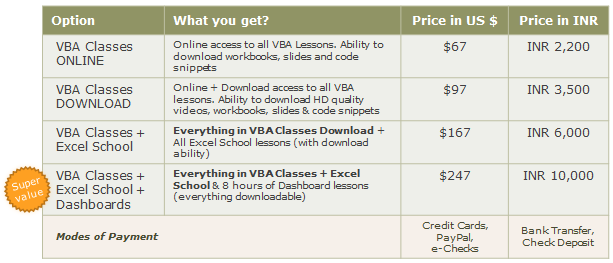
2. How much Excel (and VBA) should I know to join this course?
This program is not aimed at Excel Newbies. But if you know what a spreadsheet is, can create a simple formula and chart without choking yourself, then you are a good candidate for this course.
If you do not know much about Excel (ie not familiar with concepts like conditional formatting, pivot tables, charts, formulas beyond SUM & AVERAGE…) then you should consider joining VBA Classes along with Excel School. This way, you can learn various Excel Topics before plunging in to VBA.
3. What if I get busy after joining and could not attend a week or two?
No problemo!
Every week, we will be posting new lessons to the classroom area. You can visit the online classroom once a week (or two) and finish the lessons. If you are away for a few weeks, you can always catch-up. Moreover, you can also download the lesson videos and watch them at leisure.
4. Any Discounts for my team?
Yes, you can get 25% discount if you enroll 3 or more people in to the program. During checkout, enter the quantity to get the discount applied automatically.
5. Can I pay by Bank transfer or in Indian Rupee?
Yes. Send me an email at chandoo.d @ gmail.com and I will give you my bank account details.
Also, We have special pricing for you if you chose to pay in Indian Rupee (this is because, I get to save on Credit Card processing charges & other commissions). Refer to the table in (1) to know how much to pay.
Just visit http://chandoo.org/wp/vba-classes/inr-pricing/ (after 8th May) or drop me an email for details about my bank account details.
A Demo Lesson:
Well, this not entirely a demo lesson, more like a VBA Example that I created to answer a question one of the blog reader’s asked. In this 4 minute video, you can learn how to write a simple 1 line macro to change date format of selecte cell(s).
See it below (or here)
Doubts or Questions about VBA Classes?
Please send me an email at chandoo.d@gmail.com or call me at +1 206 792 9480 +91 814 262 1090. I will be glad to help you out.
Remember: Our VBA Class‘ first batch registrations open on Monday – 9th of May.


6 Responses
How many total hours of training?
U R THE MAN MR. CHANDOO
DO U GIVE THIS CLASS WITH EXCEL 2007?
@Dan l… About 18 hours, but we may expand or shrink during the course depending on what students want.
@Saul.. yes, we will be using Excel 2007 for the lessons.
Thanks, Chandoo!
What’s your advice on using the “Crtl”+”Key”? I normally don’t use the short cut key because I don’t want to over-write existing one provided by Excel. For instance, we use crtl+c and crtl+v all the time so picking Crtl+c or v would not be an ideal way. But given my limited knowledge in Excel, which short cut keys are currently blank on Excel that we can use?
@Fred… I suggest cross checking with a list of shortcuts like this: http://chandoo.org/wp/2010/02/22/complete-list-of-excel-shortcuts/ to ensure your short cut does not overlap.
The approach I use is somewhat different though: I just try to give it a shortcut that I do not use. For eg. something like CTRL+SHIFT+K is something that I dont use (and dont know what it is for), so I can assign it to a macro.
Subscribed and waiting for May 23