How many hours did Johnny work? [Excel Homework]

Share

Facebook
Twitter
LinkedIn

Story of Johnny, Hard working atom splitter:

Meet Johnny, who lives by the intersection of lane 2345, and BAG street. Johnny (or little Jon as friends call him) is a hard working family guy. He works at local nuclear power plant in a neighborhood named Sheet3. Due to a recent re-organization at work place, Jon found himself reporting to an almost crazy boss named “Bill Lumbergh”.

Lumbergh asking Johnny to split atoms manully before its too late.. or else...,Now, Lumbergh is not your everyday crazy boss, he is so much more than that. So, one day Lumbergh walks over to Jon’s desk and tells him, “Look Jon, we are having issues in the particle accelerator in the basement. It doesn’t seem to split atoms alright. So I need you to go there and split atoms manually. We got 12,789,000 atoms to be split before next weekend. So I am gonna go ahead and ask you to work on it. Ummkay?

Just when Johnny thought of uttering a curse, Lumbergh came back and reminded, “Oh Johnny, remember to log how much time you are spending splitting atoms. I need you to tell me how many hours you worked for every million atoms. Make sure you follow the latest Timesheet report formats, or else…,

Johnny muttered a couple of real ugly cuss words that are not blog worthy and went about his business of splitting atoms. He managed split only 11 million of them before the deadline given by Lumbergh. Those darned atoms!

Also, Johnny logged the time he spent for every million atoms using, well, excel. Like this:
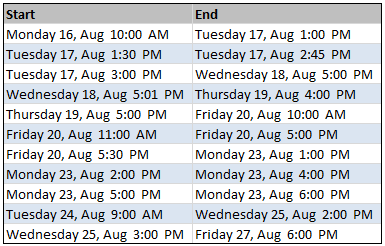
Data - Start and End times for each task - Calculating working hours between 2 given dates

(Download the data)

Your homework:

Johnny needs your help to figure out how many hours he worked in total (as well as for each million). He is already tired hunting a missing electron in the basement alleys. So don’t tell him to count manually. He wants to have an excel formula that tells him how many hours he worked given a start and end date in cells A1 and A2 respectively. Remember,

  • Johnny never works after 6pm or before 9am
  • Johnny never works on weekends.
  • Lets say Johnny doesnt take any lunch breaks (he has developed a taste for those higgs bosons sandwich with positron milk shake).

So I am gonna go ahead and ask you to complete this homework before the weekend. When you got the correct formula, come back here and post it in comments. Ummkay?

More excel homework:

PS: If you feel lost, that is because you have not seen office space. Go watch it.
PPS: if you still feel lost, that is because you do not know NETWORKDAYS. Go learn it.

Facebook
Twitter
LinkedIn

Share this tip with your colleagues

Excel and Power BI tips - Chandoo.org Newsletter

Get FREE Excel + Power BI Tips

Simple, fun and useful emails, once per week.

Learn & be awesome.

Welcome to Chandoo.org

Thank you so much for visiting. My aim is to make you awesome in Excel & Power BI. I do this by sharing videos, tips, examples and downloads on this website. There are more than 1,000 pages with all things Excel, Power BI, Dashboards & VBA here. Go ahead and spend few minutes to be AWESOME.

Read my storyFREE Excel tips book

Overall I learned a lot and I thought you did a great job of explaining how to do things. This will definitely elevate my reporting in the future.
Rebekah S
Reporting Analyst
Excel formula list - 100+ examples and howto guide for you

From simple to complex, there is a formula for every occasion. Check out the list now.

Calendars, invoices, trackers and much more. All free, fun and fantastic.

Advanced Pivot Table tricks

Power Query, Data model, DAX, Filters, Slicers, Conditional formats and beautiful charts. It's all here.

Still on fence about Power BI? In this getting started guide, learn what is Power BI, how to get it and how to create your first report from scratch.

13 Responses to “Data Validation using an Unsorted column with Duplicate Entries as a Source List”

  1. Vipul says:

    Pivot Table will involve manual intervention; hence I prefer to use the 'countif remove duplicate trick' along with 'text sorting formula trick; then using the offset with len to name the final range for validation.

  2. Rich says:

    if using the pivot table, set the sort to Ascending, so the list in the validation cell comes back alphabetically.

  3. Kieranz says:

    Hui: Brillant neat idea.
    Vipul: I am intrigued by what you are saying. Please is it possible to show us how it can be done, because as u said Hui's method requires user intervention.
    Thks to PHD and all
    K

  4. sam says:

    Table names dont work directly inside Data validation.
    You will have to define a name and point it to the table name and then use the name inside validation
    Eg MyClient : Refers to :=Table1[Client]
    And then in the list validation say = MyClient

  5. Vipul says:

    Kieranz,
    Pls download the sample here http://cid-e98339d969073094.skydrive.live.com/self.aspx/.Public/data-validation-unsorted-list-example.xls
    Off course there are many other ways of doing the same and integrating the formulae in multiple columns into one.

  6. Vipul says:

    Pls refer to column FGHI in that file. Cell G4 is where my validation is.

  7. Kieranz says:

    Vipul:
    Many thks, will study it latter.
    Rgds
    K

  8. [...] to chandoo for the idea of getting unique list using Pivot tables.  What we do is that create a pivot table [...]

  9. Playercharlie says:

    @Vipul:

    Thanks, that was awesome! 🙂

  10. Vipul says:

    @Playercharlie Happy to hear that 🙂

  11. Enrique says:

    Great contribution, Hui. Solved a problem of many years!

  12. FARIS says:

    Thanks to you, A LOT

  13. Mohamed says:

    Hi Hui,
    Greeting
    hope you are doing well.
    I'm interested to send you a private vba excel file which i need to show detail of pivot in new workbook instead of showing in same workbook as new sheet.

    Please contact me on muhammed.ye@gmail.com

    Best Regards

Leave a Reply