

When looking at a big table of analysis (or data), it would make our life simpler if the selected cell’s column and row are highlighted, so that we can instantly compare and get a sense of things. Like this:
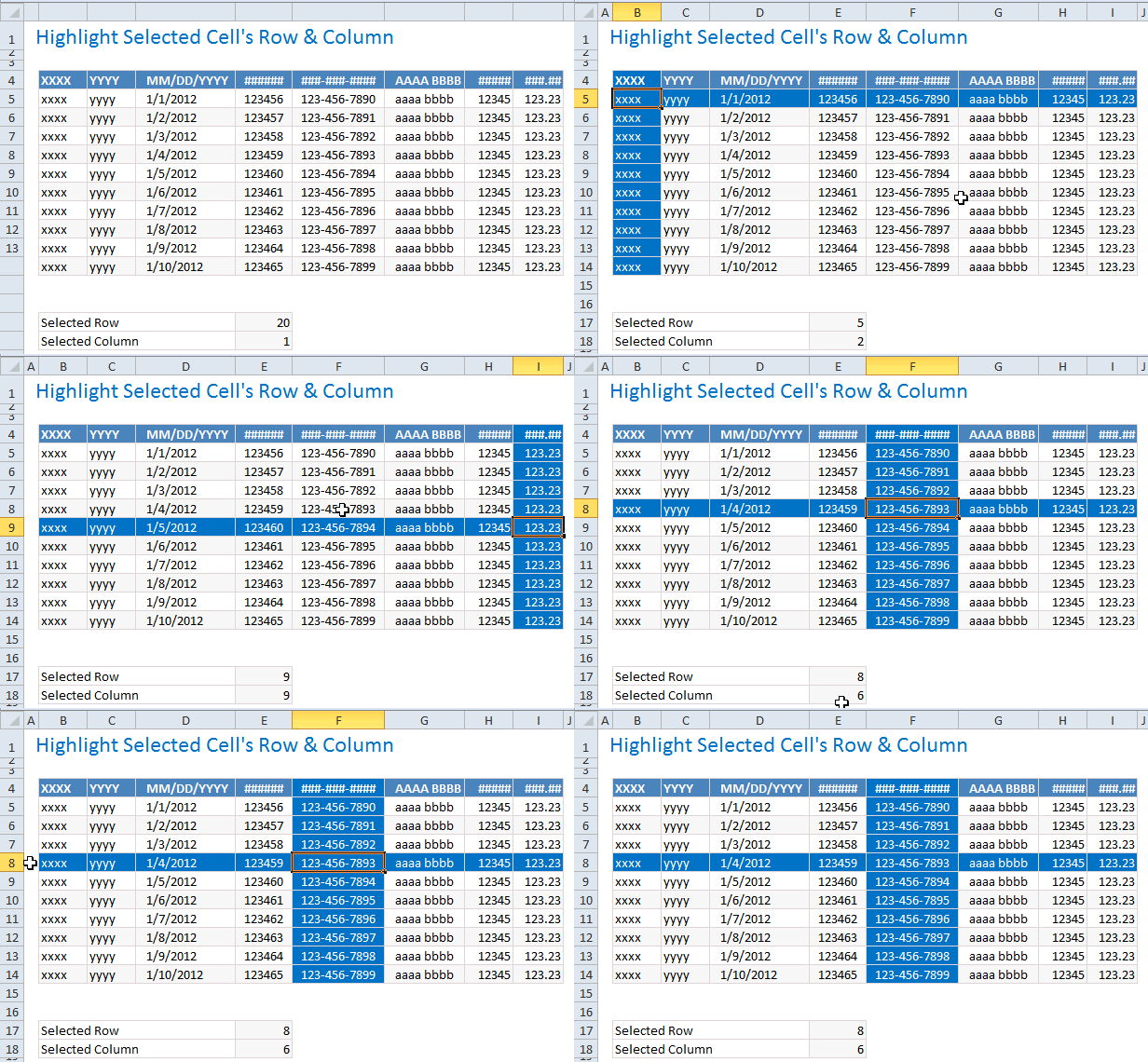
Who doesn’t like a little highlighting. So lets learn how to do highlighting today.
Step 1: Identify the area for highlighting
This is simple, unless you are AUI (analyzing under influence). Lets assume that we are dealing with a range of cells in B4:I14
Step 2: Use 2 cells to capture the selected row & column details
Outside our highlight range, lets set aside 2 cells (E17 & E18 in this case) for keeping the details of which row & column needs to be highlighted.
We can call these cells selRow & selCol.
Step 3: Unleash the VBA magic
- Right click on the sheet name & choose ‘view code’.
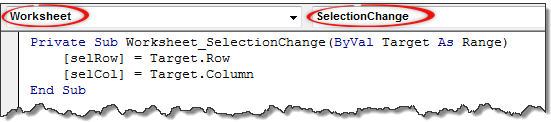
- Choose Worksheet & Selection Change from the drop-downs.
- Excel would add a blank
Worksheet_SelectionChange()sub - Write the below lines of code.
[selRow] = Target.Row[selCol] = Target.Column
- Done. So much simpler than using floo network or transmogrifying muggles.
Step 4: Add conditional formatting to highlight selected cell’s row & column
Now that we know which row & column should be highlighted, it is a simple matter of switching on Excel’s highlighting charm – Conditional Formatting.
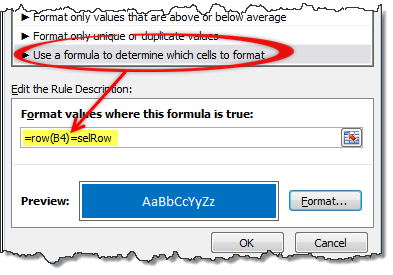
Select the entire range (B4:I14) and go to conditional formatting > new rule
Select the rule type as Use a formula… and use a below rules.
=ROW(B4) = selRow- Apply formatting
- Repeat the steps & this time use the rule
=COLUMN(B4) = selCol
Step 5: Show off.
Incorporate this technique in to your dashboard or weekly report. Watch the socks knocked off your boss’. Bask in the glory. Repeat and enjoy.
Bonus Tip: Use similar technique to enhance user inputs
You can use similar idea to conditionally show messages on your worksheets. See this demo.

I am not telling you how to do this. But I know you are awesome enough to figure this out.
Download Example File
Click here to download example file & understand how to use this technique.
Do you use highlighting techniques in your reports & analysis?
I always use conditional formatting & light-weight VBA to enhance my dashboards and analysis. Especially conditional formatting is almost a magical way to make stunning reports & show off things that are important.
What about you? Do you use these techniques often? what is your experience like? Please share your tips & ideas using comments. I am all ears.
Transmogrify your boring work to awesome – Check out!
- Interactive sales chart using Excel
- Show details on demand using simple VBA
- Highlight points in scatter & line charts
- Display alert symbols in dashboards to grab attention
- Highlight top 10 values using conditional formatting
Also see introduction to conditional formatting & VBA to understand to get the basics right.
For more potent magic, please consider joining our Online VBA Classes. You are going to leave everyone spellbound.


70 Responses
Nice Chandoo,
I’ve used this before too. Also used it for filling textboxes of an userform. When clicking on a cell the macro’s shows the userform and copies the values of cells around the selected one in the textboxes.
Peter
I am a bit AUI. 🙂 I was confused at first, then I disected your example and figured it out. Now I am going to use this in my reports.
Thank you. I may be joining a class soon. I was excited that I did it. But I hadn’t figured out the significance of the EPC% example.
Thanks that was fun, my brain is happy.
Hi Chandoo,
This is very cool, however I receive the below error and I am using Excel 2003.
Run-time Error ‘424’:
Object required
Thanks
Sawan
Nice tip.
I really like the user input prompt idea as well.
Sawan,
In your VBA Selection Change event code, write:
Range(“SelRow”) = Target.Row
Range(“SelCol”) = Target.Column
Brant
Brant, tried the Range (“SelRow”)=Target.Row, but got another error
Run-time error ‘1004’
Method ‘Range’ of object ‘_worksheet’ failed
can you please help advise? many thanks!
I also received runtime error 424 then made the suggested changes, and now receive runtime error ‘1004’. Any ideas?
@Sawan, Jenny & Michelle… Can you try this file:
http://img.chandoo.org/vba/highlight-row-column-v2.xlsm
@chandoo
Thanks for the revision, I no longer have the runtime error. BUT, after applied the conditional formatting, nothing happened when I click the cell. Not sure where I may lost. Any comments? Thanks again in advance!
Dear Chandoo,
I have tried both ways as you explained here
Code-1
———
SelCol=Target.Column
SelRow=Target.Row
Code – 2
———-
Target.Calculate
And did the format as you mentioned multiple times, deleted the format and Redid the same..Still not working. When I was using Code-1 It was giving me Error-424 but while using the Code-2 – No Error but not highlighting as expected. Kindly help me further.Thank you
Forget to mention, I downloaded the file from your link and it is working. I am using Excel 2013
I have downloaded your above linked xL in that i have added new sheet and followed the same steps to high lite the row column but its not working and there is no error too. can u pls help me to fix that.?
DEar Chandoo,
I have downloaded your above linked xL, in that i have added new sheet and followed the same steps to high lite the row column but its not working in my new sheet and there is no error too. can u pls help me to fix that.?
How can i sent that XL sheet to you.? Thanks in advance.
Do step 2 again, you will solve this problem
Very useful tip! Is there a way to apply this same formatting to a dynamic range of data?
“I am not telling you how to do this. But I know you are awesome enough to figure this out.”
I’m *not* awesome at VBA, so yea.. I can’t figure it out.
I’ve used a similar method for highlighting rows on a sheet and ran into a few problems along the way.
Users had issues copy and pasting cells (often the clipboard would be lost when a new selection was made)
Also, as the sheet was quite complex it would force a recalculation on every select.
The below is how I got it working in the end:
I wanted the calculations to be off as standard (speeds the sheet up anyway). Also limited it to a certain range of cells and preventing the highlight if more than one cell was chosen.
Private Sub Worksheet_SelectionChange(ByVal Target As Range)
If Application.Calculation = xlCalculationAutomatic Then
Application.Calculation = xlCalculationManual
End If
If Target.Row <= 8 Or Target.Row >= 700 Or Target.CountLarge > 1 Then Exit Sub
Application.ScreenUpdating = False
Application.EnableEvents = False
With ThisWorkbook.Names(“ActiveRow”)
.Name = “ActiveRow”
.RefersToR1C1 = “=” & ActiveCell.Row
End With
Application.ScreenUpdating = True
Application.EnableEvents = True
End Sub
ActiveRow is the name range that the conditional formatting looks to.
Target.CountLarge > 1 Then Exit Sub is used when multiple cells are chosen – it was originally Target.Count, but in excel 2010 the additional rows/columns caused it to implode if you selected the whole sheet, so countlarge was used to get around it.
The only real issue is you lose the ability to use the undo function if you switch rows
Formula for conditional formatting:
=AND(OR(ROW()=CELL(“row”),COLUMN()=CELL(“col”)),CELL(“row”)<=max_row,CELL(“row”)>min_row,CELL(“col”)>min_col,CELL(“col”)<max_col)
Replace min_row and max_row, min_col and max_col with numbers, e.g. (5, 10, 2, 8) to highlight only B5:H10 range
Bonus – formula to highlight (e.g. different text color) the selected cell:
=AND(ROW()=CELL(“row”),COLUMN()=CELL(“col”))
I’m not awesome in excel either — how do you do that cool trick at the end?
Can you use this technique without displaying the row and column number? I tried deleting it, but the two rows need to be there!
Oh .. interesting it is some conditional formating …
=AND(selRow=ROW($F$23),selCol=COLUMN($F$23))
But how do you make it invisible??
Wait … I got it!
You hid the cell value (didn’t know you could do that in Excel! http://office.microsoft.com/en-us/excel-help/hide-or-display-cell-values-HP005255043.aspx)
And for the conditional formatting, you revealed it again! So basically the logic is if you select the correct cell of the input put (directed by the selrow and selcol) the conditional formatting allows the additional text to be revealled!
This is super useful!! Love Chandoo.org!!
That makes me immensely happy. In just 20 minutes you have uncovered a lot of new techniques.
Thanks………
Hi Fiona / Chandoo
Please help me unreaveling the conditional formatting entry changes the number format to General so the text is displayed.
Do we have to code in VB? or general conditional formatting ..?
Greg G
The format for cell F23 has a custom number format of ;;;
This means that the cell will not display anything by default
The top conditional formatting entry changes the number format to General so the text is displayed.
That’s what happens when I try to look at things while I’m at work. Never even looked at the format.
That, however, doesn’t change the fact that I still suck at VBA lol
I forgot to add that I think it’s a nice little trick.
I love this site. Loads of tips of techniques that I’d probably not think of myself.
Well done Chandoo for the good work!
I think this is a fantastic tip! This is functionality that Excel should have built in by default.
I would actually like to turn this into a Macro that I could have available all the time in Excel so I would not have to set it up each time (although I realize it is not a lot of work). I suspect I would have to use some VBA code to open a dialogue box asking the user to select the area of data. I would also need to “hard code” in specific cells for the SelRow and SelCol statements. That would be easy enough to just put them out to a column to the far right that I know would not be used (XFD?). And then I would need to add it as a default macro and possibly even add a button to the Excel ribbon to activate it. I suppose I would also have to write some code to deactivate it as well so I could turn it off.
Well, I’m terrible with VBA, but I suspect with enough Googling I could figure out how to make this work. Any thoughts or tips you may have about the process would be appreciated!
Thanks in advance!
Mark
There are loads of things that I’d like Excel to have in by default.
Surely by now Microsoft could have implemented temporary variables to be used within a formula to allow you the refernece that value in the same formula without the need to repeat the calculation or call the function again?
It would also have massively improve performance in complex spreadsheets.
Chandoo…great post. One problem with this code is that it wipes out the undo stack. If you want to undo something, then you have to do it manually.
Datapig did a similar trick at http://datapigtechnologies.com/blog/index.php/highlighting-the-active-row-and-column/ back in 2009.
There were some great alternative approaches in the comments. I particulary liked this one from Rick Rothstein, that does not wipe the undo stack. (aside: I have no idea why some macros wipe the undo stack, but others dont.)
Private Sub Worksheet_BeforeDoubleClick(ByVal Target As Range, Cancel As Boolean)
Union(Target.EntireColumn, Target.EntireRow).Select
Target.Activate
End Sub
Thank you….this worked for me
Ahh, I see that the undo stack is only wiped if a code writes to the worksheet, as your code does. But Rick’s code I posted above doesn’t write to the worksheet…it just selects the row and column.
Cool.
Interesting point. I noticed that undostack is reset with this approach. After further investigation, I found a better solution. Instead of modifying selRow & solCol from VBA, we use two formulas =cell(“row”) for selRow & =cell(“col”) for selCol. And then in our VBA, we just write target.calculate so that Excel would update the selRow & selCol values with latest row & column (ie target).
See it in action here: http://img.chandoo.org/vba/highlight-row-column-v2.xlsm
This preserves undostack and works just as awesomely.
Thanks Chandoo – that is really interesting.
From memory, UDfs can only update the cell containing the formula which I assume is so that they do not upset the Undo chain.
As VBA can do anything that probably explain why Microsft just clears the undo chain. I’ll try and remember that target.calculate is an exception in future.
Btw, I learned about cell(“row”) based technique from bobhc & debraj in our forums here: http://chandoo.org/forums/topic/vba-code-to-hightlight-the-current-position-modification
I’ve been online for 10 minutes and already learned something new! I really like the cell(“row”/”column”) technique. I also didn’t realize you could hide the cell values. I’ve always set the font color to match the background to achieve that. Very nice..
hi
Chandoo,that’s great job!But I can’t figure out why the Conditional Formatting is “B4”,could you explain that?
When you apply condition formatting to a range (in this case $B$4:$I$14) you write your formulas as if it was relating to the cell in the top left cell of the range (in this case B4).
So, the top left cell is the “home” cell for all formulas. That is the base for the formula.
You can still refer to cells up/down/left/right from the home cell and Excel will use those relative offstes for all other cells in the range.
If your range was $F7:$G20 cell write your fomula as if it were cell F7 (top left).
I meant to type $F$7:$G$20.
Hi Chandoo,
But how to add dynamic range in conditional formating..
Hi Chandoo too
I would like to know if this can be done.
I looked at this a few weeks ago and all worked OK with named ranges but I wanted to use ranges where the names were in a cell to allow for a table driven approach. Tried everything I could think of to no avail! I wanted to do it without VBA macros.
If you apply CF over a table, as the table grows, so does the CF. In Excel 2007 or 2010, when you goto conditional formatting > edit rules, you can see the range over which the CF is applied. You can edit this and change it to a dynamic named range or table. Either works. In fact, you can even use a table column name table[column] or pivot too.
PS: When using table columns, you may have to define a name which points to table[col] and then use that name in CF range.
it is cool, i will be using this idea all over workbooks
Many Thanks
Here’s how to do it with just the rollover method (no clicking on cells required!):
https://docs.google.com/open?id=0B1OBNnu3ZbL0UHdUVVVmbkRwdlk
I’m far too obsessed with this technique 😛
How do you create the limited view of the worksheet (A1:J30)? Not sure what to call this or search for in the forums.
If you select all the columns to the right of where you would like to finish, you can just hide them all. Similar can be down to all the rows below.
Hi Chandoo
Great work! This is a handy tool for analysts!
This vba code now requires us to elect “Worksheet” and “SelectionChange” Does this mean the highlighting code only applies to the current active worksheet?
Is it possible to write a vba code that applies to every single worksheet that the user opened and is active?
Thank you
Awesome method, would be helpful for dashboard.
Thanks a lot for sharing this.
Crap. Not working for me on my sheet.
Copied everything and only amended the cell #’s to match…yet no go.
Why is selected row and Selected Column number is not changing ? and what formulas we need to put in there? thanks
It worked thanks, but is there better alternative without doubleclicking the cell?
AWESOME!!! looks so cool! Everything worked for me! I’m gonna show off at the office tomorrow
thank you
Great tool. I have it working well, but I had to cheat. I did everything you showed above, that didn’t work. I downloaded v2 and dissected it next… I put the same code on the worksheet and added the same conditional formatting and replicated the two row and col cells on the sheet but it just wouldn’t work. I have no idea why. In the end, I just took your sheet, moved the two row and col cells out of the way and pasted my stuff onto the worksheet and it works fine. Really though, I’d love to implement this tool on many sheets but I can’t figure out what I’m doing wrong. I see no difference between the v2 I downloaded and the one I make from scratch copying all that’s in v2 but mine just won’t work. If I could send you the sheet I made that would be great. I can only imagine there is some hidden code somewhere but I cannot find it.
Thanks!
I have many many tables on a worksheet. Can anyone think of a way to make this work just within the table with the current active cell?
Thanks Chandoo and everyone else who contributes such invaluable pearls of wisdom!
Fine, but if the formula calculation method is set to ‘Manual’, this is not working with the method Target.Calculate
The workaround is to force the Calculation method to Automatic just for the operation :
Private Sub Worksheet_SelectionChange(ByVal Target As Range)
Dim iState As Integer
Dim bSaved As Boolean
If Application.CutCopyMode = False Then
bSaved = ThisWorkbook.Saved
iState = Application.Calculation
Application.Calculation = xlCalculationAutomatic
Target.Calculate ‘ Enable to highlight the active row with conditional formatting
Application.Calculation = iState
ThisWorkbook.Saved = bSaved
End If
The only drawback is that when you are in copy mode, the row and/or column are not updated
Hallo,
Can you, please, tell me how can i high light excel rows and column of selected cell in excel 2010 and 2013.
Thanks
HI Chandoo,
This is just great!
I’ve been reading all of your posts for a year or so now! and they are insightful and very helpful.
Thanks
this is awesome but i have a question and forgive me but i am not expert in this area yet. I would like this to just highlight the row seelcted, as you have here, but instead of the entire column, how can i get it to just highlight the header for the column? I have this table that is range A:R and row 2 is my table header row. I want the user to know which column they are updating by just seeing the header highlighted and not the entire column. is this possible? 🙂
Thanks for your help!
@Jody
Using the example
Select the Range: B5:I14
Conditional Formatting, Clear Rules, Clear Rules from Selected Cells
Enjoy
To apply it to a new Range, Only apply it to the Header Row
The author forgot to tell you that E17 and E18 are actually NAMED locations.
Open the name manager and add
E17 as celRow
and E18 as celCol
Thats why the first example returns an error when you try to recreate it. We are missing a step from the tutorial.
@Raze
There is no need for descriptive words like “Fool”
Thankyou…
Dear Chandoo
I need your help – can you please create one excel macro add on or xlam file
where auto highlighting rows and columns while moving cursor automatically.
Thanks lot.
Regards
Murugan.V S
I’m new in vba. Please need help to modify the below macro only to highlight the entire row within a table (table call ‘summary’) and not the entire row in the spreadsheet. hope this make sense
Private Sub Worksheet_SelectionChange(ByVal Target As Range)
Dim str$
On Error Resume Next
With Target
str = IIf(.Count = 1, .Address & “, ” & .EntireRow.Address, Target.Address)
End With
Range(str).Select
On Error GoTo 0
End Sub
I tried the trick in a financial model (having multiple excel sheets). Does the size and complexity of model affects the highlighting effect (as explained above). The highter was erratic when the sheet i chose was a part of the entire financial model workbook, however, as soon as I separated the excel sheet (standalone in a separate workbook) from the same model the highlighter was working absolutely fine.
Please help.
The micro to highlight row and column.But i thing is missing that it is only work on selected range.
Is it possible to make it dynamic,i mean that when new data entry the micro automatically highlight the new row or column.
Thanks
Hi Chandoo. Thanks for the solution. But, please clarify in Step#2 to name the two cells outside the range ‘selRow’ and ‘selCol’ using Define Name feature in Formula tab. Otherwise it sounds like you are just asking the users to make an assumption instead of taking an action. This is what’s giving the ‘object not defined’ error for people (as it did for me). Unless those cells are named ranges, VBA doesn’t have an object to work with to enter row and column numbers of selected cell.
Thanks Qudsia. I wish this could be at the top of the comments. I only found it by chance and now the macro works perfect.
Well I thought it worked fine. It highlights the row above the one I select. The value in selRow is right. selCol works fine. Can’t figue what is wrong. 🙁