Add Data to Charts with Copy Paste [Quick Tip]

Share

Facebook
Twitter
LinkedIn

So how did your weekend go?

I did a bit of gardening, painted our car shed, played badminton (I am learning), attended 60th birthday of a close friend’s dad. Pretty hectic, but fun as usual.
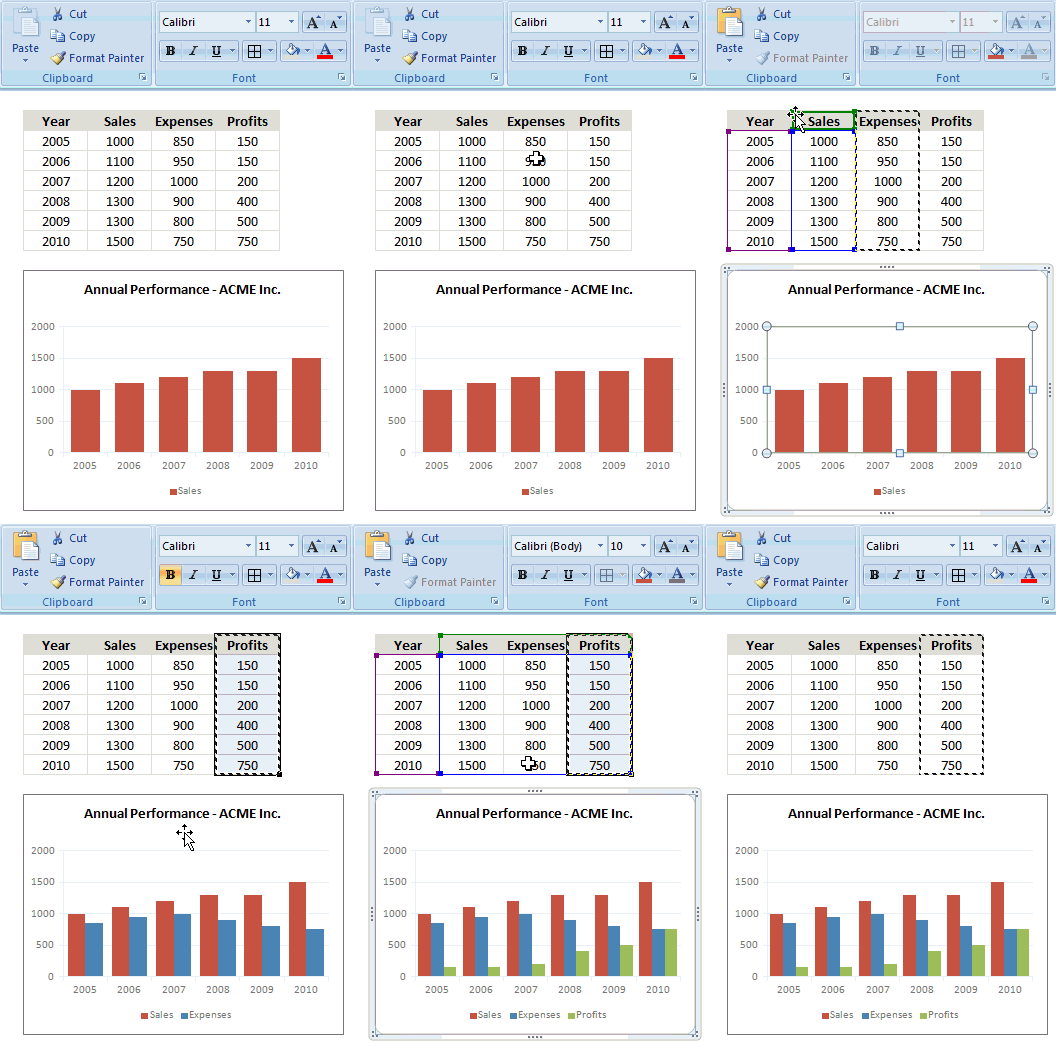
Add Data to Charts with Copy PasteTo start this week, let me share a simple but fun way to add data to charts.

Lets say you have a chart that depicts Annual sales for last few years. And you want to add the data of Profits (or Expenses) to this chart. Here is a dead-simple way to do it.

  1. Copy the profit data by selecting it and pressing CTRL+C
  2. Select the chart
  3. Paste by pressing CTRL+V
  4. That is all!

See the demo alongside to understand how this works.

Bonus Tips:

  1. While pasting, if you go for Paste Special (CTRL+ALT+V or ALT+E S) you can tell whether the data should be added as a new series or new points and several other things.
  2. To remove a series of data from a chart, just select the series and hit DEL key.
  3. To extend a series (ie add new points to it), select the series. Now you will see that Excel has highlighted the range of cells corresponding to that series. Just point your mouse at the bottom-right corner and resize the range to add new points to the chart.

More Quick Tips on Excel Charting

There are a ton of things you can do in Excel with a click of mouse or press of few keys. Whenever we learn something that is simple yet very useful, we share it as a quick tip. Browse thru these to learn more on Excel Charting.

Facebook
Twitter
LinkedIn

Share this tip with your colleagues

Excel and Power BI tips - Chandoo.org Newsletter

Get FREE Excel + Power BI Tips

Simple, fun and useful emails, once per week.

Learn & be awesome.

Welcome to Chandoo.org

Thank you so much for visiting. My aim is to make you awesome in Excel & Power BI. I do this by sharing videos, tips, examples and downloads on this website. There are more than 1,000 pages with all things Excel, Power BI, Dashboards & VBA here. Go ahead and spend few minutes to be AWESOME.

Read my storyFREE Excel tips book

Overall I learned a lot and I thought you did a great job of explaining how to do things. This will definitely elevate my reporting in the future.
Rebekah S
Reporting Analyst
Excel formula list - 100+ examples and howto guide for you

From simple to complex, there is a formula for every occasion. Check out the list now.

Calendars, invoices, trackers and much more. All free, fun and fantastic.

Advanced Pivot Table tricks

Power Query, Data model, DAX, Filters, Slicers, Conditional formats and beautiful charts. It's all here.

Still on fence about Power BI? In this getting started guide, learn what is Power BI, how to get it and how to create your first report from scratch.

26 Responses to “Get busy this weekend, with OR XOR AND [Excel Homework]”

  1. Stef@n says:

    first solution for AND
    The two numbers are in A1 and B1
    = SUBSTITUTE (SUBSTITUTE (A1+B1*9*9, 9, 1), 8, 0)
    regards
    Stef@n

  2. Stef@n says:

    next solution for OR
    =1*SUBSTITUTE (A1+A2;2;1)

    regards
    Stef@n

  3. Stef@n says:

    last solution for XOR
    =1*SUBSTITUTE (A1+A2;2;0)

    regards
    Stef@n

  4. Irvine says:

    Or you could make use of the VBA logical operators!

    Define the following as custom functions
    Public Function BITXOR(x As Long, y As Long)
    BITXOR = x Xor y
    End Function

    Public Function BITAND(x As Long, y As Long)
    BITAND = x And y
    End Function

    Public Function BITOR(x As Long, y As Long)
    BITOR = x Or y
    End Function

    and then use them such:
    A B =BITOR(A,B) =BITAND(A,B) =BITXOR(A,B)
    0101 0100 0101 0100 0001

  5. Stef@n says:

    an another solution for AND
    =1*SUBSTITUTE (SUBSTITUTE (A1+A2;1;0);2;1)

    note:
    the binary numbers are in A1 and A2 !
    regards
    Stef@n

  6. Shair says:

    I was obviously playing hooky at the beach during the bit-wise math lesson – you lost me at “Understanding bit-wise operations” 🙂

  7. Anup Agarwal says:

    After looking at the above solutions, I find my solution silly, but still:

    For the following formulae,
    Row 1: headers,
    Row 2: OR
    Row 3: AND
    Row 4: XOR

    Column 1: Input 1
    Column 2: Input 2
    Column 3: Result

    OR
    {=SUM(IF(MID(A2,ROW(OFFSET($A$1,0,0,LEN(A2),1)),1)+MID(B2,ROW(OFFSET($A$1,0,0,LEN(B2),1)),1)>0,1,0)*10^(LEN(A2)-ROW(OFFSET($A$1,0,0,LEN(B2),1))))}

    AND
    {=SUM(IF(MID(A3,ROW(OFFSET($A$1,0,0,LEN(A3),1)),1)+MID(B3,ROW(OFFSET($A$1,0,0,LEN(B3),1)),1)=2,1,0)*10^(LEN(A3)-ROW(OFFSET($A$1,0,0,LEN(B3),1))))}

    XOR
    {=SUM(IF(MID(A4,ROW(OFFSET($A$1,0,0,LEN(A4),1)),1)+MID(B4,ROW(OFFSET($A$1,0,0,LEN(B4),1)),1)=1,1,0)*10^(LEN(A4)-ROW(OFFSET($A$1,0,0,LEN(B4),1))))}

  8. Hui... says:

    @Anup
    Please don't consider your solution silly
    Firstly, You are the 3rd person to submit an answer
    Secondly, The best formula/function is the one that you know and understand.

  9. Michael Azer says:

    I think I have a very tedious solution, which people won't have the patience to do except in small numbers.

    I used the same problem setup as "Anup Agarwal"

    AND =IF(AND(MID(B2,1,1)="1",MID(C2,1,1)="1"),1,0)&IF(AND(MID(B2,2,1)="1",MID(C2,2,1)="1"),1,0)&IF(AND(MID(B2,3,1)="1",MID(C2,3,1)="1"),1,0)&IF(AND(MID(B2,4,1)="1",MID(C2,4,1)="1"),1,0)

    OR =IF(OR(MID(B3,1,1)="1",MID(C3,1,1)="1"),1,0)&IF(OR(MID(B3,2,1)="1",MID(C3,2,1)="1"),1,0)&IF(OR(MID(B3,3,1)="1",MID(C3,3,1)="1"),1,0)&IF(OR(MID(B3,4,1)="1",MID(C3,4,1)="1"),1,0)

    =IF(OR(AND(MID(B4,1,1)="1",MID(C4,1,1)="0"),AND(MID(B4,1,1)="0",MID(C4,1,1)="1")),1,0)&IF(OR(AND(MID(B4,2,1)="1",MID(C4,2,1)="0"),AND(MID(B4,2,1)="0",MID(C4,2,1)="1")),1,0)&IF(OR(AND(MID(B4,3,1)="1",MID(C4,3,1)="0"),AND(MID(B4,3,1)="0",MID(C4,3,1)="1")),1,0)&IF(OR(AND(MID(B4,4,1)="1",MID(C4,4,1)="0"),AND(MID(B4,4,1)="0",MID(C4,4,1)="1")),1,0)

  10. Michael Azer says:

    Sorry my last post was totally messed up

    AND
    =IF(AND(MID(B2,1,1)="1",MID(C2,1,1)="1"),1,0)&IF(AND(MID(B2,2,1)="1",MID(C2,2,1)="1"),1,0)&IF(AND(MID(B2,3,1)="1",MID(C2,3,1)="1"),1,0)&IF(AND(MID(B2,4,1)="1",MID(C2,4,1)="1"),1,0)
    OR
    =IF(OR(MID(B3,1,1)="1",MID(C3,1,1)="1"),1,0)&IF(OR(MID(B3,2,1)="1",MID(C3,2,1)="1"),1,0)&IF(OR(MID(B3,3,1)="1",MID(C3,3,1)="1"),1,0)&IF(OR(MID(B3,4,1)="1",MID(C3,4,1)="1"),1,0)
    XOR
    =IF(OR(AND(MID(B4,1,1)="1",MID(C4,1,1)="0"),AND(MID(B4,1,1)="0",MID(C4,1,1)="1")),1,0)&IF(OR(AND(MID(B4,2,1)="1",MID(C4,2,1)="0"),AND(MID(B4,2,1)="0",MID(C4,2,1)="1")),1,0)&IF(OR(AND(MID(B4,3,1)="1",MID(C4,3,1)="0"),AND(MID(B4,3,1)="0",MID(C4,3,1)="1")),1,0)&IF(OR(AND(MID(B4,4,1)="1",MID(C4,4,1)="0"),AND(MID(B4,4,1)="0",MID(C4,4,1)="1")),1,0)

  11. Stephen says:

    @stefan,
    I just couldn't get your solutions to work.
    01010101010 + 01010101110 = 02020210120
    what am i doing wrong?

  12. Stephen says:

    @anup
    ...I got yours to work!

  13. Rich says:

    @Stephen - I get the same, but Stef@an's second solution for AND does work (at least for the test cases I used)

  14. Stef@n says:

    @ Stephen / Rich
    yes , you are right ! - only this works:

    OR
    =1*SUBSTITUTE (A1+A2;2;1)
    XOR
    =1*SUBSTITUTE (A1+A2;2;0)
    AND
    =1*SUBSTITUTE (SUBSTITUTE (A1+A2;1;0);2;1)

  15. Michael Azer says:

    @Stef@n - You're answer is really smart, I never knew about the substitute function before. Great Work!

  16. Stef@n says:

    Thx Michael 🙂
    yes - it is simply easy 😉
    if you add 1 and 1 - excel calculate 2
    and then you have to substitute the 2 - new = 0 respectively 1

  17. Rob says:

    Here is a good resource for people wanting to learn binary and hexadecimal.
    http://justwebware.com/bitwise/bitwise.html

  18. Kyle McGhee says:

    Three that weren't asked for:
    NOT
    =SUBSTITUTE(SUBSTITUTE(SUBSTITUTE(A1+A2,0,3),1,0),3,1)

    EQV
    =SUBSTITUTE(SUBSTITUTE(SUBSTITUTE(SUBSTITUTE(A1+A2,0,3),2,3),1,0),3,1)

    IMP
    =SUBSTITUTE(SUBSTITUTE(A1+SUBSTITUTE(SUBSTITUTE(SUBSTITUTE(A2,0,3),1,0),3,1),0,1),2,0)

    (was using Daniel Ferry's bitwise file to verify against)

  19. Q says:

    @ Kyle

    Not only takes one parameter and inverts 0 -1 and 1-0

    Took out the +A2
    =SUBSTITUTE(SUBSTITUTE(SUBSTITUTE(A1,0,3),1,0),3,1)

  20. Great solutions!

    I'll add two:

    NAND =1*SUBSTITUTE (A1+A2,2,0)

    NOR=1*SUBSTITUTE(SUBSTITUTE (SUBSTITUTE(A1+A2,0,2),1,0),2,1)

  21. John Fuller says:

    This will work for binary numbers of any size (although the text format mask will have to have as many zeroes as there are digits in the longest addend)

    Assume binary #s are in C35 & C36, then add and format as text in C37:
    =TEXT(C36+C35,"000000000000")
    -sum- = 101112211112

    AND - SUBSTITUTE 0s for 1s in -sum-, then sub 1s for 2s
    =SUBSTITUTE(SUBSTITUTE(C37,"1","0"),"2","1")

    OR - sub 1s for 2s in -sum-
    =SUBSTITUTE(C37,"2","1")

    XOR - sub 0s for 2s in -sum-
    =SUBSTITUTE(C37,"2","0")

  22. Shane says:

    Just wandered by:

    AND:

    =SUBSTITUTE(A1+A2,1,0)/2

  23. Ronald Vonk says:

    Hi Chandoo,

    I am not (yet) really into bitwise calculation, but I am looking for a way to speed up my vba calculation with very big numbers. Would is ben convenient to use bitwise notation for this?

    Best regards,

    Ronald (the Netherlands)
    p.s. love your country!

Leave a Reply