

In today’s quick tip, lets find how to check for between conditions in Excel using formulas, like this:

Between Formula in Excel for Numbers:
Lets say you have 3 values in A1, A2 and A3. And you want to find out if A1 falls between A2 and A3.
Now, the simplest formula for such a thing would be test whether the conditions A1>=A2, A1<=A3 are both true. Hence, it would look like,
=if(AND(A1>=A2,A1<=A3),"Yes", "No")
However, there are 2 problems with a formula like above:
1. It assumes that A2 is smaller than A3.
2. It is just too big.
Shouldn’t there be a shorter and simpler formula?!?
Well, there is. Last week when chatting with Daniel Ferry, he mentioned a darned clever use of MEDIAN formula to test this. It goes like,
=if(A1=MEDIAN(A1:A3),"Yes","No")
Now, not only does the above formula look elegant and simple, it also works whether A2 is smaller or larger than A3.
Between Formula in Excel for Dates:
Well, dates are just numbers in Excel. So you can safely use the technique above to test if a given date in A1 falls between the two dates in A2 and A3, like this:
=if(A1=MEDIAN(A1:A3),"Yes","No")
Between Formula for Text Values:
Lets say you want to find-out if the text in A1 is between text in A2 and A3 when arranged alphabetically, a la in dictionary. You can do so in Excel using,
…
wait for it…
…
that is right, <= and >= operators, like this:
=if(AND(A1>=A2,A1<=A3),"Yes", "No")
Between Formulas in Excel – Summary and Examples:
Here is a list of examples and the corresponding Excel Formulas to test the between condition.
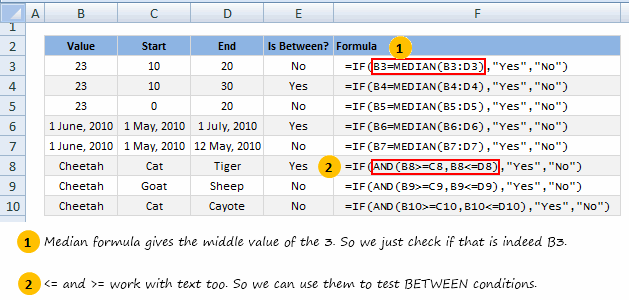
Do you check for Between Conditions in Excel?
Checking if a value falls between 2 other values is fairly common when you are working with data. I would love to know how you test for such conditions in excel? What kind of formulas do you use?
Share using comments.


209 Responses to “Between Formula in Excel [Quick Tips]”
Clever use of MEDIAN, but it returns "Yes" if you use the upper or lower number. Whether you want to consider 20 as being "between" 10 and 20 is up to you.
Also, the examples made it harder to understand. In the first formula you use A1:A3 for the range, but the first picture looks like the formula is filled across rows, not columns.
@JP -
MEDIAN can be used regardless of your definition of "between." To include the boundary points, I would write it like this:
.
=A1=MEDIAN(A1:A3)
.
To exclude them:
.
=A1=MEDIAN(A1,A2+1,A3-1)
.
Regards,
Daniel Ferry
excelhero.com
Hi I want to find out the difference in two numbers. But if the second number is minus it should not turn into plus in the results. Could you tell me the formula for it. Example (21.32)(-6.37) MY expectation to get the difference in between these two numbers. The answer should be 14.95. I do not hope the answer as 27.69. The actual mathematical answer that turn the second minus into plus and adds together. But excel always give me the second answer but please tell me the formula for the first answer. The deference between the numbers. Thanks
@Lucky
=21.32-abs(-6.37)
or
=Abs(A1)-Abs(A2)
Daniel -
your formula to exclude the boundary points would only work if you're dealing strictly with integers. For example, if you test if 19.5 is between 10 and 20 using A1=MEDIAN(A1,A2+1,A3+1), it would fail.
Rob
I should clarify...I think it's a very creative use of MEDIAN and if you're testing numbers and want to include the end points, it's a simpler method, but you need to use the other style using just instead of = to properly not include end points.
Rob
darn...should have known my greater than and less than characters would be removed.
Meant to say you need to use the and() style test using just less than and greater than characters without the equal signs.
Rob
I tried it using spanish MEDIANA(...) function, but it didn't work. This is what I did, not such stylish, but it works fine: =IF(AND(A1=MIN(B1:C1)),"YES","NO").
cALi
@Rob -
You bring up a good point that I should have clarified. When using the method I shared above to exclude the boundary points, the user is responsible for the precision. I have used this technique for years with operations scheduling and task management, often with a precision of days. However, I have used it with finer precision, hours, minutes, seconds. Again this is totally up to the user; he can use whatever value he wants instead of the integers of one:
.
=A1=MEDIAN(A1,A2+1/24,A3-1/24)
.
=A1=MEDIAN(A1,A2+1/24/60,A3-1/24/60)
.
=A1=MEDIAN(A1,A2+1/24/60/60,A3-1/24/60/60)
.
...of course those constants could/should be replaced by defined names.
.
Taking this to the extreme, one could easily define a constant that equals the smallest positive value that Excel can represent:
.
spv: =2.229E-308
.
We can then write the formula as:
.
=A1=MEDIAN(A1,A2+spv,A3-spv)
.
...which will work for any possible decimal value between the boundary points. It's a robust and elegant solution, imo.
Regards,
Daniel Ferry
excelhero.com
Sorry, when copying and pasting, I should made some mistake, this is real one:
=IF(AND(A1=MIN(B1:C1)),"YES","NO")
A1: tested in Between Value
B1 and C1: limits
I suppose HTML is in conflict with the code. Same code, different order of the arguments in the AND function:
=IF(AND(A1>=MIN(B1:C1),A1<=MAX(B1:C1)),"YES","NO")
The formula =IF(A1=MEDIAN(B1:C1),"Yes","No") does not work when I tested it. It returns "No" for any value in A1, regardless if it falls between B1 and C1 or not.
@cALi -
I have no experience with the Spanish version of Excel, but I would be very surprised to learn that the worksheet functions differed in their outputs! Can you provide the exact formula (in Spanish) that did not work for you?
.
On a different note, here is an equivalent formula to yours, that does not use the AND() function, nor the IF() function:
.
=A1=MIN(MAX(A1:B1),MAX(B1:C1))
.
BTW, your formula (and hence my variation of it) has the characteristic where "between" includes the lower boundary point, but not the higher one. This can be altered in a similar fashion as my above example.
.
Regards,
Daniel Ferry
excelhero.com
@Daniel --
We can also do both.
For example, I created a data validation in cell H2 consisting of "True,False" values. (That is, True and False without quotes).
This formula would then allow you to toggle the output as exclusive or inclusive of the start and end numbers by changing the value in H2 (True means exclude, False means include):
=B3=MEDIAN(B3,C3+N(H2),D3-N(H2))
@JP -
That's it!
Imagine the nested IF monster that you just avoided! Good job.
That is why I am always going on about better solutions to haplessly using IF(), when one understands the problem.
.
Regards,
Daniel Ferry
excelhero.com
@Daniele
Thanks for your time, I made some mistake since testing both alternatives I received the same results:
=An=MIN(MAX(An:Bn),MAX(Bn:Cn))
=An=MEDIAN(An:Cn)
Indeed, your solution is not just elegant but also practical, I could name it "minimalist".
Best regards,
cALi
@David.. you have to include A1 as well to get it right. Like this,
=IF(A1=MEDIAN(A1,B1,C1),”Yes”,”No”)
@ JP Instead of True/False use 1,0, we can then drop the N()
=B3=MEDIAN(B3,C3+H2,D3-H2)
Turned into UDF for kicks
Function ISBETWEEN(Rng, num1, num2) As Boolean
' Checks if value between num1 and num2
Dim Low As Double, Hi As Double
ISBETWEEN = False
Low = Application.Min(num1, num2)
Hi = Application.Max(num1, num2)
If Rng Is Nothing Then Exit Function
If Rng = Application.WorksheetFunction.Median(Rng, Low, Hi) Then ISBETWEEN = True
End Function
I like how easy it is to read when wanting to count the values that fall between using
=COUNTIF(Rng,ISBETWEEN(Rng,Num1,Num2))
I think the use of the MEDIAN function is very clever.
Nitpicking now.
If I understand correctly, Daniel's suggestion for an amendment to exclude the =boundaries case as in
=A1=MEDIAN(A1,A2+1/24,A3-1/24)
assumes that all the numbers involved are positive.
If one or both of the boundary numbers are negative, I think this formula will produce wrong results for values of A1 just outside the true boundary range.
Also, this formula
=A1=MIN(MAX(A1:B1),MAX(B1:C1))
works as long as the C1 value is higher than the B1 value, but not the other way round, which was described asa fault in the OP.
This formula solves that particular problem (it's essentially the same as cALi's)
=AND(A1MIN(B1:C1))
Replace < with <= as required.
Sorry, lost symbols in my last post.
I'll try again.
The last formula should be
=AND(A1 (less than symbol) MAX(B1:C1),A1 (greater than symbol) MIN(B1:C1))
CooL :)))) very elegant solution !
Great use of the function - I will be using this.
As always though, formulaic results are only as good as the data on which they're based (it's spelled "coyote" instead of "cayote," so your last text example should actually read yes. 🙂
Not to nitpick....but to nitpick... 🙂
@sam --
"Instead of True/False use 1,0, we can then drop the N()"
That's true, but who's going to understand that? If your users can, they're much smarter than mine.
[...] the problem is similar to between formula trick we discussed a few days back, yet very [...]
[...] Between Formula in Excel, Chandoo presents some formulas for determining if a given value is in between two known [...]
Daniel's spv approach does not work because the spv addon never makes it into the mantissa of the floating point numbers.
Regards,
Bernd
@Bernd -
With all due respect, you should double check that.
Daniel,
Excel 2010 (version 14.0.4760.1000 32 bit), spv set to 2.229E-308, A1 = 1, A2 = 1, A3 = 2, result A1=MEDIAN(A1,A2+spv,A3-spv) = True (should be False).
Again, if I am not mistaken, the very small value does not make it into the mantissa of the MEDIAN parameters which will then lead to MEDIAN(1,1,2) = True.
Regards,
Bernd
Daniel,
I do like the spv idea. My suggestion to fix the mantissa issue would be something like this:
=A1=MEDIAN(A1,A2+POWER(10,INT(LOG10(A2))-14),A3-POWER(10,INT(LOG10(A3))-14))
But this is sort of a monster formula again. Maybe two functions InfInc and InfDec (for infinitesimal increase / decrease) should be introduced which return the smallest float greater than the input (resp. the greatest float which is smaller).
Regards,
Bernd
@Bernd -
.
Touche.
.
While the formula logic is correct, Excel does not handle the very, very small number correctly in this instance. Good bug catch.
.
As I mentioned above, I have used the MEDIAN method countless times, but usually with dates, but also to the precision of hours, minutes, and seconds. I've never actually tried to use it with such fine precision before. I should have tested it before commenting, as Murphy's Law always prevails.
.
After testing I discovered that 1E-14 is the finest precision where my idea does work. To be sure, this will work in virtually every situation, as this is a very small number:
.
0.00000000000001
.
In fact, this is exactly what your POWER/LOG formula results in. So there is no need to use the monster formula.
.
Instead of defining spv as the smallest possible value (in Excel) we can simply enter it's definition as:
.
=1e-14
.
and now spv can stand for the smallest possible value (handled correctly).
Daniel,
I am sorry, but - no, you cannot take an absolute 1e-14. Please note that my POWER/LOG formula flexibly adjust itself to the number in question:
For 1 it's 1e-14, for 10 it's 1e-13, for 100 it's 1e-12, ...
It will exactly impact on the lowest digit of the mantissa. Please note that it can be different for the two MEDIAN border parameters. Please see my example at
http://www.sulprobil.com/html/test_if_between_2_values.html
Regards,
Bernd
There is always this purely mathematical method for determining if a value (A1) is between two limits (A2 and A3) excluding the end points...
=If(ABS(A1-((A2+A3)/2)).LT.ABS(A3-A2)/2,"Yes","No")
To make it include the end points, change the less than to less than or equal....
=If(ABS(A1-((A2+A3)/2)).LE.ABS(A3-A2)/2,"Yes","No")
Note that I used (with the surrounding dots) .LT. for the "less than" symbol and .LE. for the "less than or equal" symbol. Now, the only thing I am unsure of is how to adjust this for the spv that was brought up in the latter comments... anyone want to take a stab at it?
Rick,
Your ABS approach makes perfect sense for small numbers (ASCII code) or floats that are in the same ball park.
But test the values 0, 1, 2, 3, ..., 9 on the border values 1e16 and 5 with .LT. and with .LE.
The ABS approach gets it horribly wrong here because the lower border value 5 gets off the mantissa when added or subtracted to or from 1e16.
Regards,
Bernd
@Bernd,
While it is possible, of course, I would not normally expect a test for inclusion within a range to have such wildly divergent end points for the range.
Rick,
Why risk anything if you can only lose? If I deal with floating point numbers of unknown size and if I need to know whether a number is between two others I would use neither the MEDIAN approach nor the ABS approach.
I think it's far more important to know the basics about floating point numbers than to know this MEDIAN "trick" or the ABS comparison:
http://docs.sun.com/source/806-3568/ncg_goldberg.html
Regards,
Bernd
Thanks for posting...! Worked perfectly for what I needed!!!
i want to if function/ if total sales 200000 ,then com rate =5% give me information how to solve it with example
@Sanjev
Assuming you are entering this in the cell representing Com Rate
=if(sum(sales range)>=200000,5%,10%)
10% is the value for Com Rate if sales
@Sanjev
Using Daniel Ferry approach about IF function, which I have embraced as mine:
C D E
Lower Limit Upper Limit Commission Rate
?
@Sanjev
Using Daniel Ferry approach about IF function, which I have embraced as mine:
C D E
Lower Limit Upper Limit Commission Rate
4 Range1 - 100,000.00 0%
5 Range2 100,000.00 200,000.00 2%
6 Range3 200,000.00 1,000,000.00 5%
7 Range4 1,000,000.00 1E+100 6%
8
9 Actual Sales 180,000.00
Comm. Rate 2% =SUMPRODUCT((C4:C7
@ Chandoo, really sorry for the mess, the text editor is definitely not my friend... this will be my last chance, I hope it works...
@ Sanjeev,
Using Daniel Ferry IF function approach, and using some dummy data:
A B C D
Lower Limit Upper Limit Commission Rate
3 Range1 - 100,000.00 0%
4 Range2 100,000.00 200,000.00 2%
5 Range3 200,000.00 1,000,000.00 5%
6 Range4 1,000,000.00 1E+100 6%
7 Actual Sales 180,000.00
8 Comm. Rate 2% =SUMPRODUCT((B3:B6?$B$7)*($B$7?C3:C6)*D3:D6)
Please replace '?' with 'less than or equal to' and '?' with 'less than' proper operators.
By the way, C6 is a dummy value, is 'upper infinite' to make this approach work.
Regards,
cALi
@ cALi - thanks
I modified and used your example to check date within given range. Below is the link to download the example.
https://docs.google.com/uc?id=0B-QZQs3hmWJJOWZiNzk4ODAtYjA2My00MjYyLTkzMWEtOGMwMGJhNDA1NGU4&export=download&hl=en
[...] Between Formula in Excel [...]
Sales Achievement
15,001 - 20,000 EL
20,001 - 50,000 E
50,001 - 100,000 D
100,001 - 160,000 C
160,001 - 240,000 B
240,001 & above A
If the sales achievement fall in between 50,001-100,000 is under Class D, can you help if i have many column of acheivement data which fall under different class. How can i set the formula in one time?
@KM
Are your Ranges in 1 Column or 3
ie: is 15,001 – 20,000 in 1 cell or 3 cells
I want drop my serial no continuous automatically from the input value
e.g I have list of TV I given code for that
TV001
TV002
TV003
THEN I START ADDING BIKE
BIKE001
BIKE002
AGAIN I WANT ADD TV FROM PREVIOUS NUMBER CONTINUATION
LIKE
TV004
TV005
again i want add bike003 cotinuation from last number
IS THERE ANY FORMULAS FOR THAT?
PLEASE SEND THIS TO MY EMAIL ADDRESS sent to mani.n@govasool.com
i have a problem: i have 2 rows, A1 and A2 are containing ID which are same. B1 has to be compared with B2 and B3, and if B1 falls between them then it should tell "YES" else "NO". How will I do this????
@Antony
Assuming B2 <= B3 then use: =IF(AND(B1>=B2,B1<=B3),"Yes","No")
@ Hui,
I have precisely the same situation as @KM has (in comment 40). I have the values in three colums ("range begin", "range end", "category"). I need to find out in which range a given value lies and fetch the corresponding category. Help pls.
How do I use to it see if a time value is between 2 values
Example if 09:18:24 is between 09:18:00 and 09:19:00
Sid,
.
Exactly the same way!
.
Assume your times are in these cells:
.
A1 = 09:18:24
A2 = 09:18:00
A3 = 09:19:00
.
The formula from any other cell will determine if 09:18:24 is between the other two values:
.
=A1=MEDIAN(A1:A3)
How can I make it tell me if the current time and date is between two other times and dates.
I am working with the following:
Lets say that the time right now is Thursday at 4 PM. How would this work out?
Thursday: 11:00 AM - 2:00 AM (Friday)
Then imagine that the current time is Friday at 1 AM.
Thanks!!!!
@Michael
=MEDIAN(DATE(2012,12,10)+TIME(11,0,0), DATE(2012,12,11)+TIME(16,0,0), DATE(2012,12,12)+TIME(18,0,0)) = DATE(2012,12,11)+TIME(16,0,0)
Adjust Dates/Times to suit
or
=MEDIAN(A1, A2, A3)=A1
where A1 is the Date/Time now
A2 & A3 are the other dates/times
Thanks for your help.
I'm a little unsure how to interpret your answer....
Also, where would I insert the following?
"DATE(2012,12,day(today()))+TIME(Hour(now()),minute(now()),second(now()))"
I think I would substitute this in at the end of your answer's equation for the "= DATE(2012,12,11)+TIME(16,0,0)" part, so that my equation will always work... right? thanks again!!!
The Format is:
=Median(Start Date, End Date, Now)=Now
it doesn't matter what order the components go
so:
=Median(Now, End Date, Start Date)=Now
is Just as valid
If you use the Now() function that already includes the date & time
So you can use
=Median(Start Date+Time, End Date+Time, Now())=Now()
=MEDIAN(DATE(2012,12,13)+TIME(11,0,0),DATE(2012,12,14)+TIME(2,0,0), Now())=Now()
or if you want to use Today
eg: 11am today until 2am tomorrow
=MEDIAN(Int(Now())+Time(11,0,0),Int(Now()+1)+TIME(2,0,0), Now())=Now()
Daniel,
I'm quite confused by the results I'm receiving when trying this formula. I'm using it to try to validate if a date is between two other dates using the "short date" format. I receive "NO" all statements except for the exact middle date (which is what the median actually is, mathematically speaking). Is there something wrong with my formula that prevents me from getting any date between the two values?
Formula: =IF(A1=MEDIAN($E$1:$F$1),"YES", "NO")
Thanks in advance
Hi,
I need help:
A2 contains name of staff
C2 contains his weight
I need to fill D2 with Lean, Fit, Fat or Obese base on which range his weight fits in based on below grid:
50-60: Lean
60-70: Fit
70-80: fat
80-100: obese
Is there a list of the different symbols and what they represent, or what function they have when used in a formula? Example: = (equal to), < (greater than), etc.
Actually, what I’d like to know, it’s if there is a symbol that represents “between”. Let’s say I want a formula like this: =IF(A1betweenA2andA3,”Yes”,”No”).
Thank you in advance,
Jesus R
Jesus R
There are only a few symbols useable in this context
X > Y, X Greater than Y
X < Y, X Less than Y X = Y, X equal to Y They can be combined X >= Y, X Greater than or equal to Y
X <= Y, X Less than or equal to Y X <> Y, X not equal to Y
you can often use other Excel functions to make other logic
or(X=Y , Z=A), X=Y or Z=A will force this to be true
and(X=Y , Z=A), X=Y and Z=A both have to be True for this to be True
The above can be used in numerous ways to create quite complex logic
There are a problem
I requered to the formula for example below
A1 B1 C1
A+++ A +++
A++ A ++
A+ A +
A A
Kindly suggest me the formula for that in write segment.
Thanks
@Shishir
.
Not sure but try the following
B1: =Left(A1,1)
C1: =Right(A1,Len(a1)-1)
Select B1 + C1
Copy down
Hello, nice topic.. It's clear to use between value when there s just one.. how d you determine where the values in a range fall between in another range.. lets say I have a list goes like
1-5 100
6-13 200
14-32 300
what I want s to expand the list like
1- 100
2- 100
...
6- 200
...
Guess first I need to find where the tax number fall between , then I ll reference to the cell just aside of that range.
Need help, thenks in edvance
Dear All,
Plz help in formating the "if formula" in excel of the below condition
Less than 95% = 0
95.01% to 97.5% = 0.06
97.51% to 100% = 0.12
100.01% to 102.5% = 0.18
102.51% to 105% = 0.25
@Neha
Try this:
=IF(A1<=95%, 0, IF(A1<=97.5%, 0.06, IF(A1<=100%, 0.12, IF(A1<=102.5%, 0.18, 0.25)))) . or this odd one =CHOOSE( MIN( INT((( A1-95.001%)/2.5%)) + 2,5), 0, 0.06, 0.12, 0.18, 0.25)
How about adding an else statement to this
=if(AND(A1>=A2,A1<=A3),"Yes", "No")
So if cell A1 is empty I the result will be a blank cell or an entry of my choosing.
Here is a better way of explaining what I'm looking for
Can you add an ELSE statement to this: =if(AND(A1>=A2,A1<=A3),"Yes", "No")
What I need is to be able to return a null value if cell A1 doesn't have any data in it yet
@Jmichuck
=IF(A1<>"",IF(AND(A1>=A2,A1<=A3),"Yes", "No"),"Null")Retype all " characters
Dear hui,
I have tried your suggested logic but it didn't work.Err.502 come while putting it.Plz.help me out
@Neha
Did you try:
=IF(A1<=0.95, 0, IF(A1<=0.975, 0.06, IF(A1<=1, 0.12, IF(A1<=1.025, 0.18, 0.25))))
hai Hui Thanxxxxxxxxxx.a lot dear..........it works.With this i finally complited my report which need to submit by tomorrow.Thanks once again.
Thank you, but there seems to be an error in the formula.
By the way, thank you so much for your services. This will impress the boss for sure.
What do you mean by "Retype all ” characters"?
oK you literally mean they have to be re-typed. Strange but it worked. Thank you very much
Sometimes WordPress converts the " characters to something that looks like a " but isn't
When you copy/paste to excel, excel doesn't understand what those " look-like characters are
And returns an error
problem. how to use ABS and IF here: (9-5)/2+9=11 but 11>9 so I need 11-9 = good. how to do this.
=if((9-5)/2+9<11,11-((9-5)/2+9),(9-5)/2+9) )
nice use of median. just what was i looking for, but i would appreciate if you could extend the number of rows it checks for inclusion. for eg in the sample data you posted,
http://chandoo.org/img/f/between-formula-in-excel.png
i wish to find out if "22" falls under range B2:C9. (Assuming "Value" is in cell A1). kindly help me with this since the only solution i can think of is using nested functions which makes it a monster formula..
thnks hui. now I got your formula =sqrt(A1^2+A2^)-1-IF(sqrt(A1^2+A2^2)-1>53,53,0) work good, now if it is possible, beside this I really need also in the same formula to use ABS value and ROUND, because I got negative numbers, and so many decimals, so to eliminate I need to use those functions, thank you.
@ Dear Hui
there is a condition -
15001 - 20000 = Grade "C"
20001 - 50000 = Grade "B"
50001 - 100000 = Grade "A"
100001 & Abiove = Grade +A
I have used your earlier formula with some modification i.e.
=IF(A2<=20000,"c",IF(A2<=50000,"b",IF(A2<=100000,"a","a+")))
it works but I also want with the change of grade colour of the cell is also changed for eg Grade A comes with green backgroung & grade C comes with Red background & like wise.
I tried conditional formatting but yet no appropriate result comes.
Plz help.
@Neha
You will need to add 3 CF Rules and have them in the right order
Select your Range I am assuming B2:B10
Enter 3 CF Rules using formulas
CF1: =$A2<=20000 CF Color X, Stop If true Yes
CF2: =$A2<=50000 CF Color Y, Stop If true Yes
CF3: =$A2<=100000 CF Color Z, Stop If true Yes
Now apply this
Apply a Default Color which will be applicable if the score is Greater than 100000
That should be it
Make sure that the 3 CF's are in the order above, you can shift them up/down once entered
Dear all
I want to
A B C
BP03/44/00/12FC BP03/44/00/12 FC
BP03/44/00/21SF BP03/44/00/21 SF
Kindly suggest me how i will do by using the formulas.
Thanks & Regards
Shishir
B1: =Left(A1,Len(A1)-2)
C1: =Right(A1,2)
Copy both down
Dear all
on dated 10/01/1012i make a excel sheet. If after the day like tomorrow or day after tommorow somebody modify any cell indicate in a seperate colour which cell somebody modity. which formula i use for that. Kindly suggest me.
Thanks
Sonal
Vlookup is an excellent formula to find "between" values:
Table:
Value Multiplier
Column A Column B
0.00001 0.5
4.826369861 1
9.652739721 1.5
14.47910958 2
19.30547944 2.5
24.1318493 3
28.95821916 3.5
33.78458902 4
38.61095888 4.5
43.43732875 5
48.26369861 5.5
53.09006847 6
Lookup value (cell A1) -> 3
vlookup(A1,$A$1:$B$12,2,TRUE) - will result in 0.5.
Hope this helps.
Hi, can someone help me how to write this function in Excel.
There are 100 rows of 3 diferent numbers (so, 100 rows, 3 columns, C1, C2, C3).
I have to do the following:
If C1, C2 and C3 are equal to 2, 4, and 5 respectively, then answer should be 1
If C1 and C2, or C2 and C3, or C3 and C1 are able to match 2&4, or 4&5 or 5&2 respectively, [i.e, if two of the 3 entries match correctly] then answer should be 0.5
If none of C1, C2, C3 match 2,4,5 respectively, then answer should be 0.
Thanks
I'm a complete noob at Excel Formulas. I've been trying to increase my knowledge of excel but I can't seem to find how to create this formula.
I have an employee that works from 6:00am to 2:30pm. She takes a 30 minute lunch and has two paid 15 minute breaks. At the end of the day she has 7.5 hours of productivity. The problem is some days she works in as many as 8 different queues. I have to record those times in each queue but at the end of the day her hours should not be more than 7.5. In a perfect world she'd work in one queue for 6-2:30pm and a simple formula would work to get 7.5 hours but that's not the case. She may work 2 hours in one queue, 1 in another, 3 in another and 2 in another. How do I factor her breaks and her lunch in my formula. She goes to break at 8:30am, lunch at 12:00-12:30 and last break at 1:45.
Also some other factors, employees working 4-6 hours get on break. 7 hours a lunch and break, 8-12 hours is lunch and two breaks. employees can't work more than 12 hours in a day. I hope someone can help. I'm lost. Here's one formula I was using. but sometimes my hours go above 7.5. =IF(SUM(D23-C23),(24*MOD(D23-C23,1.25)-LOOKUP(24*MOD(D23-C23,1.25),{0,4,4.5,5,5.5,6,6.5,7,7.5,8,8.5,9
sorry, I left that formula incomplete.
=IF(SUM(D23-C23),(24*MOD(D23-C23,1.25)-LOOKUP(24*MOD(D23-C23,1.25),{0,4,4.5,5,5.5,6,6.5,7,7.5,8,8.5,9,9.5,10},{0,0.5,0.5,0.5,0.5,0.5,1,1,1,1,1,1,1,1})),"")
I am using this formula have a formula in cell E1 =IF(A1"",IF(AND(A1>=C1,A1<=D1),"PASS","FAIL")," ")
When I ener a value in cell A1, I get a pass/fail or null returned in cell E1.
I would like to also place a value into B1 but have that take priority over A1.
So If I was to only have an value in A1 the formula would work as stated above. If I was to place a value in Cell B1 it would then disregard cell A1 and return pass/fail based on input in B1.
Hope that makes sense. Thank you
@Jmichuck
like:
=IF(B1<>"","B1 not empty" ,IF(A1 ="", IF(AND (A1>=C1, A1<=D1), "PASS", "FAIL"), ""))you will have to retype all the " marks
Hui,
Thank you but not quite correct. I would like the formula to take the value of A1 & B1 and evaluate if they fall between the values of C1 & D1. If so then I would get either a PASS/FAIL result. If there is a Value in B1 then it would disregard the value in A1. If both A1 and B1 are Empty then the cell with the formula would remain empty.
Thank you so much for looking into this. I really appreciate it.
-Chuck
jmichuck,
Here's one way:
=CHOOSE(1+(INDEX(A1:B1,(LEN(B1)>0)+1)>=C1)*(INDEX(A1:B1,(LEN(B1)>0)+1)<=D1)+(LEN(A1&B1)=0)*2,"Fail","Pass","")
...or in the spirit of Chandoo's article:
=CHOOSE(1+(INDEX(A1:B1,(LEN(B1)>0)+1)=MEDIAN(INDEX(A1:B1,(LEN(B1)>0)+1),C1,D1))+(LEN(A1&B1)=0)*2,"Fail","Pass","")
Regards,
Daniel Ferry
Excel MVP
Daniel,
Thank you very much. That worked out perfectly
OK one thing. If cells A1 thru D1 have no values, I would like to see the cell with the formula to be null/empty. Currently with the formulas above I will get #VALUE or #REF!
Thanks again
Sorry the second formula returns #NUM! not #REF!
jmichuck,
To satisfy this further requirement is easy for the first formula (we just add another null at the end:
=CHOOSE(1+(INDEX(A1:B1,(LEN(B1)>0)+1)>=C1)*(INDEX(A1:B1,(LEN(B1)>0)+1)<=D1)+(LEN(A1&B1)=0)*2,"Fail","Pass","","")
You would need to trap the condition with an IF() or IFERROR() wrapper on the second formula, so for your requirements I'd go with this formula directly above, even though I made the MEDIAN() suggestion to Chandoo in the first place!
Looks like its working perfectly. Thank you!
Since Excel stores date/times as numbers, using median will only work if the times you are actually in the range.
This stumped me for a bit.
If I want to check that "01/12/1972 9:15AM", is between "9:00AM" and "10:00AM", the median formula won't work. You need to check if its between "01/12/1972 9:00AM" and "01/12/1972 10:00AM"
Does anyone have an idea on how to quickly check if the date:time is between two times (with no date).
@Murray
Use median with the times
but instead of the date use
Date-Int(Date)
@Hui
Can you give an example? The date:time is in one cell.
Oh, thanks Hui. I see what you mean now. Thanks again.
=MEDIAN(TIME(9,0,0),A1-INT(A1),TIME(10,0,0))
or
=IF(MEDIAN(TIME(9,0,0),A1-INT(A1),TIME(10,0,0))=A1-INT(A1),TRUE,FALSE)
the second will return True if it is between 9-10am
In excel 2010 I need a formula If a cell is blank > 21 days send an email.
Many thanks in advance!
I find this string very interesting and helpful. I am not sure I followed all of it, so if this has already been answered, I apologize.
Here is what I have:
Cell A1: =Today()
Column B: List of Dates by Week ending - Begins with 2/19/12
Column E: Percent completed
I need a formula that will look at cell A1, determine which cell would apply in column B, and then populate the percentage from column E.
Any help would be greatly appreciated.
I realized that I can do this with a simple VLOOKUP. So, based on the information in my previous post:
=VLOOKUP(A1,B2:E52,4)
In the past, I had only used VLOOKUP to find exact matches, so I did not realize that for the range_lookup I could either use TRUE, or omit the criteria, and find the closest match.
Sometimes the simplest things elude us, so I just thought I would share this for anyone else who might be searching.
HI,
A B C D
1 ABC Y
2 ACB Y Y ACB
3 CAB Y
4 CBA Y Y CBA
5 BCA Y Y BCA
I get THE VALUE OF COLUMN D BY USING IF, AND & INDEX FRMULA.THE PROBLEM IS I WANTED TO CONTINUE THE VALUE OF D LIKE WITHOUT ANY BLANK IN ROW (D1=ACB; D2=CBA; D3=BCA). KINDLY SUGGEST WHICH FUNCTION I USE.
Hi
I wonder if someone could help me with this. How can I check if time beetween a and b fall in between the time c and d?
Thank you in advance
Krystian
Following previous question: to be more specific, I need to check whether the time between 09:17:00 and 09:58:00 falls between the time 09:35:00 and 09:45:00?
Any help would be really appreciated
where here, and how, is possible to upload a vba code, I need to add some condition more to the code but I don't know how to do it.
@Viktor
Have a read here: http://chandoo.org/forums/topic/posting-a-sample-workbook
I have two excel documents I'm trying to use a look up formula to see compare the peoples names on both of the documents but I can't seem to have any luck. I have used vlookups before and never had to dealed with text. any help will be appreciate it! and just I'm new on excel.
I'd like to use conditional formatting to highlight the rows where today's date falls between various dates in a column but all those different dates need to be the range of plus 6 weeks.
Am I on the right tack with this?
CF1:=(today's date=MEDIAN(DATEfirst cell/+DAY(42)CF color yello, stop IF true yes
THis trick just saved me a ton of time. I used absolute references for two of the numbers instead of a range.
I want to use a conditional formula as follows. If the result of a calculation produces a number less than -0.3 return a value. If the number is between -0.3 and +0.3 return a second value. If the number is greater than +0.3 return a third value. I tried this formula
=IF(E25<-0.3,"corrosive",IF(E25>0.3,"scaling","balanced")) and variations
However, it returns "corrosive" even if the calculated number is -0.3 and "scaling" when the number is +0.3.
Hi All,
I am trying to find formula for the below scenario.
I have a object id and start date in spread sheet 1 and object id, 3 start date and 3 end dates for the same object in another spread sheet. I want to findout for which record in spread sheet 2 the start date of the spread sheet fall inbetween.
Sheet 1
53205649
8/3/2012
Sheet 2
53205649
7/1/2012
12/31/9999
53205649
7/1/2011
6/30/2012
53205649
7/31/2010
6/30/2011
Any help is much appreciated.
Boppa
Guys, I work in middle east & they have two calendars here.. one islamic calendar (lunar one) & second is Gregorian. I need to know if any specific date falls between two dates, then it automatically converts in islamic month/ date. I have already made a calendar which have first & last dates (gregorian dates) of any islamic month. Can anybody help me??
Thanks a lot in advance.
hi. it worked just like charm..
but applying it seems it works only with three columns....for example
column 1 (data)
column 2 data
column 3 (data)
column5 (value)
If(column5=median(column1,2,3),"yes", 'no')
than this formula doesnt work...
do u think u can find anyothe way
Hi there,
I have tried your formula for a project plan. Basically, if the date at the top of the row is equal to or inbetween a start or end date (located in the first two columns), I want it to write "YES" into the calendar - so I know a task is running on that date. Kind of like a Gantt chart.
However, this formula does not recognise that the 2nd of October is between the 1st and the 5th, and no formula I tried so far recognised the 1st is between the 1st and the 5th.
Any ideas?
[...] Click here for more Excel home works, quizzes & challenges. Clue: Click here for a clue. Got [...]
The conditional formatting does not work along with the AND function in Office 2007. Is this only for 2010?
@Tan
I can confirm that both Conditional Formatting and And() functions work in Excel 2007, 2010 and 2013.
If you have a specific issue or problem post a question at the Chandoo.org Forums: http://chandoo.org/forums/?new=1
Bravo! I simply could not make it to the end of all the posts above so forgive me if already covered:
Below I will show that
- the contiguous sequence A1,A2,A3 is not required, neither row-wise or column-wise.
- Furthermore, A1 can be a formula, not just a cell.
- So can A2 and A3!
So you can hardcode 95% and 105% for A2 and A3; or Make A2 98% of something, etc.
Assuming notation X for one general cell address (or formula!) and Y and Z for the pair to go between where Y <= X <= Z,
=if(X=median(X,Y,Z),"yes","no") or minimally
X=median(X,Y,Z)
Example: =if(C3-C2=median(C3-C2,$E$1,$F$1),"yes","no")
where $E$1 is 95 and $F$1 is 105
This capitalizes on the characteristic of ranges that you can build ranges noncontiguously with commas. You aren't legally bound to that colon, you know, ha ha.
1. Correct me if I was imprecise about endpoint inclusion.
2. I saw some concern above about negative numbers. I have not tried to test that, much less an exhaustive bulletproofing.
3. floating point "epsilon" issues may still apply.
4. Tested only with XL2003 (because you're crazy to use any later disastrous version, unless forced to do so)
Could somebody help me with the below formula?
I basically want it to sum column D but based on the criteria of column C........i'm trying to ask the formula to look between codes 50000 and 60000......but this formula doesn't work for me - what can I use instead of median to look between these codes?
=SUMIFS(D8:D15,C8:C15,MEDIAN(50000:60000))
Many thanks in advance!
Just wanted to say thanks so much for the tip on using Median. Saved me a lot of extra typing. Was working on a list of unit counts referencing a tiered pricing schedule. I utilized the following and it worked like a charm even though the counts and unit price schedule were in two different worksheets. Cheers!
=IF((B2+C2/5)=MEDIAN((B2+C2/5),Sheet3!$B$3:$C$3),Sheet3!$D$3,(IF((B2+C2/5)=MEDIAN((B2+C2/5),Sheet3!$B$4:$C$4),Sheet3!$D$4,(IF((B2+C2/5)=MEDIAN((B2+C2/5),Sheet3!$B$5:$C$5),Sheet3!$D$5,(IF((B2+C2/5)=MEDIAN((B2+C2/5),Sheet3!$B$6:$C$6),Sheet3!$D$6,(IF((B2+C2/5)=MEDIAN((B2+C2/5),Sheet3!$B$7:$C$7),Sheet3!$D$7,(IF((B2+C2/5)=MEDIAN((B2+C2/5),Sheet3!$B$8:$C$8),Sheet3!$D$8,(IF((B2+C2/5)=MEDIAN((B2+C2/5),Sheet3!$B$9:$C$9),Sheet3!$D$9,(IF((B2+C2/5)=MEDIAN((B2+C2/5),Sheet3!$B$10:$C$10),Sheet3!$D$10,(IF((B2+C2/5)=MEDIAN((B2+C2/5),Sheet3!$B$11:$C$11),Sheet3!$D$11,(IF((B2+C2/5)=MEDIAN((B2+C2/5),Sheet3!$B$12:$C$12),Sheet3!$D$12,IF((B2+C2/5)=MEDIAN((B2+C2/5),Sheet3!$B$13:$C$13),Sheet3!$D$13,(IF((B2+C2/5)=MEDIAN((B2+C2/5),Sheet3!$B$14:$C$14),Sheet3!$D$14,(IF((B2+C2/5)=MEDIAN((B2+C2/5),Sheet3!$B$15:$C$15),Sheet3!$D$15,0))))))))))))))))))))))))
Just a note of thanks. Due to this thread was able to solve a issue very quickly
=IF(A2=15, "OK", "Not OK",IF(A2=15, "OK", "Not OK",IF(A2=15, "OK", "Not OK",IF(A2=15, "OK", "Not OK",IF(A2=15, "OK", "Not OK",IF(A2=15, "OK", "Not OK",IF(A2=15, "OK", "Not OK",IF(A2=15, "OK", "Not OK",IF(A2=15, "OK", "Not OK",IF(A2=15, "OK", "Not OK",IF(A2=15, "OK", "Not OK",)))))))))))
Not OK!
Hi Jayant.. is this supposed to be a question? If so, please note that the formula gives an error.
=(A1-A2)*(A1-A3)<=0
or
=(A1-A2)*(A1-A3)<0
@Kirill.. good idea. Thanks for sharing.
Hi,
I need help.
I have 2 tables;
1) Dates Column A and prices column B
2) Date ranges column M and prices column Q
I need a formula which will do the following
- Identify if date in column A falls within the rangefrom column M
- If the answer is positive then I need a price from column Q to deduct a price from column B
Any ideas?
Thanks
Hi Magda,
Please see this - Range lookup in Excel
the median stuff saved my bacon. you rock!
=(A3=MEDIAN(A1:A5))*(COUNTIF(A1:A5,A3)=1)
Sorry, I mean
=A1=MEDIAN(A1:A3)*(COUNTIF(A1:A3,A1)=1)
Also, if you put () around the first statement, it returns a 0 or 1 rather than true/false.
...that doesn't work for testing the number 0.
but these should work for an entire range of numbers, not just 2:
=MIN(A3:A16)=A1)
=MIN(A3:A16)A1)
try again...
[=(MIN(A3:A16)=A1)]
[=(MIN(A3:A16)A1)]
one more time (damn html tags)
{} are used in place of less/greater than
=MIN(A3:A16){=A1*(MAX(A3:A16)}=A1)
=MIN(A3:A16){A1*(MAX(A3:A16)}A1)
This helped me figure out the basis to a formula to tell me if a number was between a set of numbers OR if it exceeded the top end of the numbers... Excel would not except the formula using the MEDIAN, probably since you are actually evaluating for three conditions.
=IF(AND($D17>5000,$D1710000), "Excessive", "No"))
Thanks for the assist on this =D
@Richard
Try: =IF(MEDIAN(5000,$D17,10000)=$D17,"No",IF($D17>10000,"Excessive","Lower"))
I have situation, where Find number in between A:A to B:B, if find the number then put the value of Cell column of "C"
Ex:-
what to find the number 24
Column A B i have numbers
A - B - C
1 - 5 - ram
8 - 10 - Ramesh
18 - 20 - David
23 - 31 - Abdul
Out put / Answer = Abdul
Please suggest.
@Prasad TR
=Vlookup(24,A2:C5,3)
If number in cell M11 is between 500 and 1000 true value "DFG" but if the number is between 1001 and 1500,true value "ABC" but if the number is between 1501 and 5000, true value "ERT"
@Gigi
You could use something like:
=IF(B2<1000,"DFG",IF(B2<1500,"ABC",IF(B2<5000,"ERT","Other")))
or
=IFERROR(CHOOSE(INT(B2/500),"DFG","ABC","ERT","ERT","ERT","ERT","ERT","ERT","ERT","Other"),"Other")
I have a relatively simple question (i assume) but due to the fact that I am an Excel newbie, it is relatively challenging for me.
Let us say that I am using 2 cells. Cell A1 & Cell A2
I want to be able to input any random number from 0-665 in cell A1
If the number in A1 is 15 but 20 but 30 but 50 but <66, I want cell A2 to show me 6.
So on and so forth....
I appreciate any help that i receive!
Sincerely,
Dan.
Hi there, am looking to use a condition in conditional formatting and need to ABS and a formula fulfilling this condition. Please advise. Many
thanks in advance.
"if the values are between -0.25% and 0.25% then yellow"
I need 3 date conditions met:
NOT STARTED, STARTED, COMPLETE for dates:
A2 no date, B2 no date, C2 no date = Not Started
A2 date, B2 date, C2 no date = Started
A2 date, B2 date, C2 date - Complete
Can you please help me? Thanks!
Thanks for the help. I've been looking for a way to do this formula.
if the value of school is 72 and class is 54, what will be the value of teacher?
I have made in Excel sheet table of items location, some items are repeated in more than one location, how can i use lookup formula to find those items locatons?
Item code Description LOC Bin Sys
Qty
T82133008 SOCKET WRENCH BI-HEX. DIN 3120 SQUARE DRIVE: 1/2" SIZE: 8 MM. 108 D12-3 8
T82133010 SOCKET WRENCH BI-HEX. DIN 3120 SQUARE DRIVE: 1/2" SIZE: 9 MM. 108 D12-3 8
82133013 SOCKET WRENCH BI-HEX. DIN 3120 SQUARE DRIVE: 1/2" SIZE: 10 MM. 108 D12-3 8
82133013 SOCKET WRENCH BI-HEX. DIN 3120 SQUARE DRIVE: 1/2" SIZE: 10 MM. 108 D12-3 2
82133025 SOCKET WRENCH BI-HEX. DIN 3120 SQUARE DRIVE: 1/2" SIZE: 11 MM. 108 D12-7 9
82133025 SOCKET WRENCH BI-HEX. DIN 3120 SQUARE DRIVE: 1/2" SIZE: 11 MM. 108 D12-7 3
82133037 SOCKET WRENCH BI-HEX. DIN 3120 SQUARE DRIVE: 1/2" SIZE: 12 MM. 108 D12-3 13
82133037 SOCKET WRENCH BI-HEX. DIN 3120 SQUARE DRIVE: 1/2" SIZE: 12 MM. 108 D12-3 2
i will give you a very quick example for what i want
i have a dead line date 20/2/2015 ( thats the date in cell )
if Today date is before it within 2 day ( 18/2/2015 )
i want cell to be fill with another color and font
if not then i need it to be the same as rest
Why isn't there a simple BETWEEN function like there is (or was) in FoxPro? To check to see if the value in field A3 is between .125 and .500 you'd write IF(BETWEEN(A3,.125,.500),"True","False"). Simple and straightforward.
I want to generate a random number and check to see if it is between two other numbers. Using Microsoft's FoxPro syntax it would be IF(BETWEEN(RAND(),.125,.500),"True","False"). But despite it also being a Microsoft product, there seems to be no such BETWEEN() function in Excel. Crazy.
A1=5
B1=3
C1=10
=IF(AND(A1>B1,A1<C1),"YES","NO")
Hello and thank you in advance for your help. I have a monthly bonus excel report which provides me a list of all employees who are subject to bonus changes. One column contains the date the bonus change was implemented as follows:
1. Mark Jones - bonus target % on 02/05/2015
2. Mary Freeze - Bonus type change on 02/15/2015
3. John Camden - Bonus target % on 02/27/2015
4. Freida Jones - Bonus type change on 03/03/2015
5. Sam Carrera - Bonus target % on 03/16/2015
However, our Bonus plan rule states, any change on/or before the 15th of the month will default to the 1st of the applicable month.
Any change after the 15th, will default to the 1st of the following month. So, Mary Freeze bonus target change will take effect on 02/01/2015 and Sam's will be effective 04/01/2015.
How can I create a formula that would auto populate the effective date based on these rules? Is it possible to create this under and IF/OR = X statement?
@Linda
I answered a very similar question yesterday in the Forums
Have a look at: http://chandoo.org/forum/threads/find-month-between-two-specified-date.22651/#post-136869
You can adjust it to suit your needs
Hi and thank you in advance for your help. I have gone through all of the replies to see if my issue was answered but I can't find anything. I have a time that I want to see if it falls between two other times. The formula =A1=MEDIAN(A1:A3) works for most of the times except for the following example... does 11:15 PM fall in between 8PM and 8AM. The answer the formula returns is NO, but it should be Yes. Any help would be appreciated!
Thanks.
Hi Stephen,
In Excel there are no such thing as 8AM or 8PM. So, when you write 8AM in cell, it really is 8AM of January 0, year 1900.
So in your case, 11:15 PM check is failing because 8AM is before 11:15 PM.
To overcome this, you can try below approach.
Assuming A1 is the time you want to check, A2 & A3 contain start & end times,
=A1 = median (A1, A2, A3 + AND(HOUR(A2)>12, HOUR(A3)<12))
Hi,
This is what I am trying do
if value on A1 between
0-154 A2 0
155-462 A2 -1
463-770 A2 -2
771-1049 A3 -3
This isn't working for me.
I'm trying to say whether a project that has a start and an end date is in progress in each week commencing.
E.g. start 14/08/15 end 25/08/15
The table has weeks commencing 03/08/15, 10/08/15, 17/08/15, 24/08/15, 31/08/15
What I want to return is "No", "Yes","Yes", "Yes", "No" (in cells in the row below)
Hi,
I have a question:
I have amounts ranging from 10-45
I would like to make a rule that if it is between 10-24 it should show 7.5, if it is between 25-38 it should show 10 and if it between 39-45 it should show 13.
How do I do this, I tried the IF formula, but I'm struggling.
TIA
Hi,
I tried this in Excel 2010
=IF(1=MEDIAN(0,3),"Y","N")
and the result is N.
Shouldn't the correct result be Y
What did I do wrong?
Please advise.
Thank you.
@Joe
Select the cell with the Formula =IF(1=MEDIAN(0,3),"Y","N")
Edit the cell and select the part MEDIAN(0,3)
Now press F9
Excel displays 1.5 which is the median of the two values
So 1 NE 1.5 and so the If evaluates the False to be N
NE = Not Equal
Median:
Returns the median of the given numbers.
The median is the number in the middle of a set of numbers.
@Hui
Thank you for your quick reply.
I think I may have misunderstood about median and this part of the article - "Lets say you have 3 values in A1, A2 and A3. And you want to find out if A1 falls between A2 and A3."
For example, if I want to find out if 1 is between 0 and 3,
then I tried =IF(1=MEDIAN(1,0,3),"Y","N"), the result is Y.
Is this the correct formula?
Thank you for you advice.
@Joe
I can only comment on the question posted and your example had 2 values not 3
To test if A1 is between A2 & A3
=IF(A1=MEDIAN(A1, A2, A3),"Y","N")
Using the formula =IF(A1=MEDIAN(A2, A3),"Y","N")
will only work if A1 is exactly at the midpoint of A2 & A3
If
A1 = 3
A2 = 2
A3 = 10
Median(2,10) =6
A1 NE 6
Median(2,3,10) = 3
A1=3
NE = Not equal
Can you please help me with the below conditions using IF or Nested IF formula?
A1-67%, A2-120%, A3-157%
150%
Should i change it to 99.99% in place of 100%? or 149.99% for 150%??
So in B1 i want to the value using if formula that if A1 is less than 75% B1 should display <75%, if value in A1 is between 150%,">150",IF(A1<=150%,"100%-150%",IF(A1<100%,"75%-100%",IF(A1<75%,"<75%",IF(A1=0%,"0",IF(A1="",""))))))
I am not sure what am i missing here, its giving !00%-150% whereas the value in A1 is 96% so it should display 75%-100%
Can you please help at the earliest??
Please provide me the formula you think will work
@Saita
If(A1="","",if(A1 lt 75%,"lt 75%",if(A1 lt 100%,"75%-100%",if(A1 Lt 150%,"100%-150%","gt 150%"))))
LT = Less Than sign
GT = Greater Than sign
If you copy this from here change all the " to " signs
100% will show as 100%-150% as it is not less than 100% it is less than 150%
If you want it to show up as 75%-100% change the formula to:
If(A1="","",if(A1 Lt= 75%,"Lt 75%",if(A1 Lt= 100%,"75%-100%",if(A1 Lt= 150%,"100%-150%","Gt 150%"))))
Hi Hui,
Thank you sooooooo much..it worked.... 🙂
Need a formula that strings 2 formulas together:
A2 has a value of 0
A3 has a value of 5
A1 has a value that falls between A2&A3 it will equal 40
B2 has a value of 4
B3 has a value of 13
If B1 falls between B2&B3 it will have a value of 25
B1
HI
i want to put an equation if A = (between 25 to 30) then this formula will apply, if not another formula
can u help me how can i do it?
@Meghna
Lets assume that your talking about cell A2
In A3 or elsewhere: =If(And(A2>25, A2<30), "A", Other formula goes here)
Thank you so much
Column A | Column B Column C | Column D
--------------|--------------- ----------------|-----------
0000000000001 000000000999 000000000001 032258064500
0300000000010 031000001999 032258064500 064516129030
0620000010010 080000010999 064516129031 096774193550
I need a script or a formula to determine if the Range Between Column (A & B) falls between the Range of Column (C & D) to highlight them certain color.
If range overlaps multiple range to state the overlap.
Thanks!
@PK
Sorry I was travelling when you posted this and missed it
Select the Range A1:B3
Conditional Format
New Rule
Use a Formula =AND($A1<=$D1,$B1>=$C1)
Apply a Format
I've been searching for a formula that seems like it would be very simple, but have been unable to find. I want a certain cell to do this: if anything at all is typed into the cell, it will return "Yes." If the cell is left blank, it would remain blank. So, no matter what is typed into the cell, it will simply say "Yes." Is this possible?
@Debbie
Yes it is
Select the Cell/s
Ctrl 1 or Right click and Format Cells
Number, Custom
Apply a Custom Number Format of "Yes";"Yes";"Yes";"Yes"
Thank you! That did it.
I want to generate a random number between 1 and 10000, maybe using this function: =RANDBETWEEN(1,10000)
Then, in that cell, if the randomly generated number is between 1 and 1500 I want to populate the cell with "Empty", and if it's between 1501 and 7500, I want "Small", and if it's between 7501 and 10000, I want "Large".
Can someone come up with a formula to do that?
Thanks.
@Kurt
In the cell enter =Randbetween(1,10000)
Then apply a Custom Number format of:
[<1501]"Empty";[<7501]"Small";"Large"
If you really want a formula you can use:
=IF(RANDBETWEEN(1,10000)<=1500,"Empty",IF(RANDBETWEEN(1501,10000)<=7500,"Small","Large")) But you should note that the second Randbetween will be using a different number than the first
Hui, Thank you. That's a good start. But I need more. Your response works for 3 options. I actually need 5 ranges/options. For example:
8000 then Tony
Your nested IF-statement won't work because of the caveat you gave, that each nested RandBetween would be a different number.
Thanks again.
Accch. Some of my text got deleted upon saving. I need something like this:
8000 then Tony.
What the hell? I am listing five ranges and options in my text here, but when I post, the first four disappear! Maybe I cannot use the less than or greater than symbols. Try this:
Accch. Some of my text got deleted upon saving. I need something like this:
less than 1500 then Bill; between 1501 and 3500 then Nick; between 3501 and 4000 then Phil; between 4001 and 8000 then Fred; greater than 8000 then Tony.
=COUNTIF(H2:H7,LARGE(H2:H7,3))
it is correct or not
can you please help me the below mentioned formula
i used this formula but wrongly shows the result
please help me the formula
=COUNTIF(H2:H9,LARGE(H2:H9,3))
I have over 500,000 lines of data I need to determine the fiscal year the shipping date falls between. Here is a brief example of the data. What is the best formula to get this without a long nested if/then?
Ship Date Fiscal Year Fiscal Year Fiscal Beg. Fiscal End
1/8/2008 2016 1/3/2016 12/31/2016
12/30/2007 2015 1/4/2015 1/2/2016
1/2/2015 2014 12/29/2013 1/3/2015
1/2/2012 2013 12/30/2012 12/28/2013
1/1/2011 2012 1/1/2012 12/29/2012
2011 1/2/2011 12/31/2011
2010 12/27/2009 1/1/2011
2009 12/28/2008 12/26/2009
2008 12/30/2007 12/27/2008
@Craig
It is hard to understand what data goes in which column, so I didn't
But assuming the Fiscal year is July 1 to June 30, and it is Named the later year
eg: 1 July 15 to 30 June 16 is the 2016 Fiscal year
Then I would use:
=YEAR(EDATE(A1,6))
If it is named after the preceding year use:
=YEAR(EDATE(A1,-6))
The data I provided was supposed to be in columns. First column has all shipping dates that are random and I need to determine the Fiscal year for those dates which is not the calendar date (over 500,000 rows). The next set of columns would have the Fiscal Year, Beginning date, and then Ending Date for that year, in a small area to the right.
The data I provided was supposed to be in columns. First column has all shipping dates that are random and I need to determine the Fiscal year for those dates which is not the calendar date (over 500,000 rows). The next set of columns would have the Fiscal Year, Beginning date, and then Ending Date for that year, in a small area to the right. These are the reference point to determine the fiscal year for the shipping date.
Here is an attempt to put it in CSV format.
Ship Date,Fiscal Year,,Fiscal Year,Beg. Date,End Date
1/8/2008,,,2016,1/3/2016,12/31/2016
12/30/2007,,,2015,1/4/2015,1/2/2016
1/2/2015,,,2014,12/29/2013,1/3/2015
1/2/2012,,,2013,12/30/2012,12/28/2013
1/1/2011,,,2012,1/1/2012,12/29/2012
3/30/2015,,,2011,1/2/2011,12/31/2011
5/8/2008,,,2010,12/27/2009,1/1/2011
2/1/2010,,,2009,12/28/2008,12/26/2009
2/1/2009,,,2008,12/30/2007,12/27/2008
I need a formula for this condition:
Consider the following table:
Col.T Col.U
3075 HDU2
4565 HDU4
5645 HDU5
6970 HDU8
9535 HDU11
14390 HDU14
Now I have a value in Cell A1: 3568
This value (3568) sits between 3075 and 4565. So , I need a formula in cell, say, B1, to return "HDU4". For any value < 3075, I need a return of "HDU2".
Similarly, if my value in A1 is 6000, I need he formula go to the table above and returns: "HDU8" in cell B1. Because 6000 is 5645
If my value is 10000, I need cell B1 shows "HDU14".
If my value > 14390, I need a return of "HDU14".
I have tried Vlookup and Index formulas, but it does not work.
thanks. Shams
In cell A1 I have a value
Hi Guys, I'm really stuck and desperately need help with this timesheet that I'm trying to build...
if worker works between 6am-9pm, the hourly rate is $50.
if worker works between 9pm-6am next day, the hourly rate is $75.
if where any hour of the job cuts across both rates, the higher rate of $75/hr will be used for that hour (e.g 8.10pm - 9.10pm = $75)
the above pro-rated by minutes as well.
can any kind soul please help me with this formula?
Dear sir
following formula is correct
=IF(28=MEDIAN(K2.B$4:B$140);"VLOOKUP(B6;K2.$C$4:$D$140;2;0)";"0")
Kailash Chavanke
Hello,
Could you please help with formula for following.
In Formula cell I need to appear a number (price per person), which depend on interval it fits (e.g. between 1-6 person price would be 20 EUR per person, between 7-12 persons - 15 EUR/person, 12-16 persons - 10 EUR/person).
There is no problem for me to make between formula with one condition, but I do not know how to make it with 3 different intervals.
Many thanks!
want to implement following logic in Excel
F2 = 1/22/2016 2:57:00 PM
H2 = 1/22/2016
o If the day in column H is the same as the day in column F:
If the timestamp in column F is earlier than 8:00, then 8:00 AM on the day in column H
If the timestamp in column F is after 5:00 PM, then 5:00 PM on the day in column H
Else, the value from column F
o Else, 8:00 AM on the day in column H
Like the median trick for numbers =
a vba function that is within 5% of the speed but works for
strings Dates Numbers = but not
as
Function InLH(Vx, Va, Vb, Optional TestAsEq As Boolean = True) As Boolean
Dim LV, HV
If Va > Vb Then
HV = Va
LV = Vb
ElseIf Va = Vb Then
If Vx = Va Then GoTo IsIn Else GoTo IsBad
Else
LV = Va
HV = Vb
End If
If TestAsEq Then
If Vx HV Then GoTo IsBad
Else
If Vx = HV Then GoTo IsBad
End If
IsIn:
InLH = True
IsBad:
End Function
parte copied incorrectly
If TestAsEq Then
If Vx HV Then GoTo IsBad 'GT
Else
If Vx = HV Then GoTo IsBad ' Gte
End If
It seems to remove "="
Hi Guys
Is it no possible to have the =if(and formula as a nested formula between a table of 10 different tiers.
Kindly advise
@Donovan
The answer is yes, but only in Excel versions 2007+
It is however not recomended
If you can post a question in the forums and attach a sample file we can probably provide a better, more efficent, solution
http://forum.chandoo.org/
HOW IT WILL WORK FOR TEXT VALUES LIKE CHEETAH ,CAT,TIGER
I see you don't monetize your blog, don't
waste your traffic, you can earn extra bucks every month because you've got hi quality content.
If you want to know how to make extra money, search for:
Boorfe's tips best adsense alternative
i want can i check these two values falls (380225 380275 ) falls in bellow mentioned values
380000 380065
380065 380100
380100 380125
380125 380200
380200 380225
380225 380275
380275 380325
380325 380800
380800 380810
380810 380835
380910 381000
381000 381025
381025 381050
381050 381065
381065 381085
381085 381100
381100 381600
@Shuja
Assuming your data is in A2:B18
In C2: =AND(A2<=380225,B2>=380275)
copy down
@Hui
sir i want to sort out the values from two column with the other to column values, that the values falls or overlap or not, just like i mentioned below. and i want value in return answer in one rang column formula, just look at 1st values of column C & D only from 38000 to 38035 is overlapping. please help me i am searching that kind of formula
(Values) (Values for checking)
A B C D
380000 380065 379000 380035
380065 380100 380225 380275
380100 380125 380525 380575
380125 380200 380575 380625
380200 380225 380625 380800
380225 380275 380910 381025
380275 380325 381050 381100
380325 380800 381100 381600
380800 380810 381600 381675
380810 380835 381675 383025
380910 381000 383025 383075
381000 381025 383090 383150
381025 381050 383175 383350
381050 381065 383350 383700
381065 381085 383700 383850
381085 381100 383850 383900
381100 381600 383900 383975
381600 381675 383975 384025
381675 382000 384025 384075
@Shuja
Can you please ask the question in the Chandoo.org Forums
https://chandoo.org/forums/
Please attach a sample file with an example of the output you expect
581.17 581.66 148 48
581.67 582.46 148 49
582.47 583.33 149 49
My lookup value is 581.91 from above data and I need an answer from right side mentioned value of (148 & 49) from column C & D
finally, I don't want true or false statement instead of that i want answer of 148 & 49, please help me
@Mohan K
assuming your data is in A2:D4
=VLOOKUP(581.91,A2:D4,3)
=VLOOKUP(581.91,A2:D4,4)
=VLOOKUP(581.91,A2:D4,3) &" & " & VLOOKUP(581.91,A2:D4,4)
Hi! Can someone help me with writing an Excel "if condition" the say "if cell H3 has "At Risk", then change cell fill to Red. I wrote the following: =If $H$3 'At Risk' ($C$3, colour Red)
Hi Jei,
Welcome to Chandoo.org and thanks for your comment. You need to conditional formatting to do this. Follow below instructions.
Click here to learn more about conditional formatting.
Thanks for sharing this quick tip, Chandoo! I particularly appreciated the clever use of the MEDIAN formula to test if a given value falls between two other values, which is both elegant and versatile. It's also great that you provided examples of using the formula for numbers, dates, and text values. Overall, this is a very useful technique for checking between conditions in Excel, and I'll definitely keep it in mind for future projects. Keep up the good work!