

 Okay folks, sorry I took quite awhile to post this. But I was busy with excel school and getting my kids buzz cut. So here you go.
Contest winners – India
Contest winner – International
- Tom (this Tom)
Congratulations Winners. You will very soon hear from me on what to do next to get your copy of Office 2010 Home & Student Edition.
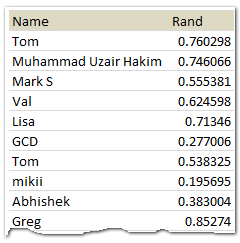 Bonus Tip – How to select a random winner from a list:
Lets say you have a list of names in A2:A11 and you want to pick a random dude.
1. In B2 write =RAND() and auto fill it until B11
2. Now sort the list A2:B11 on the second column
3. Pick the person in first position as winner
Ofcourse, you can also use a formula to pick one winner from a list of values, like this:
=INDEX(A2:A11,RANDBETWEEN(1,10))
And if you have named the range, you can make the formula a bit more robust, like this:
=INDEX(lstEntries,RANDBETWEEN(1,COUNTA(lstEntries)))
That is all folks. Thank you so much for commenting and making this contest really fun. You have an excellent weekend.
We got the measles vaccine for kids last night. Doctor told us that kids will be cranky through out the weekend. So you can guess what I am up to.


4 Responses
I while ago I wrote a post on selecting a couple of names from a range via an UDF
I could have been handy…. especially because I didn’t win…. lol
http://xlns.lamkamp.nl/?p=14
Sweet! I won! Thank you so much, Chandoo! I’m really speechless! I’ll look out for an e-mail from you. Again, I really appreciate it, and I can’t wait to fire it up!
Sincerely,
Tom “this one” 🙂
Thank You… Thank You… Thank You… 🙂
Hi,
Don’t want to ruin your party.. 😉 but I noticed that when you sort the list A2:B11 (step 2), the RAND function re-calculates the numbers so that they are different and in mixed order again. I had to paste the whole area as values first and then sort to get it to work.
Wonder if the same happened to you because in your list at least Greg has a higher value than Tom 🙂