

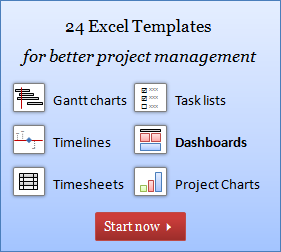
Some of you know that I sell a bundle of Project Management Excel Templates. The bundle includes 24 ready to use templates for Gantt Charts, Timesheets, Project Dashboards, Status Reports, Time Line Charts, Issue Logs, To do Lists and more.
Launching these templates is one of the best moves in my life. They have been very well received by project managers all over the world. Since the launch, 300 people purchased a copy of these templates and made their project management much more smoother and simpler. Personally, I have become confident of running online business while maintaining my core principles (which are knowledge, passion, love and humor).
You too can get a copy of these templates and simplify everyday tasks : Please click here.
What do other bloggers think of these templates?
I have asked my friends and fellow Excel bloggers to review these templates and tell me what they think.
Here is what Debra Dalgleish, Microsoft Excel MVP, Author and Blogger at Contextures.com has to say,
Instead of struggling to create your own Excel project management template, you can use this set of templates from Chandoo at Pointy Haired Dilbert.
Chandoo sent me a complimentary copy, so I could test the Excel project management template collection. I’m very impressed by the quality of the templates, and highly recommend them.
Don’t waste any more of your precious time! Order the Excel project management template collection, and get up and running right away. Chandoo has done all the hard work and set up the complex formulas. You just have to fill in your data, and get to work.
[Read her complete review of the templates]
Here is what Jimmy Peña, Excel and Outlook Blogger at Code for Outlook and Excel has to say,
Excel’s robust feature set is unmatched; and these templates take advantage of new features in Excel 2003 and 2007 to provide you with workbooks you can use to manage any project in your organization. You’ll save time and money, and maybe have a little fun while doing it!
The templates rely on the Lists feature (introduced in Excel 2003), conditional formatting and other visualization techniques to ensure a consistent and professional look.
[Read JP’s full review of the templates]
How to get a copy of Project Management Templates?
Like most things on PHD, I have a 7 step tutorial for this too,
- Visit Project Management Templates Page.
- See the templates (click on the thumbnails in that page).
- Select the version you want (we have 3 flavors – Excel 2007+, Excel 2003 and Both) and click on “Add to cart” button.
- Check out and Pay using your credit card or bank account thru Secure PayPal site.
- Download the templates instantly.
- [Optional] Join PHD’s Project Management E-mail List to get free updates.
- Be awesome 🙂
The template set is reasonably priced at $30. That is $1.25 per template @ 24 templates. If you buy the combo of Excel 2007 and 2003, you get 47 templates for just $45.
As a free bonus, you get a 16 page e-book on Making Better Charts and qualify for free future upgrades for 6 months (there is an upgrade coming in April).
Do you own a copy? Tell me what you think,
If you own a copy of the project management templates, just take a minute and tell me what you think. If you loved the templates, just send a smiley using comment box. If you want to tell us how you are using these templates to manage your project, please chime-in.
PS: You can get 6 free templates by reading project management using excel series of posts.
PPS: If you have a site or mailing list, consider joining PHD Affiliate Program.


2 Responses
Hi Chandoo,
I’ve been highlighting the problem with paypal as for some reason Pakistan is not listed in their website thereby indirectly depriving nearly 200 million people (by the way this is the population of Pakistan) from benefitting Chandoo’s knowledge, passion, love and humor. I also made this request in the form of my feedback to paypal as well but to no avail.
Here again I take this opportunity and use this forum to request Chandoo and paypal that please fix this problem once and for all to the relief of many.
Thanks
Fakhar
@Fakhar… thanks for such a lovely comment. I am truly humbled. Running a business online is much more painful than cleaning a worksheet full of junk data. Currently, I have no plans to setup other payment processing systems for my little tools. I might revisit this when I re-open the excel school later in the year. Until then, you have to use an international credit card to purchase a copy of these templates.