

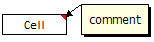
 Excel has a very useful feature called “cell comments” using which you can add comment to a cell. This is a very good way to gather remarks and review comments when a workbook is shared with colleagues and others. But what if you have typed a ton of cell comments and now want a way to extract them and do something with that data?
Well, no need to select each comment and copy the contents. You can use a simple user defined formula (UDF) to do just that. Here is a one line formula that I wrote.
Function getComment(incell) As String

' aceepts a cell as input and returns its comments (if any) back as a string

On Error Resume Next

getComment = incell.Comment.Text

End Function
To make it work,
To make the getComment() UDF work for you, you need to install it first. Here is a step by step guide if you dont know how to install user defined formulas in excel.
The simple and easy version:
- Copy the above vba code
- Open a new excel file
- Right click on any sheet tab name and select “view code” option.
- Don’t be scared of the VBA editor. Take a deep breath.
- Click on “Insert” menu option and select “Module”
- Paste the code in the new module
- Save the workbook and start using the getComment() formula.
The lengthy and more stable version:
- Same as first 6 steps above.
- Press ctrl+s to save the work book. Specify “excel add-in” as the file type.
- Now, go back to excel and install this new add-in
- That is all. Now you can use getComment() formula in your workbooks.
Related: How to change the shape of cell comments from rectangle to any other shape


93 Responses
it is greet UDF
but the result of this new function contain the username before the comment
so to get the comment only i used that formula
=RIGHT(getcomment(A1),LEN(getcomment(A1))-FIND(“:”,getcomment(A1)))
thanks at all
The above formula is not working
@Ilamaaran
I suspect the issue is that you have copied and pasted the above formula as is.
Find the formula
Manually replace the characters that look like ” but you’ll notice they are slightly angled, with the ” character
it should be resolved
While copying this formula, quotes (“:”) are copied in italic font type, convert it to normal font type quotes (“:”). Formula works fine.
@Moatasem.. agree.. you can also use the author attribute of the comment object to find who added the comment.
I would probably typecast the incell variable, to make sure someone doesn’t try to pass a non-Range object to it. I wonder what would happen if a multi-cell Range was passed, with multiple comments, what would happen?
Also, if you delete the comment author from the comment text, you won’t be able to pull the comment author from there. But I do notice that, even if you do that, the comment author is still displayed in the status bar. I wonder if it’s possible to access that text somehow, since it doesn’t change even if you edit the comment.
I would like to put many comments on one workbook and then have a single cell populate them as a list. With getComment() I can only query one cell. How can I get this to query multiple cells and populate those comments to just one cell?
@JP .. wonderful suggestions. I thought of typecasting and non-range exceptions. Initially the UDF had only one line. I later added the on error resume next to take care of pretty much everything. Comment author is a problem though, but I guess we can easily parse it out as Moatasem suggested above…
Hi. I’m still learning about UDFs, so I thought I’d try this as a good training exercise for myself. I’ve set it up and it seems to work. But, I’ve noticed that if I change the comment text, the udf doesn’t automatically update. I’ve got calculation set to automatic, and I’ve also tried hitting f9 to get it to recalc. Any ideas how to force it to update after editing comments ?
@Gerald: that is tricky. I just realized it myself. The only way to recalculate this formula is to go to the cell, hit f2 and then hit enter. I am not sure why this is happening though.
Any UDF / Macro experts out there… any idea why this might be happening ?
Add the following line to the UDF, right after ‘On Error Resume Next’:
Application.Volatile True
Then press F9 to recalc as needed.
Well that kind of works – thanks JP. If I hit F9, it does now re-calculate. But if I don’t hit F9, it doesn’t re-calc, if calculation is set to automatic. What it seems to do is, IF there is a formula on the worksheet, then it WILL update the comment, I’m guessing because the formula is somehow forcing a general calculation. But if there are no formulas elsewhere in the sheet, then it only updates on F9. As it is, this is probably OK for most users. But just out of curiosity, is there a way to force updating on a worksheet without other formulas ? By the way, I’m using 2003.
I’m using 2003 as well, and my experience is slightly different.
Because there are no events that fire when a comment is updated, it doesn’t matter if the worksheet has formulas (I checked the Change and Calculate Events for Workbook and Worksheet). Just editing a comment won’t force recalculation, even if the worksheet has formulas. After editing a comment, you would still have to press F9.
What does work, however, is if you edit a *formula* on the same worksheet. That causes recalculation, which in turn causes the UDF to update.
JP – sorry, to be precise, I think my experience is the same as your’s. With the modified code, simply modifying the comment does not result in an update to the result of getcomment(), whether or not there are formulas on the sheet. Hitting f9 does seem to force an update to getcomment(). Also, as you say, editing a formula also updates getcomment(). Not only that, but making other changes (such as entering a text string in a previously blank cell) also forces an update to getcomment(). Thanks for your help !
Makes sense. Updating a cell (not the comment, unfortunately) would trigger recalculation.
Chandoo,
I am try to call your getComment() UDF using
getComment(ADDRESS(B7,B11,,,”Chart”))
the address portion show as “Chart!$J$17” and the call in cell results as getComment(“Chart!$J$17″)
I get proper result when I use
getComment(Chart!$J$17) but
not with the resule from address function. How to I get rid of the ” at beginning and end of the results of ADDRESS function so you function works?
Thanks,
Tim
Hola
muy interesante todo lo que he visto y justo ahora lo necesito. He hecho cada paso descrito (Excel 2007) pero no pasa absolutamente nada? hay algo en la configuracion de Excel que debo cambiar para que esto funcione? algo en especial para el uso de getcomment? Me aparece en mis UDF y la escribo en una celda por ejemplo en A2 escribo =getcomment(A1) y en A1 he puesto texto, numeros, formulas enlazando otras celdas, etc y no sucede absolutamente nada, ni siquiera se general el comentario, genero el comentario manual y al comentario no le sucede nada, nunca muestra nada.
Alguna idea de por que me sucede esto?
Gracias
Does anyone know of a formula that would reference information and match it with corresponding cells and add the information as a formula?
ex. i have a whole spreadsheet of codes like KDILAOP and UYDLNNI. Everytime there is a KDILAOP on the spreadsheet, I would like a comment inserted explaining what that code means.
This is beyone my excel abilities.
In another Blank cell in the same row as KDILAOP
and assuming KDILAOP is in A10
put an equation like =If(A10=”KDILAOP”, “My Message”,””)
.
This can be extended by =If(A10=”KDILAOP”, “My Message”,If(A10=”UYDLNNI”, “My Message 2″,””)
“”)
.
Beyond this you should have a look at using a Table of velues and associated Comments
Then use a lookup function to retrieve the right value.
refer: http://chandoo.org/wp/2008/11/19/vlookup-match-and-offset-explained-in-plain-english-spreadcheats/
Thank you, thank you, thank you!
You have just made my life much easier. I need to learn more about VBA and Macros – they are amazing.
Thank you!!!! This really really helped me!
Any way to extract a comment to a cell WITHOUT using VBA? Unfortunately MS extracted the VBA utility from my Excel For Mac 2008.
No
Hul,
I appreciate your detailed response :). President “Silent Cal” Coolidge was at a party when a guest stepped up to him and said, “I bet my friend $100 I can get you to say more than two words. The President replied, “You lose.”
How about this: again, without using VBA, is there a way to have Excel randomly select a cell from an array and duplicate that cell in another cell, INCLUDING any comments associated with that cell?
Thanks,
Mike A.
The Random part yes, using a Named Formula
The comment bit, No
If you can post/email me the Array/Range I’ll send back a response
It might be better first to explain the purpose, you may have an easier solution.
I have an array in which some cells contain a word, and in those cells a comment contains that word’s definition. I would like to use the array essentially as a deck of flash cards, where, when the user does a recalculation, Excel randomly selects a cell and takes the user to that cell so he/she can see the word.
The user tries to recall the definition, and then has the option of displaying the comment, the same way he/she might flip a card to check his/her memory. (I wanted to display the comment with a button click, but the lack of VBA evidently rules out that option.)
Ideally, the formula should ignore any blank cells, of which there are many in the array.
Assume the array is defined as $A$4:$Z$200; though it might be better to use a name for the array as I expect it will expand over time, and a name should (yes???) obviate the need to change the formula, I will just need to redefine the array. If this makes sense, call the array WordNerd.
Thanks!
What about putting the comments on a Hidden Sheet in the same location
eg:
Sheet1!A10: Dictionary
Sheet2!A10: A book of word definitions
Then hide sheet 2
Use formulas in B10, C10 to retrieve the answer
Thanks, but every day I add 10-20 words, this sounds like I’d have to keep both sheets in synch. Plus I already have a 1,000 or so entries I’d have to retype.
Isn’t there any way that Excel can randomly select a cell from an array and simply take me to it, without VBA???
Yes Mike, Excel can do exactly that
But you keep telling us that your comments are in cell comments
I’m suggesting that Excel can do that without VBA if you have the Description in Cells, not in Cell Comments
You could put the comments off to the side like Column CA, where the user won’t see them
You could also send the file to a Windows user and get the comments extracted to cells with some simple VBA
Sub Extract_Comments()

Dim c As Range

For Each c In Range("A1:A1000") 'Change range to suit

    If c.Offset.Value  "" Then c.Offset(, 1).Value = c.Comment.Text

Next

End Sub
Formula to get the comments excluding user –
=CLEAN(MID(A1,FIND(“:”,A1)+1),300))
I can not belive that it would as simple as it is. You save my lot of time. Many Thanks 🙂
Thanks Chandoo. Formula helped.
I’ve created the Function (getComment) in personal.xls.
How do I get it to be able to be used in any other workbook?
Is creating it in a new workbook then saving as an add-in the only way?
Thanks
hey guys! 🙂
I´d like to know how to write a comment in a cell and this comment be shown automatically in another cell as a comment, not as a text in the cell.
I’m a beginner and I´m already crazy looking for this vba. Please, help me!! 🙂
ThankS!!
@Paulo
Is there any relationship between the addresses of the two cells?
yes! I am building a table of daily study.
On day 1, for example, the table is “study” where the subject is math and trigonometry is the comment.
On day 2, the table is “Review.” On this cell is an exact copy of the study table. Math as a value an trigonometry as a comment. All this automatically.
At first there is nothing wrote on the Review cell.
I hope I’ve ben clear… I’m not too good in English. sorry…
How can I send you an exemple picture ??
@Paulo
Have a read of: http://chandoo.org/forums/topic/posting-a-sample-workbook
uploaded picture. Thanks Hui! 🙂
http://i47.tinypic.com/21dh5x3.jpg
@Paulo
Try adding the following VBA code to your worksheets code object in VBA
Private Sub Worksheet_Change(ByVal Target As Range)
If Target.Column = 3 And (Target.Row >= 12 And Target.Row <= 16) Then If Not Target.Offset(12, 5).Comment Is Nothing Then Target.Offset(12, 5).Comment.Delete End If Target.Offset(12, 5).AddComment Target.Comment.Text End If End Sub
Wow, you made my day. Can’t thank enough!
I tried the code to add a date to the comment, and it didn’t work. I looked at the code and don’t see anything for date coding.
I was using the wrong code. The date code is working.
I just wanted to drop a quick “thank you”. The UDF tip saved me some serious time on this specific project I just finished up.
Cheers.
You are……… I am so grateful right now I don’t even know what to say, you are a AWESOME!!!
It is great. I required it. My client is sending address field in comment under name column.
now it became very easy.
Thanx.
This was brilliant – big thanks for sharing! 🙂
Thanks so much Chandoo. It’s fantastic. However, I’ve inserted picture as comment in the cell. As this function returns string, it’s not going to return picture from comment. Is there anyworkaround to retrieve picture from comments.
Any help would be much appreciated.
Did you find out how to do this?
Thank you, this was so easy, straightforward and nice, it almost made me believe I can code.
This is great. So easy to do, and its my first time to use udf.
Thank you very much, that is a nice solution.
I also much appreciated the step by step guideline on how to handle the VBA
BR/ Marcus
Thanks. it worked for me. Great one.
Hello to all,
There’s a way to insert a char() in every line inside the comment?
I have comments that are separated by lines, but when I use the formula, the separation between the lines come togeter with the next line, like:
I Love
You
become: I loveYou
thx
@Diogo
Try using a Ctrl+J character at the end of each line
then press return to start a new line
I thought I would comment on this, it does not appear to work for me.. Any other suggestions?
@Jonathan
Can you post the question and file at the Chandoo.org Forums
http://chandoo.org/forum/
Hi,
This is working great however I had a question. Is there a way to get this to pull the formatting, or at least any “returns” that appear in the comment text? This seems to only pull the plain text as a long string and not sure how to get the “Char(10)” to pull or however Excel displays their return characters.
Thanks for the reply Jon. No, none of the files, ranges or sheet names remain the same. Sounds like a solution would be kinda tough. It seems to me that this would be a common problem other Excel users would run into at some point. If it can’t be done, I’ll accept that, but it’s hard to believe there’s not a way to do it.
This worked great, thank you!
Okay, I got the thing installed. But “start using” the UDF doesn’t tell me what to do next. I open up my Excel sheet and do what?
Dude… Hats off very explicit steps to complete the procedure for converting cell comments to normal text in another cell.. Good work.. Kudos
Thanks you for this – works perfectly!!
Is there a way in VBA to catch/detect when a user tries to Insert a Comment into a cell?
The Worksheet_Change subroutine does NOT fire.
Thanks in advance (this is an awesome website!)
@Rick
You could use a generic cell change or change even
Then count the comments in the worksheet and compare that to a previous or stored value
The do what you want if it has changed
I’d suggest posting a sample file at the Chandoo.org Forums
explaining specifically what you want to do
Thank you! Super useful!
How do I add a vlookup to the getcomment() command. Thanks
What use cases are there for this? I got it working but was curious to know what folks create a table of comments for.
Can you tell us more about this? I’d like to find out more details.
I savor, cause I discovered exactly what I was having a look for.
You’ve ended my four day long hunt! God Bless you man. Have a nice day.
Bye
Hi
Is there any way that we can extract a part of comment. Not the whole comment. For example i have a comment whose first 3 lines are below and i want to extract only OptPeriod i-e from all my comments i want to extract from second line only the last word in the brackets.
Input:
MOC Name: ORM(ORM)
Attribute Name: ORM Learning period(min)(OptPeriod)
Type: Number
Output:
OptPeriod
Thanks
Thanks a lot.
Is there a way to pull a comment into another cell as a cell comment instead of it being pulled over as a string?
@Joiwah… You can use Paste Special > comments to do this. Just copy the cells with comments, select where you want to paste them and press Ctrl+Alt+V and choose comments.
how to change cell value ( many cells ) to comments at once
This has helped me but I am trying to take this further and only extract text that is in certain font color. For example if the criteria was red, and within the comment there is hi (in red text) , test (in blue text), and test2 (in green text), I would want to only extract “hi”. Here are some example of code I tried :
Function getCommentRed(incell) As String
On Error Resume Next
IF incell.Comment.Text.Font.Color = RGB(255,0,0) Then
getCommentRed = incell.Comment.Text
End If
End Function
—————————————————————————-
Function getCommentRed(incell As Range)
Dim res As String
On Error Resume Next
res = WorksheetFunction.Clean _
(incell.Comment.Text) ‘add .Font.Color.vbRed?
getCommentRed = res
On Error GoTo 0
End Function
I have a spreadsheet that imports cell contents from 2 other workbooks when a date is entered. (using an Index & Match Formula)
I need it to import the comments and cell colours as well.
Also when the input date is deleted I need the comments and cell colours to disappear as well.
Many thanks in advance
Simon
How can I edit extracted comments after using the below formula?
=RIGHT(getcomment(A1),LEN(getcomment(A1))-FIND(“:”,getcomment(A1)))
@Lamar
You have the answer but it is a Formula
To convert it to something editable you can
1. Copy the cell, Paste as Values
or
2. Edit the formula with F2, Then press F9, Then press Ctrl+C, Then Esc
Goto another cell
Press Ctrl+V
Now you have the text alone
Thank you for this.
Thank you so much for sharing this – it saved me a lot of time!
Andrew
It’s wonderful post.. thank’s
How to extract string comments in cell, above one is only for older version of commetnts.
Alex9, this drop is your next bit of info. Please transceive the agency at your earliest convenience. No further information until next transmission. This is broadcast #4649. Do not delete.
You could avoid adding comments: Are you aware that users can add line breaks inside a cell by pressing ALT+RETURN?
Thanks, it worked great! 😀
Chandoo,
I am try to call your getComment() UDF using
getComment(ADDRESS(B7,B11,,,”Chart”))
the address portion show as “Chart!$J$17” and the call in cell results as getComment(“Chart!$J$17″)
I get proper result when I use
getComment(Chart!$J$17) but
not with the resule from address function. How to I get rid of the ” at beginning and end of the results of ADDRESS function so you function works?
Thanks,
Tim
The getComment function expects a cell reference and not an address in string format. You can use INDIRECT to convert the address to ref. Like this:
getComment(INDIRECT(ADDRESS(B7,B11,,,”Chart”)))
Hope that helps.
Able To Extract starts with the initial measurable data set and generates derived values ?.Users can insert and customize their numbers to professionally index business.
Philip
patchhere.com
Yay google is my queen helped me to find this great site!
My return is limiting the number of characters returned, and therefore incomplete. How can I specify to return all characters in the comment?
Hi Dear Chandoo;
Pls tell Me in example, the VBA Code when I run it, this operation done: Show comment in Range(“A1”) without manual move mouse..
thanx so much
Hello, Chandoo I am Yohannes Teshome from Ethiopia found at horn of Africa I have been watching your tutorials more than 4 months They were easy to understand and they increased my interest on being a data analyst… thank you very much chandoo…