

Jarad asks me in an email “how word frequency can be generated from a range of cells using excel formulas?” This got me thinking and lead to this post, where we learn how to calculate word frequency using array formulas and use it to analyze a bunch of search keywords.
Array formulas are one of the powerful and often underutilized features of excel. They are often difficult to understand and use. But once you develop the ability write array formulas suddenly you see new possibilities.
If you are new to array formulas, read our excel array formulas tutorial
Step 1. Get your data
You must be so bored to see the same step no matter what we do. But getting the right data solves half the problems. Let us assume, our fictitious website has the following search keywords (well, really key phrases)
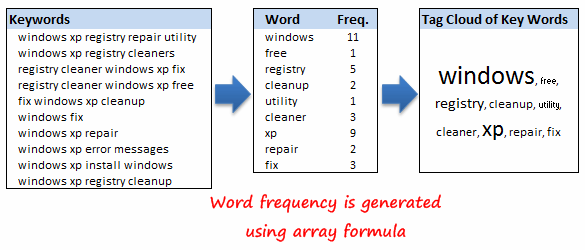
As a smart reader, you can already guess that in real life you will have not 10, but hundreds of key phrases that you would like to analyze. But the ideas you will be learning today should work in the same way.
Step 2. Calculate Word Frequencies using Array Formulas
First we must define the list of words for which frequency should be calculated. I just chose 9 arbitrary words. You can see them in the middle table.
Now we use array formula to calculate word frequency.
First the formula:
Assuming the keywords table (on the left) is in the range B4:B13 and the keyword for which you want to calculate the frequency is in D4, the array formula looks like,
=(SUM(LEN($B$4:$B$13))-SUM(LEN(SUBSTITUTE($B$4:$B$13,D4,""))))/LEN(D4)
Now the explanation
The frequency of the word in D4 (in this case it is “windows”) is calculated by,
- finding the length of the entire text in the range b4:b13
- finding the length of the entire text in the range b4:b13 after removing all occurrences of the word “windows”
- Then, frequency is the gap between above 2 divided by the length of the word “windows”
Now look at the above formula.
SUM(LEN($B4:$B13)) is doing in the first part
SUM(LEN(SUBSTITUTE($B$4:$B$13,D4,""))) is doing the second part
/LEN(D4) is doing the last part.
Step 3. Finally Prepare a Tag Cloud from Keyword Frequencies
This is the simplest part of all, provided you have the tag cloud chart macro installed. When you have loads of keywords, tag cloud can help you visualize the important keywords.
What next?
You can take this basic model and extend it to include parameters like number of searches each key phrase has, how long the users stay on the site etc. to enhance the way tag cloud is generated and colored.
Also read some of the related text processing tricks using excel:
Sorting text using Excel Formulas
Find if a word is repeated in a cell
Cleanup incorrectly formatted phone numbers
Share with us how you use array formulas, your favorite tricks.





