JSON (JaveScript Object Notation) is a popular and easy format to store, share and distribute data. It is often used by websites, APIs and streaming (real-time) systems. But it is also cumbersome and hard to use for performing typical data tasks like summarizing, pivoting, filtering or visualizing. That is why you may want to convert JSON to Excel format. In this article let me explain the process.
1. Why Convert JSON to Excel?
Excel is a more familiar and easy to work with format for your data. Also, when setup properly Excel files (such as CSV or XLSX or XLSB) take up less space than their JSON counter parts. More importantly, performing data tasks like calculating formulas, creating pivots or making charts would be easier with Excel format as against JSON.
Overview of This Guide
In this guide, we’ll walk through multiple methods to convert JSON to Excel, including manual methods using Excel’s built-in tools, automated methods using Python, and third-party online tools. Whether you’re working with small or large datasets, there’s a solution for you. Let’s dive in and explore how you can make this transformation efficiently.
2. Understanding JSON Format
Before jumping into the process of converting JSON to Excel, it’s important to understand JSON format. JSON is a lightweight data format that’s easy for both us and computers to read and write. It’s primarily used to transmit data between a server and a web application, often in APIs or data feeds.
What Does JSON Look Like?
At its core, JSON is a collection of key-value pairs that are organized in objects and arrays. JSON data can be quite flexible, allowing it to represent both simple and complex data structures. It supports various types of data, including strings, numbers, booleans, arrays, and objects.
Let’s consider the following example of JSON data representing information about a few employees in a company:
{
"employees": [
{
"id": 1,
"first_name": "John",
"last_name": "Doe",
"email": "johndoe@awesomechoc.com",
"position": "Chocolatier",
"hire_date": "2023-06-15",
"skills": ["Baking", "Cocoa Sculpting", "Confectionary"]
},
{
"id": 2,
"first_name": "Jane",
"last_name": "Smith",
"email": "janesmith@awesomechoc.com",
"position": "Marketer",
"hire_date": "2024-02-20",
"skills": ["Packaging", "Product Design", "Field Sales"]
},
{
"id": 3,
"first_name": "Emily",
"last_name": "Johnson",
"email": "emilyj@awesomechoc.com",
"position": "Accountant",
"hire_date": "2024-08-30",
"skills": ["XERO", "Excel", "AR / AP consolidation"]
}
]
}
Breaking Down the JSON Example
- Objects and Arrays:
- The main JSON data structure in the example above is an object, denoted by curly braces
{}. - Inside this object, there is a key called
"employees", which maps to an array (denoted by square brackets[]). - The array (list) contains multiple objects, each representing a single employee.
- The main JSON data structure in the example above is an object, denoted by curly braces
- Key-Value Pairs:
- Inside each employee object, you’ll find several key-value pairs. For example,
"id": 1tells you the employee’s ID, and"first_name": "John"specifies the first name of the employee. - Some of the values in the JSON are simple data types (like strings or numbers), while others, such as the
skillskey, are arrays that hold multiple values.
- Inside each employee object, you’ll find several key-value pairs. For example,
- Nested Data:
- The
skillsfield is an example of nested data. It’s an array within the employee object, which further contains multiple string values representing different skills. This kind of nested data can be difficult to work with directly in Excel, which is why conversion and flattening are necessary.
- The
Challenges of Working with JSON in Excel

As you can see, JSON is hierarchical while Excel prefers data in a flattened, tabular format.
If you try to import JSON directly into Excel without transforming it, you might end up with a jumbled mess of data.
For example, in the above JSON, the "skills" field would result in a list being placed into a single cell if not properly flattened. Additionally, nested objects, like the employee object, would need to be expanded into separate columns (e.g., "id", "first_name", "last_name") for the data to be usable.
This is why it’s essential to convert JSON to Excel in a way that ensures all data is properly structured in rows and columns for analysis. Let’s explore some methods to accomplish that.
3. Methods for converting JSON to Excel format
There are many ways to convert JSON to Excel. My preferred technique is to use Power Query in Excel to convert the data quickly and elegantly. But you can also use other techniques. Let’s go thru each of these in detail.
JSON to Excel conversion (step by step):
What you need: You need a JSON file with your data. Download this sample data if you don’t have any.
- Go to Data > Get Data > From File > From JSON
- Select the JSON file on your computer (or on the network location)
- This will open Power Query editor with your JSON file. Here is a snapshot of how that would look like:
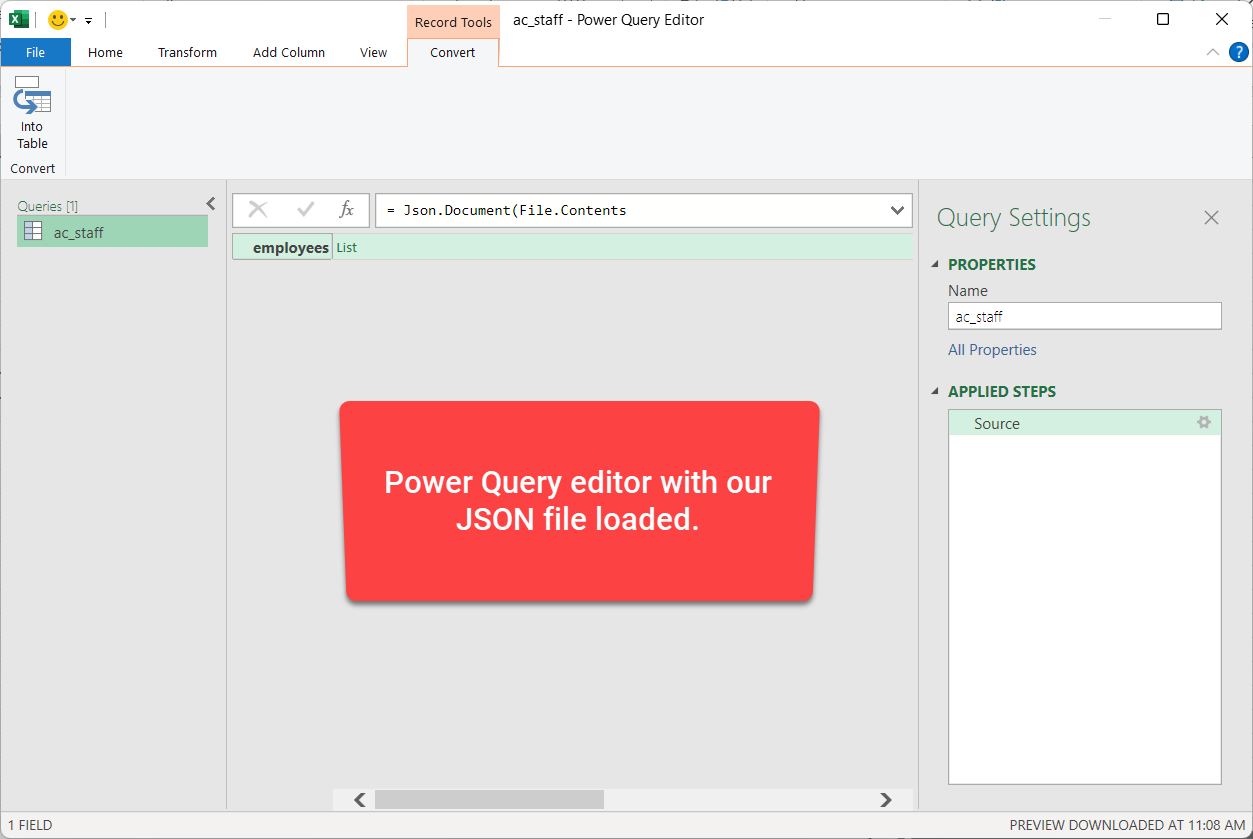
- Using the “convert” ribbon, convert the JSON listing to a “table”.
- Now you will have a “list” of all the JSON records (or objects). Click on the Expand button on the list column and select “expand to new rows”.
- This should show all the records of the JSON (see below)
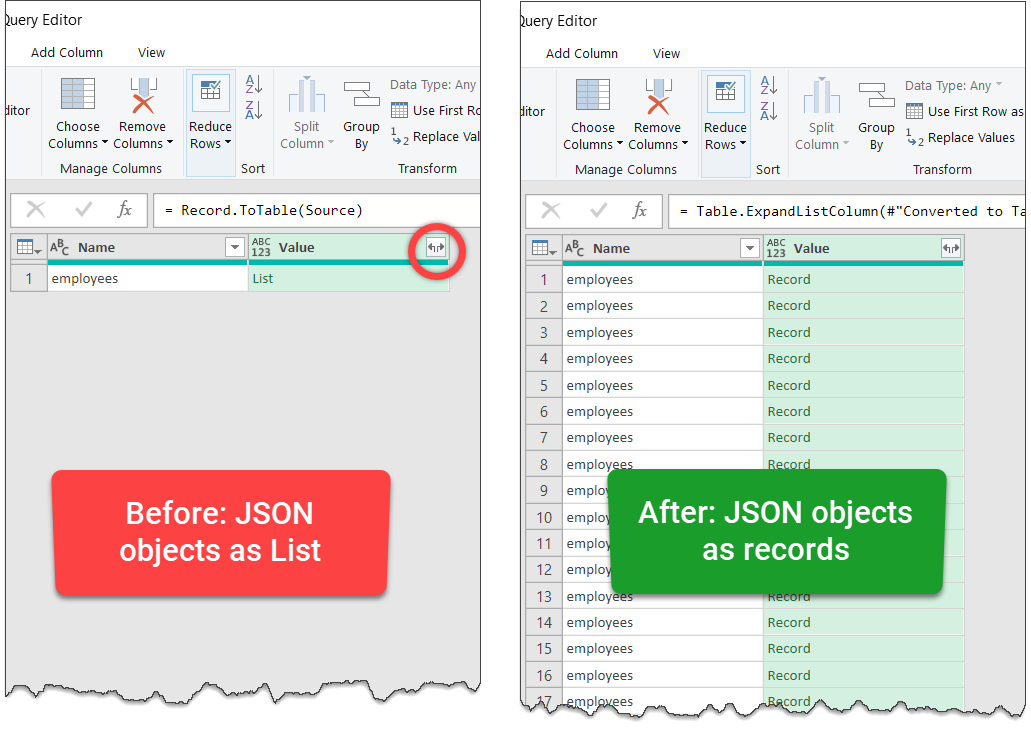
- Expand the Value column again to see the contents of the records.
- If you have any “nested” or “hierarchical” data in your JSON, you must expand these columns again. But this time, use the “extract values…” option so you can see them all comma separated in the same column.
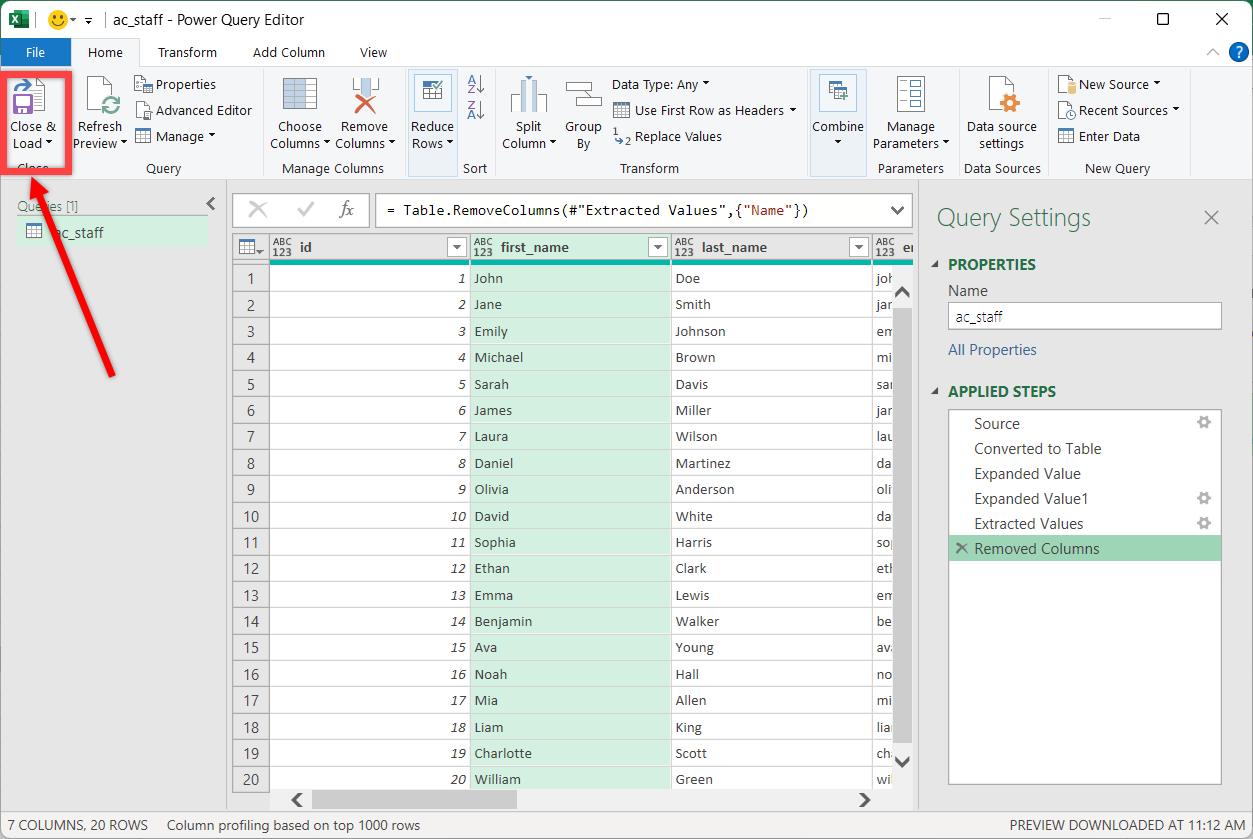
- Once you have all the necessary data in Power Query, remove any columns you no longer need by right clicking on them and selecting “remove” option.
- When ready, use the Home ribbon > Close & Load to bring the data to Excel.
Quick Demo of JSON to Excel conversion:
Here is a quick video demo of the process in Power Query.
Things to keep in mind when converting JSON to Excel with Power Query ??:
- Nested Data: If your JSON has nested data elements (for ex: skills attribute in our example above), you need to recursively expand all these items. But don’t expand them to “new rows” as this will create duplicate data. Instead just use “extract” option and get them all in one column with a delimiter like comma or semi-colon.
- Data type conversion: By default Power Query may convert your data to relevant data types. But always double check this and apply any conversion necessary.
- Preview vs. Load: Power Query Editor shows a preview of the JSON file for first 1000 rows, but actual conversion will only happen when you click on “close and load” button in Excel. So don’t freak out if you don’t see all the data in PQE (PQ Editor). It should appear when you load data to Excel.
- 1 Million Row Limitation: Excel spreadsheets can only hold 1,048,576 rows (just over 1 million). So if your JSON is really big, you need to think of another method. Here is an example of how to use Excel if you have more than 1 million rows of data.
Pros & Cons of using Excel to convert JSON:
Pros:
- Quick and easy: Power Query in Excel offers a quick, easy and straightforward way to convert JSON to Excel.
- FREE: Excel based conversion is free unlike paid methods.
- Refreshable: Should your JSON files change or update, you can quickly refresh the Power Query connection to see updated data in Excel. This means any reports or calculations you build on top of the JSON will automatically update, thus providing up to date information.
Cons:
- Hard to work with deeply nested data: If your JSON has multiple levels of nesting or hierarchies, then the Power Query based approach requires “drilling” to all these levels. As data can change often, if a new level of nesting appears in future, your Power Query refresh can fail.
- Requires understanding of Power Query: While PQ is not deeply technical, it is not easy either. So if you are not familiar with PQ, you will find this method hard to use. Here is an excellent beginner tutorial on Power Query with 4 powerful examples.
JSON to Excel conversion with Python (step by step):
Why Use Python for JSON to Excel Conversion?
While Excel’s Power Query can handle basic JSON imports, Python is often the better choice when dealing with large datasets, deeply nested JSON structures, or automating repetitive tasks. Using Python, we can efficiently read, manipulate, and export JSON data to an Excel file in just a few lines of code.
Installing Necessary Python Libraries
To begin, install the required libraries:
pip install pandas openpyxlThese libraries will help us process the JSON data and save it in an Excel-friendly format.
Loading JSON Data in Python
Consider the following employee data stored in JSON format (sample file).
{
"employees": [
{
"id": 1,
"first_name": "John",
"last_name": "Doe",
"email": "johndoe@awesomechoc.com",
"position": "Chocolatier",
"hire_date": "2023-06-15",
"skills": ["Baking", "Cocoa Sculpting", "Confectionary"]
},
{
"id": 2,
"first_name": "Jane",
"last_name": "Smith",
"email": "janesmith@awesomechoc.com",
"position": "Marketer",
"hire_date": "2024-02-20",
"skills": ["Packaging", "Product Design", "Field Sales"]
}
]
}We can load this JSON file into Python using:
import json
import pandas as pd
# Load JSON data from a file
with open("employees.json", "r") as file:
data = json.load(file)Converting JSON to a Pandas DataFrame
Since the JSON structure contains a list under the "employees" key, we extract and convert it to a DataFrame:
df = pd.DataFrame(data["employees"])This will transform the data into a tabular format, making it easier to analyze and manipulate.
Exporting Data to an Excel File
To save the structured data as an Excel file:
df.to_excel("employees.xlsx", index=False, engine='openpyxl')This creates an Excel file employees.xlsx, which can be opened in Excel for further processing.
Handling Nested JSON Data
If the skills field is stored as a list, Excel might not display it properly. We can flatten this field:
df["skills"] = df["skills"].apply(lambda x: ", ".join(x) if isinstance(x, list) else x)Now, each employee’s skills will be stored as a comma-separated string, making it easier to read.
Automating JSON to Excel Conversion
For repeated tasks, we can automate the conversion by scheduling this Python script to run daily or whenever a new JSON file is added.
Python provides a scalable and efficient way to process JSON data and export it to Excel, making it ideal for large datasets and automation needs.
Converting JSON to Excel with External Tools
If you don’t want to get your hands dirty with Power Query or Python based approaches, you can also use online tools to quickly convert JSON to Excel format.
1. Online JSON to Excel Converters
These web-based tools allow users to upload a JSON file and instantly download an Excel file:
- JSON to Excel by TableConvert
- Converts JSON to structured Excel tables.
- Allows previewing and editing before download.
- Supports additional formats like CSV and Markdown.
- JSONFormatter.org JSON to Excel
- Free tool with a simple drag-and-drop interface.
- Supports large JSON files.
- JSON to CSV
- Upload your JSON file and download the CSV
These tools are great for quick, one-time conversions, but they may have file size limitations and require manual steps each time.
2. Using Power BI to convert JSON to Excel
If you prefer to use a desktop software to convert JSON to Excel formats (like CSV or tables), you can use Power BI Desktop too. This doesn’t have 1 million row limitation so you ca use it to parse very large JSON files. The approach is same Excel Power Query technique, but the final data ends up in Power BI. You can either copy the table at the end of load process or use it directly inside Power BI to analyze the data.
Final Thoughts
If your JSON files are simple enough, just use Power Query in Excel to get the output the way you want. You can refresh this anytime your data changes.
On the other hand if your files are large or you need more control, use Python code samples above and tweak them to your needs.
If you have any questions, leave a comment so I can help you.


84 Responses to “Beam Me Up Scotty – Excel Hyperlinks”
I've just started using the formula version "=HYPERLINK("S:\Reserving\Management Judgment comments\check for MJ comments TOS 006 "&TEXT(month,"mmmm yyy")&".xls","MJ Comments")" and making it dynamic as some of the files that I use have a new name each month, or even each day.
I have an Excel file called "Important Stuff'. Rather than use post it notes, I put information I need into this file. I create hyperlinks to the files I most reference; especially when I have many different versions. I then add comments in the cells next to the hyperlinks to tell me what the differences are. I rarely have to search as everything is right there in the one file.
Great article! I'm bookmarking this for reference. Thanks for putting 'all you need to know about hyperlinks' in one place.
Hyperlinks are great but "Hyperlinks for navigating a spreadsheet are lost if saved as a "pdf". Even if you are utilizing Adobe Writer 8.0.0"
Great info! I never thought of using hyperlinks in Excel. Mostly used them in Word, email and especially in Powerpoint.
One cool thing I do is combine the hpyerlink function with a custom function I had help in building. I have a list of contractors from our Accounting Software (Quickbooks). We keep scanned copies of the 1099s in one folder. We can then download the data, which includes the vendors TaxPayer ID. The formula then checks for the file. If it exists, it provides a link to open it. If it doesn't it says so.
Here is the custom function code:
>>>>>>>>>>>>>>>>>>>>>>>>>
Public Function MyFileExists(MyFilePath As String) As Boolean
Dim objFSO As Object
Set objFSO = CreateObject("Scripting.FileSystemObject")
MyFileExists = objFSO.FileExists(MyFilePath)
Set objFSO = Nothing
End Function
>>>>>>>>>>>>>>>>>>>>>>>>>>>>>>>>>>>>>>>>
Bobby
BobbyBluford.com
This is aewsome. I have been using hyperlink since a long time. I like this option as this helps me create my Dashboard like a webpage. Thanks for sharing this, I got more insight of this option. 🙂
Bobby: Fantastic idea! What's amazing is as soon as I started reading 'scanned copies' in your post I was thinking 'hey that would be cool if you could just link to the files if and only if they exist'. Then you described how you do exactly that!
Nice one.
I use hyperlinks to jump from one location in a tab to another. When I add rows, the hyperlink destination location does not reflect the rows I just inserted. Does anyone know a way around this?
@All
If you like playing pranks on you co-workers or friends here is a simple Excel Hyperlink prank.
.
Open a workbook, probably not an overly important one, and select a page then either Use Ctrl A twice or select all the cells by clicking in the area to the upper left of A1.
Right click any cell and insert a Hyperlink, doesn't matter what its to, Another page, a Web Site or Send an Email
close the file
.
When anybody opens the file and clicks anywhere on the page it will execute the Hyperlink, even on a blank cell, where the Hyperlink isn't shown
This works particularly well on Blank worksheets
.
To remove right click anywhere on the page and Remove Hyperlinks
I have been wrestling hyperlinks to PDF files for over a year now, I can insert hyperlinks fine, and they look beautiful, but when click on them it comes up with "Cannot Open the Specified File". Does anyone know if this is because PDFs are unsupported by Excel or can other people get hyperlinks to PDFs working OK.
My application is a register of approved capital expenditure projects and the link is to a PDF scan of the signed approved document.
Did you add ".pdf" when you created the link?
I know this is an old comment, but we had the same problem too and the solution takes a little digging.
1. Open Adobe Reader X
2. Pick "Preferences" from the "Edit" menu
3. Pick the "General" category on the left.
4. Uncheck the "Enable Protected Mode at startup" box at the bottom.
5. Close Adobe Reader and retry opening the PDF file from Excel and it should work now.
Abobe Reader XI has a similar problem with a different error message. The settings in Reader XI seem to be Edit > Preferences > Security (Enhanced). At first I tried unchecking "Enable Protected Mode at startup" as this was the fix in Acrobat X. This did not work for me the first time. Then I tried unchecking "Enable Enhanced Security" and it started working. Then to test it, I re-checked both boxes... and it still works. I am not sure if other settings changed along the way, so I can't confirm the resolution other than "try this and see if it works!"
@JJ
What version of Excel are you using ?
and
What PDF Reader are you using ?
I assume you are using the Link to an Existing File or Web Page dialog?
Because that has worked as described for years without error
I am using excel 2007
The PDF reader I am using is Adobe Reader X.
So nothing really unusual.
I am using the Insert Ribbon, then the Hyperlink Icon.
I just had anohter play with it - it seems to work OK if the PDF file is on my C drive, but as soon as the PDF file is on a network drive it comes up with the error.
[...] Introduction to Excel Hyperlinks [...]
Dear Bobby i think your solution is very near to my requriment but can please explain in layman terms . I have a set of files in a folder let say a,b,c,d,e and i have a range of column in excel a1,b1,c1,d1,e1 .So if i click cell a1 file "a" should open. For range of 5 cells we can hyperlink each cell but if i have 100s of cells and files How can i apply hyperlink to all of them at once please explain
I'm using excel 2010 & adobe reader 10 - getting the same error "Cannot Open the Specified File” when linking to a file on a networked drive. File opens fine if it's on my PC.
Hope this helps.
Say in cell Z1, I have the URL: http://www.microsoft.com
And, I have a rectangle shape near A1... and I want it to have a hyperlink... and the URL for the hyperlink should be the URL in cell Z1.
So, when someone clicking the Rect will be taken to http://www.microsoft.com
When the URL is changed in cell Z1 to say http://www.yahoo.com
Now, when clicking the Rect should take him to the new URL.
How to achieve this? Thanks.
I am using Excel 2007. I have a spreadsheet with hyperlinks that were created using formulas, such as =HYPERLINK( Link Location, Name).
The hyperlinks work fine while I am in Excel, so I know they are active. However, when I use Acrobat 10 Pro to pdf the spreadsheet (and select the option to "Add Links") the Web links are no longer active.
I imagine it's because Acrobat cannot handle the "behind the scenes" commands such as a formula, and then just uses the visible text in that particular cell.
Has anyone found a work-a-round for this problem?
The problem is that the hyperlinks in Excel are nothing more than cell references. However the cell disappear when saving as .pdf.
In Powerpoint, the slide references can convert to pdf and continue to work.
[...] Hyperlinks: for accessing other parts of the workbook & data [...]
I have a single page dashboard created, where I would like each of the graphs to serve as a hyperlink to the actual data that creates the graph. The problem I'm running into is the URL for the hyperlink can be very long, depending on the data used to create the graph. Does anyone know how to get around the 255 characters limit Excel has on URLs? I used =Hyperlink(A1)&Hyperlink(A2) without Excel returning an error, but when I click on the link, it doesn't do anything. Any help would be greatly appreciated.
Brad,
I realize this comment is about 4 1/2 years old and you probably won't see this. But for anyone else who reads this, what about a URL shortening service like bitly, tinyurl, etc.?
I need to use hyperlink in excel to brows a web page according to each row
of a table that it's data comes from a external source such a sql connection.
but the text I have genarated from sql query "=hyperlink("Http://somthing.com","WebPage")"
appearing just like above text if i edit i in sheet for example adding some space after of before text and accepting changes then link become a real link
any kelp!
I would be appreciate
The simplest way to add web page links is:
1. In your browser, copy the url
2. Paste the url into a cell
3. Press F2
Done!
Hi Gents
i don't have not much knowledge about hyper link.Could please any
one can explain how hyper link has been working.
@Mohanraj
A hyperlink is like a shortcut
By selecti8ng the hyper link it takes you somewhere else
Hyperlinks can:
Take you some place else, like another sheet or workbook or open other file, they don't even have to be an Excel file
Hyperlinks can be placed in cells, ranges or objects in Worksheets like Charts or Rectangles etc, all of which trigger the hyper link when you click them
The post should tell you the rest of the story on how to use them
Hi I am trying to insert an activex control from Developer tab and add hyperlink (web address) to it. Hyperlink button is not enabled in Excel 2010. The same option is available in Excel 2007. I am trying to this by C# code using this function.
ActiveSheet.Hyperlinks.Add(ActiveXObject,"http:\\www.gmail.com",Type.Missing,"Screen Tip",Type.Missing);
This code throws 'invalid argument' exception. I tried to use 'Application.Selection' for anchor as first argument with out any success.
Any help is appreciated.
Regards,
Thanks with regard to providing these types of
good information.
Please tell any body..
Can we add a shortcut key as address of a hyperlink in Excel so that when we click on that hyper link the shortcut key works.
[…] Introduction to hyperlinks […]
I have an excel sheet with quite a lot of hyperlinks to files and folders in the server. We will be implementing new servers as part of a project, which means the directory structure of the old server will be moved to the new one.
Is there an easy way to keep the existing hyperlinks intact when moving to the new server? or do I have to edit each hyperlink and start all over again?
Your help on this much appreciated.
Cheers
ST
useful information
trying to hyperlink a cell with an object placed in shared folder.
It only kinks the shared folder but not the object in it...help!!!
I love the details on your websites. Thanks for your time!
Pl show me how to add a hypelink inside a text box, shape & image
so when I click any of the above it directs to hyperlink destination
Thanks
kanil
@Kanil
Simply insert a shape
Right click on the shape and select Hyperlink
I am trying to insert a .pdf file into an Excel spreadsheet. I have a large library of .pdf part drawings located on our server.
Path = Z:\MachineShop\Administration\Customer Drawings\
I would like the hyperlink to use a concatenated cell (C19) which contains =CONCATENATE(QUOTE!C1, QUOTE!D19)) QUOTE!C1 is the name of the file minus the .pdf suffix and QUOTE!D19 contains the .pdf suffix which is added to the part number to complete the file name. I would like the hyperlinked image to automatically load when a new value (part number) is entered into QUOTE!C1. Is this possible?
Trying to display only text if a parameter is/isn't found on a positive or negative IF response when using the IF and HYPERLINK functions together. If looking for a "No" value (positive) or if looking for a "Yes" value (negative); both are written correctly, to include the VBA macro, and what should drive a text-only response supplies a hyperlink that shouldn't be a hyperlink. It goes like this:
With Table1:
Positive No response:
=IF($O2="No", "Missing", IF($O2="Yes", HYPERLINK(pathname(), "Open"), HYPERLINK(alternatepathname(), "Open")))
Negative No response:
=IF($O2="Yes", HYPERLINK(pathname(), "Open"), IF($O2="Yes", HYPERLINK(alternatepathname(), "Open"), "Missing"))
Well, based on both responses, if Missing is displayed, it is a hyperlink, that points to nothing, instead of text. It looks like a flaw in Excel's coding. Is there a way to force just text to display?
As soon as I posted this, I found the answer.
The desired text-only response should still be writted with a HYPERLINK since one HYPERLINK function makes the entire cell followable regardless of the answer. In my case, I should write my formula like so:
=IF($O2=”No”, HYPERLINK("", "Missing", IF($O2="Yes", HYPERLINK(pathname(), "Open"), HYPERLINK(alternatepathname(), "Open")))
Having applied this, the hyperlink "look" still exists, but you can format over the cells. You don't have an active hyperlink, but you would still get the "pointer hand" like it were a hyperlink.
Hi,
I have an issue with Excel 2013. I am trying to add Navigation buttons to move around my workbook and I can't. I link the hyperlink to the place I want and try clicking the newly placed button/hyperlink and it throws up this Error Box message: ''Your organisation's policies are preventing us from completing this action for you. For more information please contact helpdesk.
Any ideas of what to check or change in Excel to be able to use hyperlinks? It was working a few days ago and now this nonsense!!
Thanks.
Without having Excel in front of me, you may want to check a few things.
File permissions in the folder your document is saved.
Make sure it isn't read-only.
If it is opened as an attachment, save it to your desktop first.
If it is saved to a network folder, try saving to your desktop.
See if you can add a trusted location for the document in Excel.
If you are still prohibited from this functionality, your group policy setting applied to your machine are probably restricting this action. You may have to look into whether you really need this functionality.
Hi All,
I have a question:
Is it possible to set hyperlink to an object?
What I mean is to follow the link to an object, not to put on an object.
For example, I have 10 pictures on my worksheets, I would like to set 10 hyperlinks on 10 cells (namely Pic 1, Pic 2, etc.) that will lead me to the corresponding pictures.
Is that possible?
Thanks in advance for your advice.
Cheers, 🙂
@MF
Yes,
Right click on the item, which can be a chart, shape, cell and Add/Insert Hyperlink
Set the location as a Range, Web address, external file etc
Hi Hui,
Thanks for your quick response.
However I want the link to be put on cell that will lead me to the object; not the other way.
Is it possible?
Why not put the pictures in a cell and link to the cell the picture is in?
Because the position of the object will be moved from time to time; and the picture is too big to be put into a single cell... 🙂
I link to charts often, and just merge cells or link to the upper left corner.
If it moves, that is trouble. Your best bet may be to run a macro to select it:
Sub SelectPicture()
Sheets("MyTab").Shapes("Picture 1").Select
End Sub
Thanks Mike for your suggestion.
I will give it a try. 🙂
I couldn't get the hyperlink formula to work and then found on some forums to put "#" before the sheet name..
so =HYPERLINK("#SHEET1!A1","WHY IN THE WORLD DOES THIS WORK")
does anyone know what the "#" does and why it is necessary?
thanks
Hi,
I have one excel document with four worksheets. The first sheet has the hyperlinks to the other worksheets. The issue I have is when I click on the hyperlink, it takes me directly to the source I need, but i find it hard to locate where the hyperlink has taken me on the screen, due to many cells of information being on the screen. So I'm wondering is there anyway of highlighting the cell that the hyperlink takes me to (ie: the source) or highlighting the borders of the source once I jumped there.
Hi
I have a workbook that I have created and am using a hyperlink to navigate to another page however I would like the info from the previous page NOT to save is there a way to do this?
@Angela
You could probably do this using some VBA Code
I'd suggest posting the question on the Forums and attach a sample file
http://forum.chandoo.org/
Explain exactly what you want to achieve
I am trying to create a hyperlink or formula that will generate an email but also include the file I am in as an attachment.
@Chandan
I doubt that can all be done by a simple Hyperlink
It could be done with a small piece of VBA Code
I'd suggest using the search box at the top right of this page as I am pretty sure that has been answered before
Thank you for the excellent tutorial. Pls help me on how to create a link in excel to open a specific page in pdf. I have use several code to do this but still take me to page of the pdf file. How do I do this to jump to a specific page directly by clicking a link from excel. Thank
@Muffliu
Try:
=hyperlink("E:\testfile.pdf#page=5")
I have an excel document with hyperlinks to a folder on my desktop. I now want to share the document, but am struggling to keep the hyperlinks working. When others open the file, I get an error that the internet site reports that the item requested cannot be found. Is there a work around that doesn't require re-hyperlinking all of the documents?
Hello,
Well we use a particular software for document management made by humming bird software. This software is supposed to be a last version Archive save. That is not what it is used for at our work though it is used as an active directory. I was wondering if anyone has recent experience with hyperlinking between two or more documents in this type of storage.
Is there a hyperlinks for dummies? I need to link a pdf in an excel spreadsheet from my PC. I want to be able to email it to send it by email and be able to open spread sheet with the link on smart phone. Please help!
Repeat the process of coloring and ironing until you like what
you see.
I have two mysteries in Excel 2010:
1. I was given a spreadsheet in which numerous cells were formatted with hyperlinks and asked to extract the hyperlinks so they could be viewed directly in adjacent cells. I never found a function that could do that and didn't have months to take a class to learn to use VBA.
2. When you type a URL into a cell and hit enter, Excel converts the formatting of that cell so that it becomes hyperlinked. I have a spreadsheet that stopped doing that. In fact, the Insert Hyperlink command has been disabled in the ribbon and in the right-click menu. (However, the =hyperlink("") function still works.) How did that happen, and how do I get the command back?
I checked File > Options > Proofing. Nothing was out of the ordinary there.
@Rich
Can you please ask the question in the Chandoo.org Forum http://forum.chandoo.org/
There are a number of ways Hyperlinks can be added and so attaching a sample file would be great and will speed up an answer
Appreciating the dedication you put into your site and detailed information you present.
It's awesome to come across a blog every once in a while
that isn't the same out of date rehashed information. Wonderful read!
I've bookmarked your site and I'm adding your RSS feeds to my Google account.
How can you make the entire cell active? Normally only the text within the cell becomes active and the remaining white space only selects the cell. Example: if the cell columnwidth is say 30 but the hyperlink textToDisplay is "XYZ" then only "XYZ" will be the active portion and all the empty space within the cell is not.
There is an exception. If the cell is formatted with an indention then the entire cell becomes active. For my purpose this exception can be used but I desire to have the cell text centered. But sometimes the cell width is just a fraction larger than the width of the text so indention would break the desired formatting. This is why I would like to have the entire cell hyperlink active and the textToDisplay centered without an indent.
When I originally commented I seem to have clicked the -Notify me when new comments are added- checkbox and now whenever a comment is added
I receive four emails with the exact same comment.
Perhaps there is a way you are able to remove me from that service?
Thank you!
Fantastic beat ! I wish to apprentice at the same time
as you amend your web site, how can i subscribe for a
blog web site? The account helped me a applicable deal. I have been a little bit acquainted of this your broadcast provided bright
transparent idea
Heya superb blog! Does running a blog such as this take a massive amount work?
I have very little understanding of programming but I was hoping to start my own blog in the near future.
Anyway, if you have any recommendations or tips for
new blog owners please share. I know this is off subject however I just needed to
ask. Kudos!
Thanks to my father who shared with me on the topic of this blog, this
blog is really remarkable.
Hello, I would like to subscribe for this web
site to take latest updates, thus where can i do it please help out.
Awesome blog you have here but I was curious about if you knew of any discussion boards that cover the same topics discussed in this article?
I'd really like to be a part of online community where I can get comments from other knowledgeable people that share the same interest.
If you have any suggestions, please let me know. Bless you!
@Promiennik
You may want to look at the Chandoo.org Forums, a very vibrant community for asking Excel questions
http://forum.chandoo.org/
With havin so much content and articles do you ever run into any issues of plagorism or copyright violation?
My blog has a lot of unique content I've either created myself or outsourced but it
appears a lot of it is popping it up all over the
web without my authorization. Do you know any methods
to help protect against content from being stolen? I'd really
appreciate it.
I am having difficulty in opening a hyperlink to a pdf that is housed on the internet (an internet hyperlink ending in .pdf). When I first click the link in excel, I get an alert which says: "Opening.....pdf. Some files can contain viruses or otherwise be harmful to your computer.... Would you like to open? I click OK, and then I get an Excel error that says "Unable to open https://......pdf. The internet site report that a connection was established but the data is not available. How do I get around this? I can copy the hyperlink out of Excel, paste it into my web browser and it opens without any problems. Thanks.
Great goods from you, man. I've be aware your stuff prior
to and you are just extremely great. I really like what you've received here, certainly like what you're saying and the
way in which through which you are saying it.
You make it enjoyable and you still care for to keep it wise.
I can not wait to read much more from you. That is actually a wonderful web
site.
I tried the FoloowHyperlink worksheet event for a hyperlink text in a cell; attached some code to it, and it worked well. When I created a second hyperlink and attached some other code to this hyperlink in another cell, and clicked it, it worked but the result was not what I expected. The second hyperlink executed the code meant for the first hyperlink.
The questions are:
1. Whether the FoloowHyperlink event works for only one hyperlink in one sheet?
2. If not, how many hyperlinks can I create in ONE sheet and attach different code to them. How?
I really appreciate your piece of work, Great post.
We're a bunch of volunteers and starting a new scheme in our community.
Your web site provided us with useful information to work on. You have performed
an impressive activity and our entire group will likely be grateful to you.
I have a Master Excel Workbook in which i have linked the relative documents using hyperlinks. These workbooks open when i click on the Hyperlink. i have also created a back Link to Direct back to the Master. But in the process when i get directed back to Master Excel Workbook the Other Workbook which opened by clicking hyperlink remains open. I want those opened workbooks to close when i click back to master file. Is there a way in which i go directly to the master Excel Workbook by simultaneously closing the other Workbook.
Appreciation to my father who told me concerning this web site,
this website is genuinely awesome.
It's a pity you don't have a donate button! I'd certainly
donate to this superb blog! I guess for now i'll settle for bookmarking and adding your RSS
feed to my Google account. I look forward to brand new updates and will talk about this site with my Facebook
group. Talk soon!
@Forex
You may want to visit this page:
https://chandoo.org/forum/threads/donate-support-our-ninjas.18150/
Awesome post.