Excel School is Open for Admissions

Share

Facebook
Twitter
LinkedIn

Dear Readers & Friends,
I am very happy to announce that Excel School online training program is now available for your consideration. Please read this short post to understand what you will get when you sign-up for this program and how you can join.

What will you get when you join?

Excel School - Online Excel Training Program

  • Access to Private Member-only Classroom: Where you can learn, ask questions, share ideas and discuss home work & class projects.
  • Weekly Excel Lessons for 12 weeks: Includes Videos, Demos, Animations, Excel Workbooks
  • Downloadable Lessons: You can download the lessons once every 4 weeks so that you can learn at leisure
  • 2 Class Projects: Where you will build a Dynamic chart and a simple dashboard based on the techniques taught in the program
  • 3 Bonus Weeks: Apart from the 12 weeks of regular training, I have 3 bonus weeks planned on (1) Excel Shortcuts and Productivity (2) Macros (3) Form Controls. This bonus content will be released in parallel with regular content so that the program duration is not changed.
  • Excel Formula Cheat-sheet: This one page PDF file can act like a quick reference for Excel Formulas.
  • Useful Excel Shortcuts – Cheat-sheet: Print this one pager and stick it near your desk. You will never have to search for most-common key board shortcuts.
  • Complimentary Access to Member area even after the course ends. That is right. The entire course contents, neatly structured by week will be available for access, download and discussion even after 12 weeks are over. You can access all the content for 6 more weeks. Membership gives you access for 22 weeks. So even if you are busy and missed few weeks of the program, you can always comeback and learn at leisure.

Important things to keep in mind:

  • I will close the Excel School registration and payments on 17th Feb, 2010. No new members will be added after that. So if you want in, you better hurry.
  • Classes will begin on 22nd Feb, 2010 and go on until last week of May. You can watch all the lessons, continue discussions until 4th of July.
  • This program is not for absolute newbies. The words ‘formula’, ‘reference’, ‘chart’ should ring a bell for you. If not, this program is not for you.

Pricing & Payment Options

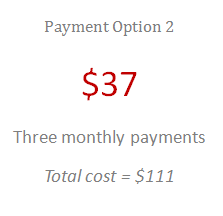
You have two payment options. You can either pay one time or pay three monthly payments.
(please visit this page if you cannot see the payment buttons in your e-mail or feed reader)

Excel School Payment Option 1


Excel School Payment Option 2


Excel School comes with 30 day money-back guarantee

What happens after you “add to cart” ?

What happens after payment

Note: If you are not redirected to “registration page” after payment, pls. don’t freak out. I will send you an email with your login details with in 24 hours

More Details:

For a more detailed copy, visit the Excel School Sales Page. You can also find a sample lesson, detailed contents and more info there.

If you have some questions about the program, please check out the Excel School FAQs. Also, try posting a comment here and I will get back to you.

I am very eager to see you in Excel School and help you become better in MS Excel.

PS: Expect some Excel School ads and mentions on the blog for next 10 days.
PPS: Regular broadcast of Excel tips and awesome stuff starts tomorrow.
PPPS: Go ahead and sign-up for Excel school already.

Facebook
Twitter
LinkedIn

Share this tip with your colleagues

Excel and Power BI tips - Chandoo.org Newsletter

Get FREE Excel + Power BI Tips

Simple, fun and useful emails, once per week.

Learn & be awesome.

Welcome to Chandoo.org

Thank you so much for visiting. My aim is to make you awesome in Excel & Power BI. I do this by sharing videos, tips, examples and downloads on this website. There are more than 1,000 pages with all things Excel, Power BI, Dashboards & VBA here. Go ahead and spend few minutes to be AWESOME.

Read my storyFREE Excel tips book

Overall I learned a lot and I thought you did a great job of explaining how to do things. This will definitely elevate my reporting in the future.
Rebekah S
Reporting Analyst
Excel formula list - 100+ examples and howto guide for you

From simple to complex, there is a formula for every occasion. Check out the list now.

Calendars, invoices, trackers and much more. All free, fun and fantastic.

Advanced Pivot Table tricks

Power Query, Data model, DAX, Filters, Slicers, Conditional formats and beautiful charts. It's all here.

Still on fence about Power BI? In this getting started guide, learn what is Power BI, how to get it and how to create your first report from scratch.

23 Responses to “Displaying Text Values in Pivot Tables without VBA”

  1. sam says:

    Its possible to display up to 4 text values.

    Have a look at the screen shot of an example that I had posted way back at the EHA and figure out how its done !

    http://tinypic.com/r/muzywk/6

  2. ruve1k says:

    With Excel 2010 you can use Conditional Formatting to apply custom number formats which can display text. (In older versions you can only modify text color and cell background color, but not number formats.) Using CF allows for an even larger number of different display values.

  3. soumya says:

    Hey,
    Thanks, this helps. But how do you do it for multiple values where there is a huge amount of non repeating  text? 

  4. [...] Pivot Tables take tables of data and allow the user to summarise and consolidate the data at the same time. This is a great and very fast method of analysis but is restricted to handling mathematical functions on the value field resulting in numerical summaries. – read more [...]

  5. […] Read more here: Displaying Text Values in Pivot Tables without VBA […]

  6. Jon Gali says:

    There is a very good way actually for handling text inside values area.
    First you create a special column on the very left side and call it ID, and put unique ID (numbers only), and then create a pivot table with:

    Row Labels and Column labels as you like, and in the Values labels use the unique ID number.

    Move the unique ID number (copy paste) somewhere to the right and use vlookup to load the data you need using the ID as reference.

    It is a bit longer way but for me it works perfectly to combine values as you like in any moment.

    hope helps.

    Regards,

    Jon

  7. Linda says:

    Thank you! I finally understand pivot tables thanks to your clear, concise explanations and examples.

  8. Danzi says:

    Good Day. This is exactly what i have been looking for. However when i try it on my pivot table or even when i try to recreate this exercise using the sample worksheet, i get this error:

    "Microsoft Excel cannot use the number format you typed. Try using one of the built-in number formats."

  9. Hiren says:

    pls. help in table there is name, pan. amount. i have to make pivot table for example
    NAME PAN AMOUNT
    MR.X AAAAC1254T 500.00
    MR.Y AAABR1258C
    MR.A CFVDE2458T
    MR.Z AAVCR12548C
    MR.X AAAAC1254T
    MR.Z AADCD245T

  10. Hiren says:

    pls. help in table there is name, pan. amount. i have to make pivot table for example
    NAME PAN AMOUNT
    MR.X AAAAC1254T 500.00
    MR.Y AAABR1258C 1000
    MR.A CFVDE2458T 2000
    MR.Z AAVCR12548C 5451
    MR.X AAAAC1254T 45564
    MR.Z AADCD245T 4500
    how to get pivot tabe so i get PAN no. against Name.

  11. Letitgo says:

    I found an easy way to get text values in pivot table.

    I create an other worksheet in wich each cell has a formula that copy the pivot table. The trick is that the formula does a lookup for the numbers in the pivot table.

    The formula looks like that:
    =IF(ISNUMBER(table!A1);VLOOKUP(table!A1;Code!$A$1:$B$65;2);IF(ISBLANK(table!A1);" ";table!A1))

    Code is a worksheet where there is a liste of text /numbers correspondance.

    As a bonus The new sheet is easier to format

    Additional trick:
    In my case, i encoded differents codeid with a power(2, codeId-1) so that summing then is equivalent to concatenate them.

    1-A
    2-B
    4-C
    8-D

    yields :

    5 - AC
    14 - BCD

  12. Tushar says:

    Hi
    I want to ask if pivot can display dates in pivot field. As in a column i have customers and in row different items i want to know there last purchase date. anyone help in this??

  13. Tushar says:

    Hello Guys, Need your help
    I am doing some analysis of the cycle time of the product i.e how much time a product takes from manufacturing to the central warehouse.
    I have batch numbers for the product and against them i have to pull out the diff. dates
    Like the base date is from where the manufacturing start. So i have the batch number,against it's manuf. date. Now i have to pull out the date when it was quality released.
    I have the quality released data but the data have duplicates, like i will have two dates or may be three for the same batch. So my main objective is to pull out the date which is latest among them.

    BATCH NO. DATE of Mfg. DATE of Quality release
    A1 12/4/2014 (HERE I HAVE TO PULL value)

    Next Sheet
    BATCH NO. DATE of Quality Release
    A1 14/5/2014
    a2 23/5/2016
    A1 12/5/2014
    A1 13/6/2014

    From this sheet i have to pull up the latest date format of date here is dd/mm/yyy

    TIA

  14. […] needed to present text instead of counts in a pivot table value column. Here is an excellent resource for Excel manipulation, in addition to an overview of pivot […]

  15. Kyrene says:

    This is great thank you.

  16. Rabiul says:

    Wow!!! Excellent!! It helped me a lot.

  17. I am developing training tracking sheet for 200 employees with training completed date. Each employee will be attending 25 courses. How to indicate actual dates in pivot table value field.

Leave a Reply