

Here is an interesting question someone asked me recently,
If I have to delete all rows with “John” in it. Do you know how to do it?
Well, it looks like they really hate John. But it is none of my business.
So lets go ahead and understand a dead-simple way to get rid of all cells with John or whoever else you fancy.
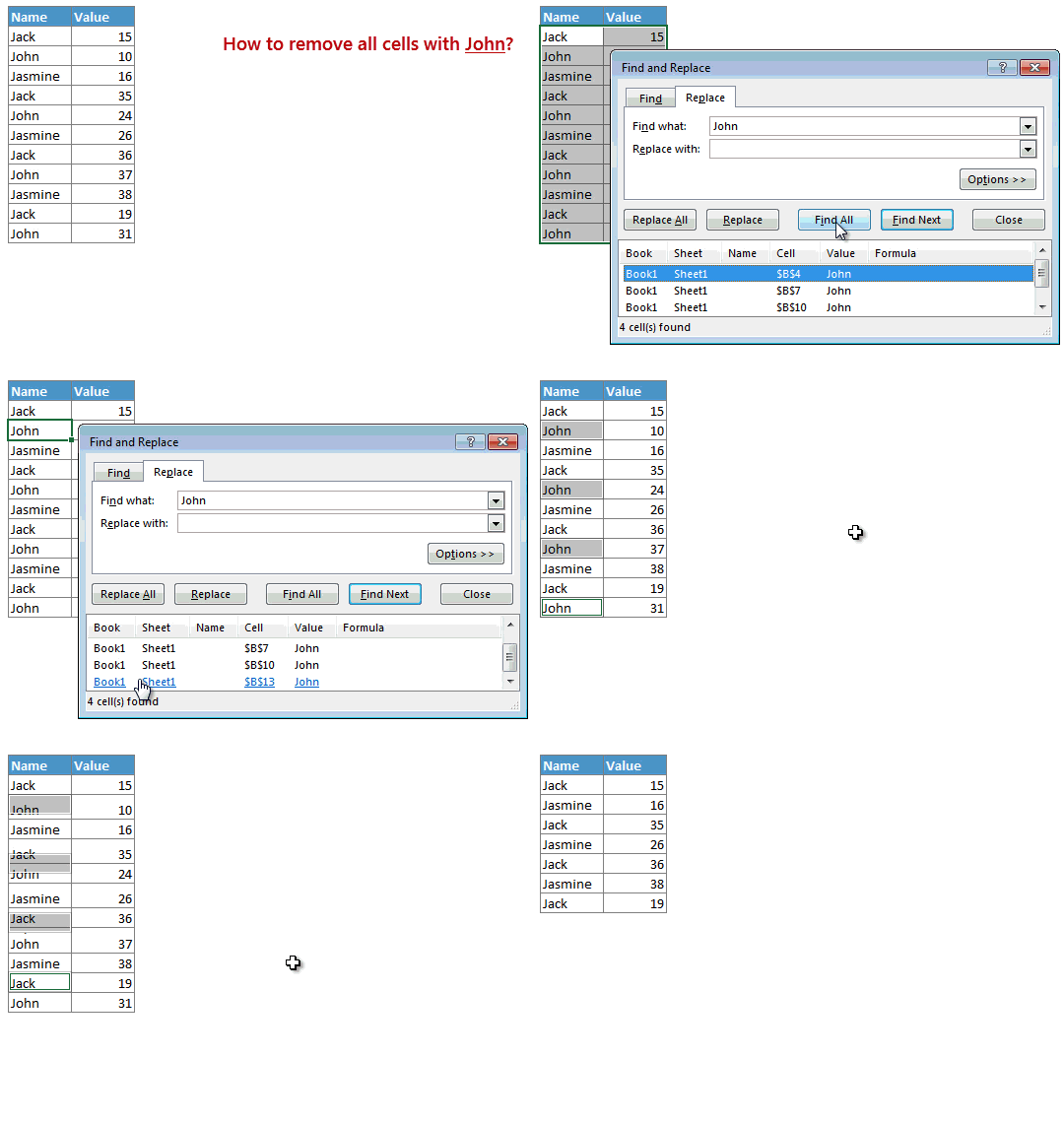
- Select all your data
- Press CTRL+F and search for “John”
- Click on “Find all” button
- Now, select the first result.
- Scroll down, holding SHIFT key, select the last result. This will select all search results.
- Close the Find box.
- Press CTRL – (to delete cells)
- Select “Entire row”
- Click ok
- Now poor John is history!
See this demo to understand:
More tutorials on removing stuff…
If you often find yourself with more data than you need & spend a lot of time deleting Johns from your data, then you will find below tutorials very useful.
- Remove duplicate values from Excel [More ways to do it]
- Remove blank rows in your tables
- Extracting specific data using advanced filter
- Remove un-necessary portions form text values
PS: As I was traveling in last 2 weeks, I could not write often. Starting Monday, you will see your favorite awesome Excel tips regularly.


39 Responses
There’s a quicker way for this. Use the Autofilter, filter for John. Select all Rows, then press [ALT]+[;], which will only select those that are viewable. Now delete the rows with right mouse click (click on row number).
If you need it to reoccur programmatically, then assuming the data is in table format you can use something like this:
Sub delete_john()
Dim tbl As ListObject, fld As Range, c As Range, nm As String, i As Long, rws As Long
Set tbl = ActiveSheet.ListObjects(1)
Set fld = tbl.ListColumns(1).DataBodyRange
rws = fld.Rows.Count
nm = “John”
For i = 1 To rws
Set c = fld.Item(i)
If c.Value = nm Then
c.EntireRow.Delete
i = i – 1
End If
Next i
End Sub
Nice code.
I’ve got one suggestion: It’s pretty probably that you don’t only have to selete poor John, but perhaps to delete poor Joanne for a change (could be couple! ;)). So I suggest you’ll give the happy user the possiblity to change the poor girl’s/man’s name, so why not use a cell in a sheet in which the user could change the name?
Anyways, I still will use the Autofilter solution beceause it’s more flexible (other rows perhaps have the children’s names of John and Joanna…)
Sure, so we’ll just set the string variable to a range.
Replace nm = “John” with
nm = Worksheet(“Yoursheetnamehere”).Range(“Yourcellholdingnamevaluehere”) and whoever you want to delete would be in the cell. Actually, you know what I’d do… I’d set a dynamic range to have a dropdown list of all names in column A. That dropdown selection would be the value to delete. Then I’d assign the macro to a button. So then deleting names would be a matter of dropdown selection, button click. Much faster than anything else I think.
Nice tip. Thank you for sharing.
Don’t forget about us Mac users – no “find all” on Excel 2011 for mac. Autofilter worked great!
I didn’t know that it works on Mac too. I only use Windows.
Thans for telling me it also works on Mac! 🙂
Chandoo: Your tip is damn easy.
I would just do a replace:
Replace “John” with “”
This would not delete the rows, though.
There is a quite quicker trick for that.
Use autofilters and filter for John. Then select all rows. Enter [CTRL]+[;] which makes sure that you’ll only select rows that you can see and exclude those that are hidden by the filter.
Delete the rows by clicking on a row numer with the right mouse button. Choose delete.
This can also be done programmatically as:
Sub DeleteJhon()
For Each cl In ActiveSheet.UsedRange
If cl.Value = “John” Then
cl.EntireRow.Delete
End If
Next cl
End Sub
This works but it must be run multiple times because it is not accounting for the deleted rows as it makes its way through the range.
Two quick notes;
1. Instead of scrolling down in the Results field (too much work!) once you select a cell in the results field, jus hit Ctrl+a to select all of them.
2. Several comments about Autofilter…while this would work quickly if all your data is in one column, this tip is far superior if the value you’re looking for is in multiple columns.
True – I didn’t realize that yet: You can delete “John” across multiple columns. Thanks for pointing that out 🙂
However, the advantage of the Autofilter is that you can filter the data with more than just one column, so if you have multiple cumulative conditions, then the Autofilter is way to go. That is why I usually have to use this solution, because I usually have to choose two criterias in two different columns.
We can do it in another way.
Activate Auto filter and select the name “John” Or use custom then type name , select contains (if you want partial match) or equal, then delete entire row by simply press Ctrl and minus. If you want partial match using “Ctrl + F” method, use “John*” in find field.
WOW!IT was so easy!
Xl lent way to remove something
It is Nice tip BUTTTTTT
when I removed John from the List, using the given method, even Johnson which was there in the List also gone..
A bit of caution is needed.
M. A. Waseem
That wouldn’t happen with Autofilter.
On a second thought, you also could use the option “match full cell content” (or something similar, it’s my translation from German)
Please try below in VBA
Sub delrowacell ()
Dim str As Variant
str = ActiveCell.Value
‘On Error Resume Next
Range(“A:A”).Find(What:=str, After:=ActiveCell, LookIn:=xlFormulas, LookAt _
:=xlPart, SearchOrder:=xlByRows, SearchDirection:=xlNext, MatchCase:= _
False, SearchFormat:=False).EntireRow.Delete
End sub
You can ofcource change Range(“A:A”) with any range
Great tip, although I cannot think of any example case where this would be needed? I can understand to remove rows with certain value in a certain column, but in any column, why?
Dear Chandoo
Great tip, but how to use it on mac excel 2011.
Is there a way of inserting a blank line after a certain condition.
Regards
Manoj
Thanks! It works great.
Thanks you sir, you saved my brain & Time… Thanks Alot
Thanks you sir, you saved my brain & Time… Thanks Alot
When I select control, nothing happens. Any ideas? If I right click to delete it deletes the entire spreadsheet.
THANK YOU! Of all the tips/tricks I found, this one was by far the easiest, faster, and most understandable one for what I needed.
awesome! That’s so smart 😀
Thank you! ^_^
Wow !! it worked perfectly for me. Thank you, you just saved me HOURS of work.
Thanks for sharing – 7500 line spreadsheet…reduced down to 2400 with this trick for getting rid en-masse all the lines containing things I don’t care about.
Thank you!
Awesome tip. Thanks!
PS. I really like how your blog is set up. Which plugin did you use to set up the 3 choices below comments? These 3:
Notify me of when new comments are posted via e-mail
Notify me of follow-up comments by email.
Notify me of new posts by email.
Plz sent me exccel Formullah’s
i m student
m B.A, B.Ed
WHAT”S THIS ALL ABOUT????????
@John
Can you elaborate ?
I have a workbook with many different sheets. I’m looking to delete all cells in all worksheets that have a specific words (e.g. Harris). I want to be able to do this time and time again as names get crossed off. Is there a way to easily do this?
Need to bifurcate as Parent & Child data from raw data which in in single column. Here is the sample data.
Raw Data Parent Child
1. AAA 1. AAA a1
a1 1. AAA a2
a2 1. AAA a3
a3 1. AAA a4
a4 1. AAA a5
a5 1. AAA a6
a6 2. BBB b1
2. BBB 2. BBB b2
b1 2. BBB b3
b2 2. BBB b4
b3 2. BBB b5
b4 3. CCC c1
b5 3. CCC c2
3. CCC 3. CCC c3
c1 3. CCC c4
c2 3. CCC c5
c3 4. DDD d1
c4 4. DDD d2
c5 4. DDD d3
4. DDD 4. DDD d4
d1 4. DDD d5
d2 5. EEE e1
d3 5. EEE e2
d4 5. EEE e3
d5 5. EEE e4
5. EEE 5. EEE e5
e1
e2
e3
e4
e5