

Situation
There is no argument that VLOOKUP is a beautiful & useful formula. But it suffers from one nagging limitation. It cannot go left.
Let me explain, Imagine you have data like below. Now, if you want to find-out who made $2,133 in sales, there is no way VLOOKUP can come to rescue. This is because, once you search a list using VLOOKUP, you can only return corresponding items from the column at right, not at left.
Data:
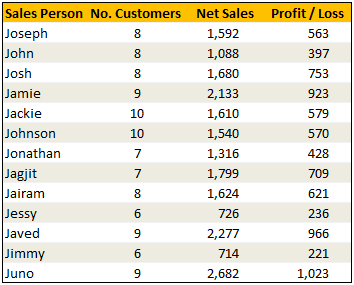
One easy fix would be move the sales data to the left of person name. But this is an annoying fix, because, god knows you may want to lookup based on profit values or something else in future. A better alternative is,…
Solution
.., to use a formula combination called INDEX + MATCH (or OFFSET + MATCH would work too).
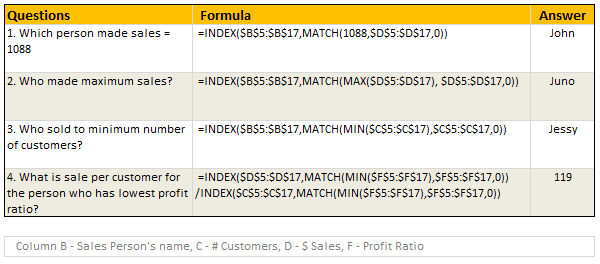
The basic syntax of this combination is like this: =INDEX(column with data you want,MATCH(value you are looking for, column which contains this data,0)). So, for eg: =INDEX($B$5:$B$17,MATCH(1088,$D$5:$D$17,0)) would find the position of 1088 in list D5:D17 and return corresponding element from B5:B17 (ie the value from left). See more examples below.
Examples:
Sample File
Download Example File – Make VLOOKUP go Left
Go ahead and download the file. It also has some homework for you to practice this formula trick.
Special Thanks to
Prem, Rohit1409, John, Godzilla, Chris Byham, judgepax – Please click on their names to learn even more.
Similar Tips



6 Responses to “Make VBA String Comparisons Case In-sensitive [Quick Tip]”
Another way to test if Target.Value equal a string constant without regard to letter casing is to use the StrCmp function...
If StrComp("yes", Target.Value, vbTextCompare) = 0 Then
' Do something
End If
That's a cool way to compare. i just converted my values to strings and used the above code to compare. worked nicely
Thanks!
In case that option just needs to be used for a single comparison, you could use
If InStr(1, "yes", Target.Value, vbTextCompare) Then
'do something
End If
as well.
Nice tip, thanks! I never even thought to think there might be an easier way.
Regarding Chronology of VB in general, the Option Compare pragma appears at the very beginning of VB, way before classes and objects arrive (with VB6 - around 2000).
Today StrComp() and InStr() function offers a more local way to compare, fully object, thus more consistent with object programming (even if VB is still interpreted).
My only question here is : "what if you want to binary compare locally with re-entering functions or concurrency (with events) ?". This will lead to a real nightmare and probably a big nasty mess to debug.
By the way, congrats for you Millions/month visits 🙂
This is nice article.
I used these examples to help my understanding. Even Instr is similar to Find but it can be case sensitive and also case insensitive.
Hope the examples below help.
Public Sub CaseSensitive2()
If InStr(1, "Look in this string", "look", vbBinaryCompare) = 0 Then
MsgBox "woops, no match"
Else
MsgBox "at least one match"
End If
End Sub
Public Sub CaseSensitive()
If InStr("Look in this string", "look") = 0 Then
MsgBox "woops, no match"
Else
MsgBox "at least one match"
End If
End Sub
Public Sub NotCaseSensitive()
'doing alot of case insensitive searching and whatnot, you can put Option Compare Text
If InStr(1, "Look in this string", "look", vbTextCompare) = 0 Then
MsgBox "woops, no match"
Else
MsgBox "at least one match"
End If
End Sub