Making Interaction Plots using Excel

Share

Facebook
Twitter
LinkedIn

Yesterday I read about interaction plots on junk charts where he points out the merits of an interaction plot. Interaction plots show interaction effects between 2 factors. For eg. you can show how your product sales have changed between year 1 and year 2 using an interaction plot like below:
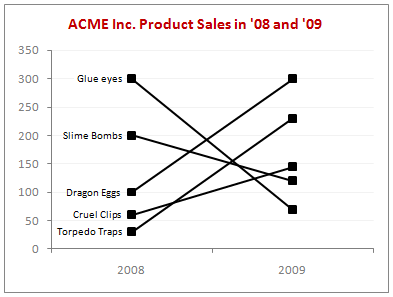
interaction plots

As you can see, interaction plot is a simple line chart with several series. You can easily make this in Excel. Here is a simplified tutorial to help you get started.

Step 1: Select the data and insert a line chart

This is simple, just insert a line chart from the data.

Step 2: Go to the line chart “data” and change rows to columns

You require this step only if your data is oriented differently.
switch rows / columns - interaction plot in excel

Step 3: Format the interaction chart

Since excel colors each line series differently, you need to change the colors, add labels, adjust the label source (from data to series) and then format grid lines etc.

That is all, your interaction plot is ready to go.

Download interaction plot template for excel and play with it

Click here to download the interaction chart template for excel and use it to make your own interaction plots.

Points to consider when you are making interaction plots,

  • Interaction plots can be too messy if you have a lot of series. Generally they loose the appeal after 6-7 series of data.
  • Chart formatting with more series of data can be a pain too. Use F4 key if you are found repeating same steps.
  • Make sure you don’t color individual series differently. You can use same color and label instead. It looks a lot better that way.
  • In cases like last year vs. this year or budget vs. actual, you can even use clustered bars. See more examples on budget vs. actual charts for inspiration.

What is your opinion about interaction plots?

I think they are good for small data samples. I have personally not used them, but I like the idea and will use them when there is an an opportunity. What about you? Have you used them in any professional setting? How did your audience feel about the chart? Tell us using the comments.

Facebook
Twitter
LinkedIn

Share this tip with your colleagues

Excel and Power BI tips - Chandoo.org Newsletter

Get FREE Excel + Power BI Tips

Simple, fun and useful emails, once per week.

Learn & be awesome.

Welcome to Chandoo.org

Thank you so much for visiting. My aim is to make you awesome in Excel & Power BI. I do this by sharing videos, tips, examples and downloads on this website. There are more than 1,000 pages with all things Excel, Power BI, Dashboards & VBA here. Go ahead and spend few minutes to be AWESOME.

Read my storyFREE Excel tips book

Overall I learned a lot and I thought you did a great job of explaining how to do things. This will definitely elevate my reporting in the future.
Rebekah S
Reporting Analyst
Excel formula list - 100+ examples and howto guide for you

From simple to complex, there is a formula for every occasion. Check out the list now.

Calendars, invoices, trackers and much more. All free, fun and fantastic.

Advanced Pivot Table tricks

Power Query, Data model, DAX, Filters, Slicers, Conditional formats and beautiful charts. It's all here.

Still on fence about Power BI? In this getting started guide, learn what is Power BI, how to get it and how to create your first report from scratch.

18 Responses to “Best Charts to Compare Actual Values with Targets – What is your take?”

  1. Andy Cotgreave says:

    Great post. I can't vote, though, because the answer I want to put down is "it depends". As with all visualisations, you've got to take into account your audience, your purpose, technical skills, where it will be viewed, etc.

  2. Jon Peltier says:

    I'm with Andy: It depends. Some I would use, some I might use, some I won't touch with a barge pole.
     
    Naturally I have comments 🙂
     
    The dial gauge, though familiar, is less easy to read than a linear type of chart (thermometer or bullet). It's really no better than the traffic lights, because all it can really tell you is which category the point falls in: red, yellow, or green.
     
    By the same token, pie charts are so familiar, people don't know they can't read them. Remember how long it takes kids to learn to read an analog clock?
     
    Bullet charts don't show trends.
     
    With any of the charts that have a filled component and a marker or ine component, it makes more sense to use the filled component (area/ column) for target, and the lines or markers for actual.

  3. [...] Best Charts to Compare Actual values with Targets (or Budgets … [...]

  4. Tony Rose says:

    I voted for #6 even though I agree with the other comments that it depends.

    The majority of the votes are for the #2, thermometer chart. I still have yet to understand what happens when you are above plan/goal, which was brought up in yesterday's post.

    Also, I agree with Jon in that it would be better to flip the series and make the filled part the target or goal and the line or marker the actual.

    I am also a fan of using text when appropriate if the data is among other metrics in a type of dashboard. Calling it out by saying actual and % achievement is a good option.

  5. Another "it depends" vote. Are you just looking at one or are you comparing a number of targets with actuals? You didn't include a text box. The problem with sentences is that they can get lost in a page of gray text. A text box can call attention to the numbers and line them up effectively.

    I'm with Jon: "Some I would use, some I might use, some I won’t touch with a barge pole" and I'm surprised that some of your readers voted for the last group.

  6. Bob Gannon says:

    Jon says:
    With any of the charts that have a filled component and a marker or line component, it makes more sense to use the filled component (area/ column) for target, and the lines or markers for actual.
    Why does this make more sense? I like 6 the way it is, although I would use a heavy dash for the plan/target marker.

  7. "It depends" is also my take. What I usually try to drill into my clients dashboard design is the fu ndamental difference between spot results (am I on target for this month) and long term trends.. I always try to create 3 different set of graphs to represent real perormance:
    - spot results vs objectives
    - cumulative results vs objectives
    - long-term trend (moving average) mostly) to see where we're going

  8. [...] Best Charts to Compare Actual Values with Targets – What is your take? (tags: excel charts) [...]

  9. Jamie Regan says:

    Jon says:
    With any of the charts that have a filled component and a marker or line component, it makes more sense to use the filled component (area/ column) for target, and the lines or markers for actual.
    Why does this make more sense? I like 6 the way it is, although I would use a heavy dash for the plan/target marker.

    I totally agree, Bob. I would normally favour a line for the target and a column for the actual, you can see quite easily then which columns break through the line, then.

  10. [...] best charts to compare actual values with targets — den Status mal anders zeigen, z. B. als Tacho [...]

  11. zzz says:

    Thermometer charts: "Not appropriate when actual values exceed targets" - this is easily solved by making the "mercury" portion a different color from the border, then you can clearly see where the expected range ends and the actual values keep going.

  12. Godsbod says:

    People seem to knock gauges quite a bit in dashboarding, but trying to show comparison of realtime data between operating sites and targets for each site can easily be done with a bank of gauges that have the optimal operating points at 12 o'clock.

    The human eye is great at pattern stripping, and any deviation of a gauge from the expected 12 position will quickly register with an operator and attract his attention. Using a colour background, or meter edge, will also indicate the sensitivity of a particular site.

  13. […] work laptop I have a favorites folder just dedicated to Excel charts.  Its got things like “Best Charts to Compare Actuals vs Targets” and “Best charts to show progress“. I love me some charts […]

  14. Albert says:

    I am wondering how will the plotting work, for some of the targets which may have been achieved before time. E.g. for the month of Jul the target was 226 and the actual was 219. So the chart will show a deficit in meeting the target by 7 points but what if this 7 may have been completed earlier in month of June. So ideally it not a deficit.

Leave a Reply