

Reader Raja writes in to ask,
In my spreadsheet, when I wanted to change a cell color, the palette looked like this than the conventional. Its not happening always.
Only a few examples. But when I try to open and close the same file several times, its working fine.Why is it so? Need your help to solve this.
This happens often in excel 2003 and earlier versions and is annoying when you like to work with certain colors and see them missing from the palette. (if you are wondering, the color management in excel 2007 is much more complicated, we will save it for another day)
Here are few reasons why this might be happening:
- The workbook you have opened has a different palette than the default color scheme of excel 2003. Someone might have changed the colors and now excel is showing you the updated colors.
- You have some excel add-ins that are changing the colors through VBA either when you run them or when you open certain workbooks.
And Here is how you can fix it:
Just go to Menu > Tools > Options > Colors tab, click on “Reset” button. This will reset your palette to excel 2003 default settings.Save the workbook and the colors should now be adjusted as per default scheme.
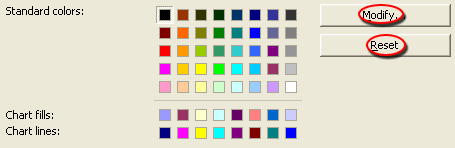
While there, you can also modify colors if you dont like the default scheme.
More on Excel Colors : How to surpass the 56 color limit in excel 2003 and earlier ?


16 Responses to “Excel Colors Somehow Getting Changed ?”
I find a couple of annoying things with excel 2003 colours:
1. When I am using cognos or other programmes to pass excel form reports to excel there's no predicting how the colours translate. Admittedly this may not be excel's fault.
2. There is something strange about the yellows. I love the pale yellow but hate the bright yellow, yet sometimes it seems to switch to using the bright yellow when you were using the light yellow. I'm wondering if I can customise the bright yellow to a soft yellow to stop it being used?
@Mike: you can customize yellows (or just about any color) from the excel options dialog. Modify the color to your favorite RGB and save it as a palette and use it whenever you need. That is a way to avoid some of the ugly colors in excel 2003 default panel. Of course, there will be quite a few manual steps involved in this, usually this is where macros will come handy. Write once and run whenever you need to clean up the charts.
This did not work for me...this is extremely annoying as I have a project I've been working on for weeks and all of the colors look ridiculous!
This did not work for me either. Excel is randomly changing the colour pallet. What gives?!?!
@Dave... It can be a macro or setting in some other open workbook that is causing this. Can you close all workbooks, exit excel, open the file once again and reset the palette?
Btw, what version of excel you have?
I can't see a true solution to Raja's problem here.
I found this add-in that solved the problem like magic: http://www.4shared.com/file/65936963/40eb1d22/ZVI_TrueColors.html
Oh this is fabulous! I had been literally pulling my hair out about missing my lovely peach color that I use to delineate between expense and capital on my spreadsheet (capital is ALWAYS mint green and peach just seems so right for expense tracking). Anyway, I followed these quick easy steps, 1...2...3... and viola my expense cells turned back to peach after some evil incident caused them all to go drab dead fish grey! FABULOUS!
Kisses and rainbows to all!
Stephen!
Thanks, this has massively helped with a report I was creating that all of a sudden had the colour scheme thrown right out. @Dave, can confirm the response from Chandoo works. Need to close all spreadsheets down, then re-open the one, use the process originally noted and original preferred colour scheme should return. Thanks again guys!
I had this problem too but Chandoo's solution didn't help. For those in the same case, give it a try to the true colors add-in from the link before. You'll be surprised!
Here is how I solved this problem. Close the workbook with the color problem. Close Excel. Open Excel back up. Open a workbook that does not have the color pallette problem.
Now open the workbook with the problem.
TOOLS
OPTIONS
COLOR tab
MODIFY tab
STANDARD tab
There is a Hexagon in the lower right. Click on it and make it black
Now the box with "New" above and "Current" below should be black.
Click "OK"
Click "OK" again to leave the Options and your workbook should be okay.
SAVE IT!!
Thanks Lynn!
Your post was the most helpful, but for me, something slightly different worked.
When you have the non-problem workbook open as well as the problem workbook, go to TOOLS>OPTION>COLOR and choose the working color palette file from the 'copy colors from' dropdown list. The files have to be open in the same instance of Excel for this to work, and the other files to appear in the drop down list.
As to how this starts, I run a VBA-report-constructing workbook which sometimes mucks up the palette fo all concurrent Excel files. Very annoying!
Cheers
Thank you! This worked perfectly for me. I was going nuts thinking that all my things that were once colored orange which turned brown would just have to stay that way forever. Brown is not a good color for my company spread sheets.
I have a big problem with Excel 2013! I need help, really and I hope someone help me, because it have a big influence in my job.
The problem is: When I create a chart, Excel put series colours automatically, but I change them to other colors I need to be represented. Later, or when I close excel, or when I close the pooled data or when I change to another sheet, series colours return to the predeterminate colours, and it occurs all the time. All my work of changing series colours is going away everytime. And it costs me a lot of time.
So.. If someone please, can help me, would be so greate!
:S
Did you ever resolve the issue? It happens to me to too and I hate when I send the report over to my boss and he presents the information in non-company colors! ugh!!
Oh! I forget to explain another problem!
The second problem is: When I do the same as before, To change to another sheet or to close Excel or to close pooled data, what I've selected to appear on horizontal axis data, became predeterminate again! For example, I putted on horizontal axis 01MAR12 20APR12 14MAY12, ... and it changed to 1 2 3 4 ....!!! why???
This changes to the predeterminate configuration occurs in series colours and in horizontal axis data.. and nobody knows why.
Ty very much!
Unfortunately, the reset did not work. Nothing happened at all.