


Ok, so you have that neat little excel report ready and now you want to share it with your boss or client in a PDF format. So how would you do that?
- The best option is to upgrade to SP2 of Microsoft Office 2007 (download the service pack 2 from office update) and then use the “Save As PDF” feature provided by MS.

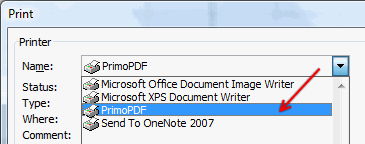
- The next best option is to install primo pdf. It is a free software that will create a new printer called PrimoPDF. You can print excel files to this printer and then it creates PDF files and places them in a location of your choice. I like Primo PDF alot and use it from Office 2003.
- The third option is to install OpenOffice.org and open the excel file there and use the save as PDF options. This can be a little messy as openoffice tends to spoil the excel look and feel when you open the files in openoffice calc application.
- The fourth option is to use one of the online conversion tools (they often messup the layouts) like Doc2Pdf. The annoying part with this service is that, you need to tell them your email id so that they can mail you the PDF when it is ready. There are few services where you can download the PDF online.
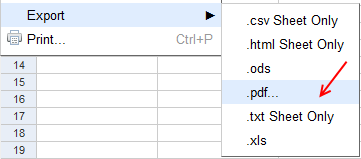
- The fifth option is to upload the excel file to google spreadsheets and use the export to PDF feature of google spreadsheets. This is good if your excel file has very little formatting and not really complicated. As google spreadsheets doesnt have lots of features that are in excel, you might see broken content, alignment and formatting when you try to open an excel file there.
- If you are using MS Office on Mac, then you have it easy. Just hit the print button, select the PDF option and you have the PDF ready.
Have I missed any Excel spreadsheet to PDF conversion methods? What is your favorite way to convert spreadsheets to PDF?
Related: Excel productivity secrets – part 1 & part 2


11 Responses to “Use Alt+Enter to get multiple lines in a cell [spreadcheats]”
@Chandoo:
One more useful trick.......
In a column you have no. of data in rows and need to copy in the next row from the previous row, no need to go for the previous rows but entering Alt + down arrow, you will get the list of data, (in asending order), entered in the previous rows...
This is another great tip. I use this all the time to make sense of some *very* long formulas. As soon as the formula is debugged I remove the break.
Great tip Chandoo!
I use this feature often and it has even gotten the, "how did you do that" response.
Thanks!
@Ketan: Alt+down arrow is an awesome tip. I never knew it and now I am using it everyday.
@Jorge, Tony: Agree... 🙂
[...] Day 1: Insert Line Breaks in a Cell [...]
how can we merge a two sheet.
excellent idea. Chandoo you are genious
Hi chandoo,
I have used ctrl+enter to break the cell. But I did not get the result.
Please tell me how can i break the cell in multiple lines.
Hi, Ranveer,
Its not Ctrl+enter to break the cell, use Alt+Enter to make it happen.
hi Chandoo....
how we can use Alt+Enter in multiple rows at the same time please reply hurry i have lot of work and have no time and i m stuck in this. 🙁
Alt+J worked once 🙁
So I found another more reliable way:
=SUBSTITUTE(A2,CHAR(13),"")
Where A2 is the cell that contains the line breaks which the code for it is CHAR(13). It will replace it with whatever inside the ""