Pivot tables are powerful. Use these 6 tricks to save time when working with them.
1 - Double click to see details
Ever wondered what numbers add up to the total in a pivot table value area? Simply double click to investigate. Excel will show all underlying values.
Extra tip: Don’t forget to delete such detail worksheets as they can create duplicate data.
2 - Format value fields quickly
The default value field formatting is useless. Often, we need to change the values to currency or accounting formats. You can do this quickly by right clicking on the values instead of going to Value Field Settings > Number Formats route.
See this image to understand the process.
🙏 Thanks to Srinivas who taught me this trick on my YouTube channel (link)
3 - Include filtered items in subtotals
Let’s say you have a pivot table with Sales by product & region. You filter out some products. The grand totals change. This can be inaccurate.
If you want to to include filtered items in the totals you can use the option in “Subtotals” menu in ribbon. Oh wait a sec, that is grayed out 🤔🤔🤔

Turns out you can ungray it. All you need is to use data model. Click on “Add to data model” in the insert pivot screen you are able to use this feature.
🙏 Thanks to Ryan who taught me this tip on my YouTube channel (link)
4 - Consistent pivot charts with a simple trick
Let’s say you have a pivot chart linked to a slicer showing sales by product in selected region. As you don’t sell all products in all regions, the chart looks jumpy with inconsistent axis.
Something like this:

You can make the axis consistent by formatting the row label to show “items with no data”. To do this, select the row labels area of the pivot, right click and go to “Field settings”. Now from display area, enable “Items with no data” option.

Your chart looks much better.
5 - Repeat row labels
Tabular form is my favorite layout for pivot. It looks clear and easy on eyes.
Do you know that you can enable “Repeat item labels” option to make the tabular layout even better.

Bonus tip: When you repeat item labels, you can use Pivot Tables in other formulas (like SUMIFS) easily.
6 - Multiple pages with Report Filters
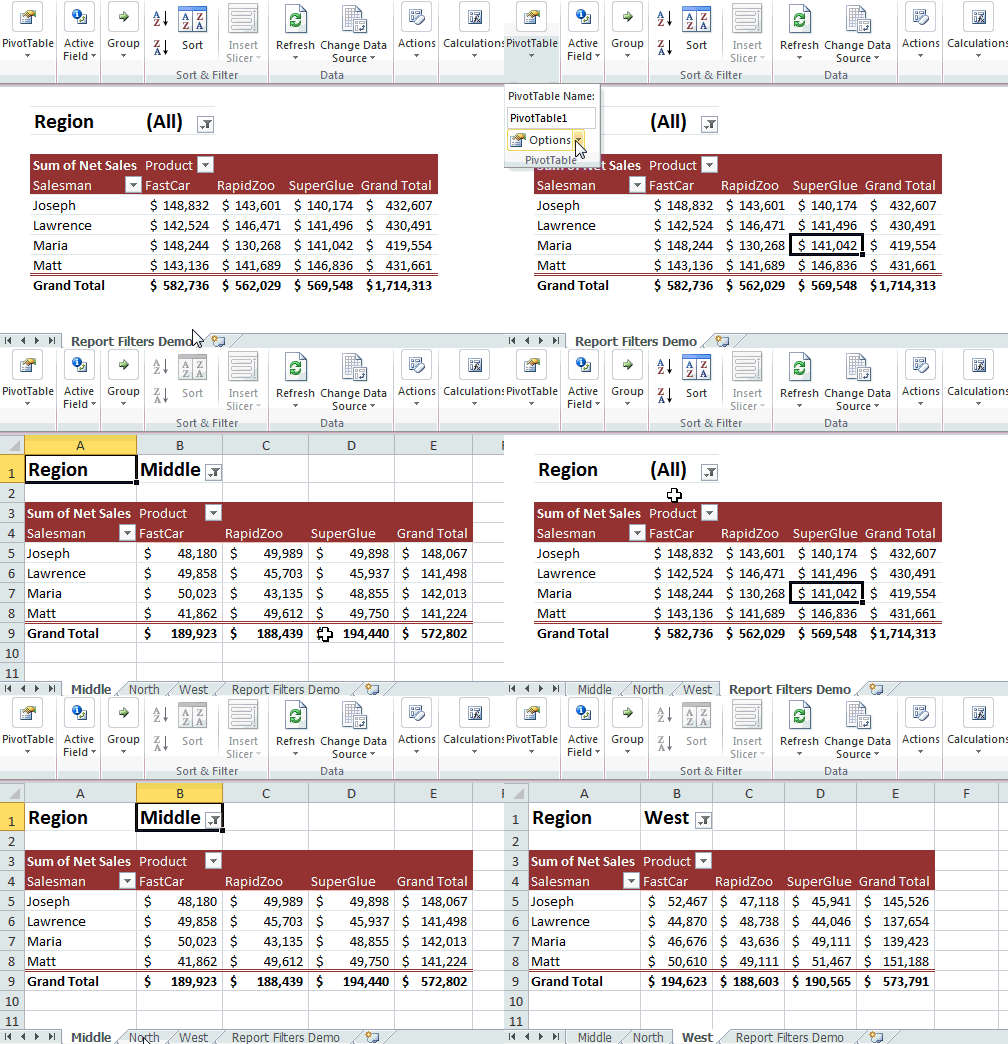
You got a handy little pivot report that details the performance of a region. Now you want to make similar reports for rest of the 16 regions too.
You can use Report Filters to quickly create all versions of this report in one click. Here is a demo of how report filters work.
Pivot Table Tricks - Video
If you want to view all these tricks + my new haircut, check out below video. You can also watch this on my YouTube channel here.
More Pivot Table goodness
Work with data often? Then learn Pivot tables you must.
Check out below pages to pick up valuable pivoting skills.
Got some tricks? Teach me...
You can teach an old dog new tricks. If you know a cool & useful Pivot Table trick, post it in comments. I am eager to learn from you.


12 Responses to “29 Excel Formula Tips for all Occasions [and proof that PHD readers truly rock]”
Some great contributions here.
Gotta love the Friday 13th formula 😀
Great tips from you all! Thanks a lot for sharing! bsamson, particularly you helped me on a terribly annoying task. 🙂
(BTW, Chandoo, it's not exactly "Find if a range is normally distributed" what my suggestion does. It checks if two proportions are statistically different. I probably gave you a bad explanation on twitter, but it'd be probably better if you fix it here... 🙂 )
Great compilation Chandoo
For the "Clean your text before you lookup"
=VLOOKUP(CLEAN(TRIM(E20)),F5:G18,2,0)
I would like to share a method to convert a number-stored-as-text before you lookup:
=VLOOKUP(E20+0,F5:G18,2,0)
@Peder, yeah, I loved that formula
@Aires: Sorry, I misunderstood your formula. Corrected the heading now.
@John.. that is a cool tip.
Hey Chandoo,
That p-value formula is really great for a statistics person like me.
What a p-value essentially is, is the probability that the results obtained from a statistical test aren't valid. So for example, if my p value is .05, there's a 5% probability that my results are wrong.
You can play with this if you install the Data Analysis Toolpak (which will perform some statistical tests for you AND provide the P Value.)
Let's say for example I've got two weeks of data (separated into columns) with the number of hours worked per day. I want to find out if the total number of hours I worked in week two were really all the different than week one.
Week1 Week2
10 11
12 9
9 10
7 8
5 8
Go to Data > Data Analysis > T-Test Assuming Unequal Variances > OK
In the Variable 1 Box, select the range of data for week 1.
In the Variable 2 Box, select the range of data for week 2.
Check "Labels"
In the Alpha box, select a value (in percentage terms) for how tolerant you are of error.
.05 is the general standard; that is to say I am willing to accept a 95% level of confidence that my result is accuarate.
Select a range output.
Excel calculates a number of results: Average (mean) for each week's data, etc.
You'll notice however that there are two P Values; one-tail and two-tail. (one tail tests are for > or .05), the number of hours I worked in week two is statistically equivalent to the number of hours I worked in week one.
So here’s a way you might want to use this. You put up a new entry on your blog. You think it’s the best entry ever! So you pull your webstats for this week and compare it to last week. You gather data for each week on the length of time a visitor spends on your website. The question you’re trying to prove statistically is whether there’s an average increase in the amount of time spent on your website this week as compared to last week (as a result of your fancy new blog post). You can run the same statistical test I illustrated above to find out. Incidentally, it matters very little to the stat test whether the quantity of visitors differs or not.
Anyhow, the Data Analysis toolpack doesn't perform a lot of stat tests that folks like me would like to have access to. In those cases I have to either use different software, or write some very complicated mathematical formulas. Having this p-value formula makes my life a LOT easier!
Thanks!
Eric~
Fantastic stuf..One line explanation is cool.
Thanks to all the contributors
OS
Take FirstName, MI, LastName in access (you can fix it to work in excel) capitalize first letter of each and lowercase the rest and add ". " if MI exists then same for last name:
Full Name: Format(Left([FirstName],1),">") & Format(Right([FirstName]),Len([FirstName])-1),"") & ". ","") & Format(Left([LastName],1),">") & Format(Right([LastName],Len([LastName])-1),"<")
I teach excel, access, etc etc for a living and i have my access students build this formula one step at a time from the inside out to show how formulas can be made even if it looks complicated. Yes I know I could just do IsNull([MI]) and reverse the order in the Iif() function but the point here is to nest as many functions as possible one by one (also I illustrate how it will fail without the Not() as it is)
Extract the month from a date
The easiest formula for this is =MONTH(a1)
It will return a 1 for January, 2 for February etc.
if in a column we write the value of total person for eg. 10 if we spent 1.33 paise each person then how we get total amount in next column and the result will in round form plzzzzz solve my problem sir................... thank u
@Anjali
If the value 10 is in B2 and 1.33 paise is in C2 the formula in D2 could be =B2*C2
If the values are a column of values you can copy the formula down by copy/paste or drag the small black handle at the bottom right corner of cell D2
kindly share with me new forumulas.
How to convert a figure like 870.70 into 870 but 871.70 into 880 using excel formula ? Please help.