

Dear Friends & Readers of Chandoo.org
I am happy to announce that our Online VBA Training Program is now open for your consideration. Please read this short post to understand the benefits of this program and how you can join. Click here to join our class, if you are ready.
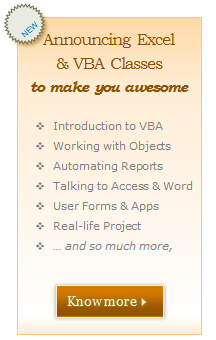 What is this VBA Class?
VBA Class is a structured and comprehensive online training program for learning Microsoft Excel VBA (Macros). It is full of real world examples & useful theory.
The aim of VBA Classes is to make a beginner an expert in VBA.
What are the benefits of this class?
Oh so many! Learning VBA one ups your Excel mojo. You will suddenly start saying “Yes” several work opportunities & challenges. Your boss might fall in love with you. You realize the potential to automate large chunks of your work and save time & money.
What do you get when you join my VBA classes?
1. Access to Private Member-only Classroom:
This is a blog like area where you can learn, ask questions, share ideas, discuss lesson topics, work on class projects and network with fellow classmates.
2. 13 Weeks of VBA lessons:
Every week, we will be sending you new lesson videos, list of articles and downloadable workbooks etc. If you follow this schedule and work on the lessons, you will learn VBA.
3. [Optional] Excel & Dashboard lessons for 32 hours:
You can also sign-up for the optional Excel School & Dashboard lessons and become awesome in Excel & Dashboards. This program, integrated in to VBA Classroom, helps you learn from scratch about Excel, advanced formulas, advanced charting, dashboard reporting and VBA – one after another.
4. Real-life Class Project:
During Week 12 & 13, you will put together all the things you have learned so far to complete a complex, real life project using Excel & VBA. We will take you thru the steps of this project by proving video lessons along way.
5. Bonus Material:
You get lessons on “Introduction to Programming”, “Introduction to Databases”, “Debugging your code” as part of the lesson plan. There are some additional bonus material too. Visit VBA Classes page for details.
6. Ability to Download Lesson Videos in HD:
You can download all the lesson videos in HD and view them whenever you want. (this facility is available for Download or Excel School members only).
7. 30 Days money-back guarantee:
If you do not like the class for any reason, you can drop-out in first month and get your full money back.
Important things to keep in mind:
- We will be closing registrations on 16th September – Friday (at 12 Midnight, Pacific Time).
- Classes start from 19th September. If you join in either Excel School option, you can start learning Excel lessons immediately.
- This program is not suitable for absolute newbies. If you have very little idea about Excel, you should watch the Introduction to Excel video series before joining us.
Pricing & Payment Options:
VBA Classes come in 4 flavors:
- VBA Classes – Online Option
- VBA Classes – Download Option
- Excel School + VBA Classes
- Excel School + Dashboards + VBA Classes
To join VBA Classes: visit VBA Classes sign-up page.
Frequently Asked Questions:
- What payment methods are accepted? You can pay by credit card (VISA, Master, AMEX etc.) or with your PayPal Account. In some countries, you can also pay by electronic check. Use the most convenient option from Checkout page.
- What version of Excel is used in VBA Classes? We use Excel 2007 to conduct the classes. However, most lessons can be applied to Excel 2003 onwards.
- Can I upgrade later, after joining the course? You can upgrade to any other option once you join the course. The upgrade fee will be $7 + fee difference. You will find the details inside the VBA Class.
For more questions & answers, visit VBA Classes FAQ section.
More Details:
For more details, go thru these links:
VBA Classes – Course & Sign-up Details
VBA Classes – Payment Options for Indians
How does the VBA Class Work? [Video]
VBA Classes – Course Brochure
VBA Classes – Demo Lessons
VBA Classes – FAQs
If you have any more questions, please email me at chandoo.d @ gmail.com or call me at +91 814 262 1090 or +1 206 792 9480. I will be very glad to answer your questions.
We are very eager to see you in our inaugural batch of VBA Class.
Thank you so much:
Thank you so much for your continued support to Chandoo.org. Thank you for taking time to learn. You are really awesome.
PS: Happy Labor Day to our friends in USA
PPS: 5th part of our VBA Crash Course will be posted tomorrow (6 Sep).
PPS: Go ahead and sign-up for VBA Classes already.


One Response
VBA classes are a good investment to help you capitalize on your excel skills. Online classes are good but like they say here, you will want to get some basic skills first before entering the class. Also learning some of these skills will come in handy with database development and implementing excel reports into a database that is automated for pulling reports from excel.