• Hi All

    Please note that at the Chandoo.org Forums there is Zero Tolerance to Spam

    Post Spam and you Will Be Deleted as a User

    Hui...

  • When starting a new post, to receive a quicker and more targeted answer, Please include a sample file in the initial post.

Change the border permanently

Is there a way to change the border say from the standard thin line black square to say a thick dark blue? The color is not important just curious if you can change it I do not want to have to click on format cells, more borders,then go to automatic colors, choose my line, then my box and so on. I would like to be able to click on say the thick box and it places the thick blue box around the cell. Is this possible?

Thanks
 
Last edited:
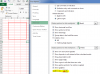
Do you mean like in:
File, Options, Advanced:
upload_2014-8-9_10-36-43.png

This also changes the default line colors!
 
Last edited:
oops , did it without checking Hui, this changes the grid lines. I was looking for this...
 

Attachments

  • Borders.png
    Borders.png
    23.3 KB · Views: 1
Hi Larry ,

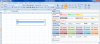
You can use what are called cell styles ; on the Home tab , click on Cell Styles in the Styles section.

Click on New Cell Style.

Uncheck all the checkboxes except the Border checkbox.

Click on the Format button and set the border that you want viz. color and thickness.

Next time you want a cell with this border , click on Cell Styles , and you will find your customized style at the top ; click on it. That's all you need to do every time. If you want , use the shortcut ALT H J to bring up the Cell Styles selection screen.

Narayan
 
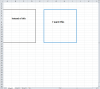
Got it, I had to do a excel repair for some reason and also it is giving me a full grid and I only want to do a box. The one on the left is what it is doing and I want the one of the right in blue
 

Attachments

  • Blue Border.png
    Blue Border.png
    194.6 KB · Views: 3
Hi Larry ,

What you want cannot be done using a simple command , I think.

You want a border around a range of cells ; using a cell style , whatever you define will be applied to all the cells in the range.

You can write a macro , and assign a short-cut key to it.

Code:
Public Sub Insert_Blue_Border()
           Const BORDERCOLOR = vbBlue
           Const BORDERLINEWEIGHT = xlMedium
       
           With Selection
                 .Borders.LineStyle = xlLineStyleNone
                 With .Borders(xlEdgeTop)
                      .LineStyle = xlContinuous
                      .Color = BORDERCOLOR
                      .Weight = BORDERLINEWEIGHT
                 End With
                 With .Borders(xlEdgeBottom)
                      .LineStyle = xlContinuous
                      .Color = BORDERCOLOR
                      .Weight = BORDERLINEWEIGHT
                 End With
                 With .Borders(xlEdgeLeft)
                      .LineStyle = xlContinuous
                      .Color = BORDERCOLOR
                      .Weight = BORDERLINEWEIGHT
                 End With
                 With .Borders(xlEdgeRight)
                      .LineStyle = xlContinuous
                      .Color = BORDERCOLOR
                      .Weight = BORDERLINEWEIGHT
                 End With
           End With
End Sub

Narayan
 
Hmm, thanks I'll try this in the morning. Almond 3 a.m. Here and I get up at 5 to ho to Cafe. Need a couple hrs rest. Thank you Narayan!
 
Narayan,

After I insert the code what do I need to do to make it work? I mean, when I click on the cells I want to place a border around how what do I click to get the border? I hope this makes sense.
 
Hi Larry ,

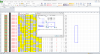
Click on the Macros button , and select the macro from the displayed list.

Click on Options , and enter the short-cut key you wish to use. Preferably , use a key which is not already in use by Excel , possibly for a different purpose.

Narayan
 
Back
Top