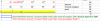
Okay, I'll try.
1) If You double click cell [D6], then RWeek = Cells(4,ActiveCell.Column) gives You "37; "string".
2) 'On Error Resume Next', if next line gives Error then next line will skip ...
without it, Error will stop running code.
3) 'Match', lookup value should be in same type as lookup range.
'RWeek': raw!BB:BB is week
number, so 'RWeek' should be number too.
4) 'Int(RWeek)' changes like from "37" to 37
but, I would like to make some changes to Macro ... ?
Code:
Sub DrillDown()
    Dim ReportCat As String
    Dim RWeek As Integer
    Dim x As Long
'   fixed place
    ReportCat = Range("A6")
'   any cell activated from wanted column
    RWeek = Cells(4, ActiveCell.Column)
    If ReportCat = "" Or RWeek = Empty Then
        Range("C4:G4").Select
        ans = MsgBox("Select from these cells!", vbCritical, "ReSelect from correct range!")
        Exit Sub
    End If
    On Error Resume Next
        x = Application.Match(RWeek, Sheets("raw").Range("BB:BB"), 0)
    If Err.Number <> 0 Then
        ans = MsgBox("Cannot find Week", vbCritical, "Error")
        Exit Sub
    End If
    With Sheets("Detail")
        .Visible = True
        .Select
        With .PivotTables("Detail")
            .PivotFields("Financial Category").ClearAllFilters
            .PivotFields("Financial Category").CurrentPage = ReportCat
            .PivotFields("week").ClearAllFilters
            .PivotFields("week").CurrentPage = RWeek
        End With
    End With
End Sub
... and You would make a button to activate that Macro and

of course 'delete' that 'DoubleClick' macro!
It could be easy to delete any formula by clicking ... I would think so.
When did You get that error message?
You can run that macro step by step and then You can see ... why? or where?