• Hi All

    Please note that at the Chandoo.org Forums there is Zero Tolerance to Spam

    Post Spam and you Will Be Deleted as a User

    Hui...

  • When starting a new post, to receive a quicker and more targeted answer, Please include a sample file in the initial post.

How to split a part of the text in one line of a cell into a new line in the same cell?

Shweta Patil

New Member
Hi Chandoo,

I have a excel sheet wherein I have to add a specific sentence into each cell uniformly but on a new line.

I tried writing that line in a different cell and then use concatenate, but the data is added just after the end of the data in the original cell and later I will have to use alt+enter to get that to the new line. I have a data like this in one cell :

1.Hi
2.Hello, how are you?
3.I am fine, thank you.

I want to add "How about you?" to this cell like this :

1.Hi
2.Hello, how are you?
3.I am fine, thank you.
4.How about you?

I am attaching a sample sheet to clearly convey how it is that i want to be seen.
 

Attachments

If you use Microsoft Excel to organize data (say, a list of documents being produced), you may have run across The Cell That’s Too Small For Its Data. You know, you’ve got a bunch of stuff typed into a cell (not because you’re rambling, but because you need all that information, dang it), and it just breaks out of the borders of the cell and keeps on going:


And if that’s not annoying enough, if you have to type something into the cell to the right, then you’ve just cut off the last part of that other cell:

Here are a couple of different tricks to try:

Wrap text. If it really doesn’t matter where the line wraps (as long as everything stays within the same cell), then the thing to do is format the cell so that the text wraps automatically. Although the different versions of Excel (from 2002 through 2013) have various buttons and commands to do this, the one foolproof method that works in all versions is this:

  • Right-click your mouse inside the cell.
  • You’ll see a menu that looks like this:



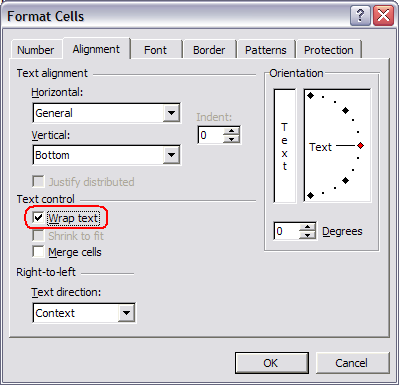
  • Once you have the Format Cells dialog box open, go to the Alignment tab and check the “Wrap Text” box:
excel-format-cells-align.png


  • The text in that cell will now wrap automatically.


In the Ribbon-based versions of Word, this is a one-click operation. Just go to the Home tab and click on Wrap Text:

Good news: You can apply this formatting to more than one cell at a time. You can select multiple cells by holding down the CNTRL key while clicking on them, select entire columns or rows by clicking on their headers (the “A, B, C” on top of columns or the “1, 2, 3″ to the left of rows), or even select the entire spreadsheet by clicking on the upper-left-hand corner (where the A and 1 meet). Once you’ve selected all your cells, then just follow the steps above.

Inserting a line break within a cell. But what if you want to control exactly where the line breaks (say, you want an address to appear like this):


Even easier! After you type each line, just press ALT-ENTER on your keyboard to insert a hard return.

Controlling vertical alignment. By default, data in cells is aligned at the bottom. This can create some readability problems if some of your cells have multiple lines:


If you have a particular preference as to whether all the data across the row lines up at the top, the bottom, or in the center, select all the cells you want to re-align, then right-click to get the menu (as we saw above), choose Format Cells, and go back to the Alignment tab.
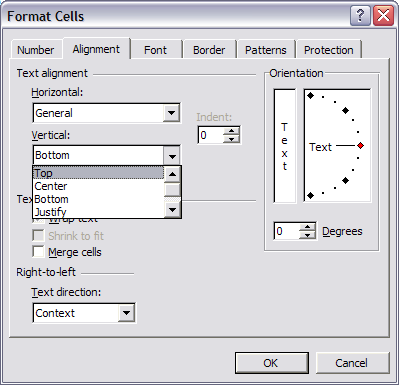


See that drop-down menu that says “Vertical” (above)? That allows you to change the vertical alignment within the cells you have selected. If you want everything to line up across the top, then choose “Top.” If you want everything centered, choose “Center.” You get the idea, right?


I AM NOT THE AUTHOR.


.

 
Hi Surendran,

Your formula almost works :)
It gets all the text one after other, but after using format painter from A3, i get what I was expecting.

Thanks a lot.
 
Could you please explain the formula and the purpose of using char(10) ? I could relate it and use it in my original workbook as this one uploaded here was just the sample.
 
Hi Shweta,

The Microsoft Excel CHAR function returns the character based on the ASCII value.

A 'character set' maps characters to their identifying code values, and may vary across operating environments viz. Windows, Macintosh, etc. The Windows operating environment uses the ANSI character set, whereas Macintosh uses the Macintosh character set.

CHAR can be useful when you want to specify characters in formulas or functions that are awkward or impossible to type directly. For example, you can use CHAR(10) to add a line break in a formula on Windows, and CHAR(13) to add a line break on the Mac.

To refer listing of ASCII values, visit this link.
http://www.techonthenet.com/ascii/chart.php

If you look into the ASCII chart given in above link, you can see the following numbers identify their corresponding characters.

Code 10 - New Line character

code 32 - Space

code 65 - A (capital A)

code 97 - a (small letter a)

Suppose you have data like given here.

upload_2015-6-16_0-20-50.png

If you enter the following formulas in cell C2, it would give output as given here.

upload_2015-6-16_0-24-39.png

The opposite of CHAR function is CODE. The CODE Function returns the identifying numeric code of the first character in a text string.

=CODE("A") returns 65.

=CODE("B") returns 66.

=CODE("a") returns 97.

=CODE("b") returns 98.

=CODE("Amber") returns 65.

CHAR and CODE are Excel functions. In VBA, the corresponding functions are Chr and Asc.

If you would like to explore more, visit the links given here.

http://www.globaliconnect.com/excel...s-vba-asc-a-chr-functions&catid=78&Itemid=474

http://www.visualbasicscript.com/VbCRLf-VbCR-VbLf-VbNewLine-m45392.aspx

http://stackoverflow.com/questions/1421571/converting-excel-line-breaks-to-vbcrlf

http://stackoverflow.com/questions/10024402/how-to-remove-line-break-in-string

Regards,
Surendran
 
Back
Top