• Hi All

    Please note that at the Chandoo.org Forums there is Zero Tolerance to Spam

    Post Spam and you Will Be Deleted as a User

    Hui...

  • When starting a new post, to receive a quicker and more targeted answer, Please include a sample file in the initial post.

Getting separate pivots to work together

Ragzzz

New Member
Hi All,
Wondering if anyone can help me out with a filtering problem

I have 2 separate sheets of data and 2 separate pivot tables based on those data sheets.

What I would like to do is use a set of slicers to pivot one and with a bit of vba update the second pivot table.

Because the pivots are separate the slicers will not connect to both tables. The tables have some common fields but the data they contain is for different purposes. I'm trying to get a comprehensive dashboard out of the data tables that once I can get the 2 pivots talking I can sort out. I just the filters or updates to work together.
So far the various vba lines I've tried have failed or simply don't respond at all in excel 2010

Thanks In Advance
 
I think you are referring to the external data connections. Those options aren't available to me or I'm missing something.

By the way both data sheets are in the same workbook
 
Share a slicer by connecting to another PivotTable
You can share a slicer with another PivotTable by connecting it to that PivotTable. You can also insert a slicer from another PivotTable by connecting to that PivotTable.

Make a slicer available for use in another PivotTable
  1. Click the slicer that you want to share in another PivotTable.

    This displays the Slicer Tools, adding an Options tab.

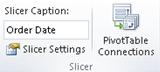
  2. On the Options tab, in the Slicer group, click PivotTable Connections.

    f20c787a-05d1-4310-bfb3-bcbc49139c2a.jpg


  3. In the PivotTable Connections dialog box, select the check box of the PivotTables in which you want the slicer to be available.
Use a slicer from another PivotTable
  1. Create a connection to the PivotTable that contains the slicer that you want to share by doing the following:
    1. On the Data tab, in the Get External Data group, click Existing Connections

      d2a87f6f-e4df-4321-b591-d0f1d377acab.jpg


    2. In the Existing Connections dialog box, in the Show box, make sure that All Connections is selected.

      Tip If you do not see the connection that you want, you can create a connection. Click Browse for More, and then in the Select Data Source dialog box, click New Source to start the Data Connection Wizard so that you can select the data source that you want to connect to.

    3. Select the connection that you want, and then click Open.

    4. In the Import Data dialog box, under Select how you want to view this data in your workbook, click PivotTable Report.
  2. Click anywhere in the PivotTable report for which you want to insert a slicer from another PivotTable.

    This displays the PivotTable Tools, adding an Options and a Design tab.

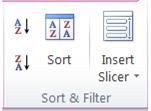
  3. On the Options tab, in the Sort & Filter group, click the Insert Slicer arrow, and then click Slicer Connections.

    61f6a793-6e97-40fb-bf84-bf1af8698acb.jpg


  4. In the Slicer Connections dialog box, select the check box of the slicers that you want to use.

  5. Click OK.

  6. In each slicer, click the items on which you want to filter.

    To select more than one item, hold down CTRL, and then click the items that you want to filter.

    Note All PivotTables that share the slicer will instantly display the same filtering state.
 
Make a slicer available for use in another PivotTable
  1. Click the slicer that you want to share in another PivotTable.

    This displays the Slicer Tools, adding an Options tab.
  2. On the Options tab, in the Slicer group, click PivotTable Connections.

    f20c787a-05d1-4310-bfb3-bcbc49139c2a.jpg
    In the PivotTable Connections dialog box, select the check box of the PivotTables in which you want the slicer to be available.
This only works when multiple pivots tables are created from the same data sheet. I'm using separate data sheets that have 4 columns that are identical and have created 2 separate pivot tables.

Use a slicer from another PivotTable
  1. Create a connection to the PivotTable that contains the slicer that you want to share by doing the following:
    1. On the Data tab, in the Get External Data group, click Existing Connections

      d2a87f6f-e4df-4321-b591-d0f1d377acab.jpg
      In the Existing Connections dialog box, in the Show box, make sure that All Connections is selected.

      Tip If you do not see the connection that you want, you can create a connection. Click Browse for More, and then in the Select Data Source dialog box, click New Source to start the Data Connection Wizard so that you can select the data source that you want to connect to.
    2. Select the connection that you want, and then click Open.

  1. ......
This isn't available either those selections are greyed out. Likely due to the fact that I'm not using another workbook source. Both data sheets are contained in the same workbook.


What I need is to have vb take the inputs from one slicer and either sync the second slicer or apply the same filters to the second pivot table. I had some code that was syncing the slicers but has suddenly stopped working and no longer fires at all to find where the break point is.
 
Back
Top