

Naceur
New Member
Consider the following 11 Rows x 2 columns table:
LETTERS AMOUNTS
A --------------- 5
B---------------1
C---------------5
D---------------0
A---------------6
B---------------1
C---------------22
D---------------4
A---------------11
B---------------9
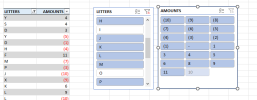
Start by filtering out the values "A" and "C" from the LETTERS column.
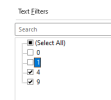
Now, filter out the values 0 and 1 from the AMOUNTS column (you're left with the values 4 and 9)
Now, clear the filter from the LETTERS column.
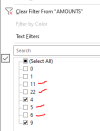
When you check the AMOUNTS column you'll find that all values are filtered out except 4 and 9 (while only the values 0 and 1 should be filtered out)
--------------
When a column is filtered, all values in the other columns should be visible (in the filter drop-down) and it should be possible to select them, even those values that are not "available". The values could be of a grey color but it should always be possible to select them. In the current version, when you apply a filter to a column, the other columns won't show (in the filter drop-down) those values which were filtered out because of a filter in another column.
LETTERS AMOUNTS
A --------------- 5
B---------------1
C---------------5
D---------------0
A---------------6
B---------------1
C---------------22
D---------------4
A---------------11
B---------------9
Start by filtering out the values "A" and "C" from the LETTERS column.
Now, filter out the values 0 and 1 from the AMOUNTS column (you're left with the values 4 and 9)
Now, clear the filter from the LETTERS column.
When you check the AMOUNTS column you'll find that all values are filtered out except 4 and 9 (while only the values 0 and 1 should be filtered out)
--------------
When a column is filtered, all values in the other columns should be visible (in the filter drop-down) and it should be possible to select them, even those values that are not "available". The values could be of a grey color but it should always be possible to select them. In the current version, when you apply a filter to a column, the other columns won't show (in the filter drop-down) those values which were filtered out because of a filter in another column.


 As it is, you have an option for working either way, which I would say is better.