• Hi All

    Please note that at the Chandoo.org Forums there is Zero Tolerance to Spam

    Post Spam and you Will Be Deleted as a User

    Hui...

  • When starting a new post, to receive a quicker and more targeted answer, Please include a sample file in the initial post.

Sumifs with condition less than and greater than condition that is a text value

JBR

New Member
ID Date Created Date Closed # of Item
1 P1 FY12 P3 FY12 20
2 P2 FY12 P2 FY11 30
3 P3 FY12 P6 FY12 2
4 P4 FY12 P10 FY11 60
5 P5 FY12 blank(not yet close) 40

Hi, guys. Question. How can I sum up the "# of Item" with the following condition:
If x=Date Created, then sum all Date Created equal and less than x, and at the same time Date Closed is greater than x (including blank) should be included.

So if P1 FY12 is x, it must sum up all Date Created from P1 FY12 and below (P1 FY12, P12 FY11, P11 FY11 and so on),and at the same time, the Date Closed is P2 FY12 and above (P3 FY12, P4 FY12, P5 FY12, P6 FY12 and so on).

So the result of sum should be =20+2+40, if P1 FY12 is selected in Date Created.

NOTE: "P1 FY12" is a text, is there a way to create it as a number?

I hope you can help me with this one guys. Thanks.
 
Hi,

I don't think you can mention greater than or less than with a text

You should first include two columns to split numbers from 'Date Created' and 'Date Closed' a formula like mentioned below in cell E2 & F2

=INT(MID(B2,2,FIND(" ",B2)-2)&RIGHT(B2,2))
=INT(MID(C2,2,FIND(" ",C2)-2)&RIGHT(C2,2))

After splitting the numbers you can then use a sumif condition

Other option is to create a UDF (user defined function) through VBA
 
You can do some text comparison with text using greater than and/or less than. However, have to be careful, as XL reads the text literally sort compares alphabetically. With your current setup, the P comes before the Year. Alphabetically, "P1 FY11" < "P2 FY10", which is not what you want. If the FY was listed first, you could do this comparison. (side note: this is why it's good practice when naming files with dates in them to use yyyy.mm.dd format)

With the current setup, I believe Sathish is on the right track with creating some helper columns to re-identify the start/close dates, and then use the SUMIFS based on that. However, I would change his formulas to be:
Start Date:
=RIGHT(B2,2)&TEXT(VALUE(MID(B2,2,2)),"00")
End Date:
=RIGHT(C2,2)&TEXT(VALUE(MID(C2,2,2)),"00")

These formulas convert the text into a yymm type format, allowing a proper sort/comparison.
 
Hi, guys. Thank you for the fast response.

Luke, you're right. Text can be compared. So what if I change my Date to "FY## P##"? Can you give me a sample formula with my current condition? Thanks
 
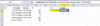
If you change format as you describe (make sure P has 2 numbers), setup looking like this:
upload_2014-8-4_9-38-29.png

Formula in G2 is:
=SUMPRODUCT((B2:B6<=F2)*((C2:C6>F2)+(C2:C6=""))*D2:D6)

Had to switch to using SUMPRODUCT rather than SUMIFS due to the "blank closed date" condition.
 
  • Like
Reactions: JBR
If you change format as you describe (make sure P has 2 numbers), setup looking like this:
View attachment 9051

Formula in G2 is:
=SUMPRODUCT((B2:B6<=F2)*((C2:C6>F2)+(C2:C6=""))*D2:D6)

Had to switch to using SUMPRODUCT rather than SUMIFS due to the "blank closed date" condition.
Hi Luke,
Wouldn't just SUM do for this? Is there a reason why you have used SUMPRODUCT?

Anand
 
Hi Anand,

You could use a SUM, but would need to confirm the formula as an array so that SUM knows to keep the true/false arrays rather than condensing to single value. But yes, this:
=SUMPRODUCT((B2:B6<=F2)*((C2:C6>F2)+(C2:C6=""))*D2:D6)
is equivalent to this:
{=SUM((B2:B6<=F2)*((C2:C6>F2)+(C2:C6=""))*D2:D6)}

As arrays tend to cause confusion for some people, I try to avoid them when possible.
 
  • Like
Reactions: JBR
Hi, guys.

Another question. What if I want to count the # of items instead of summing it up? Based again with the current condition.
 
Hi JBR,

We'll drop the sum-portion out of our formula, and that will give us the count.
=SUMPRODUCT((B2:B6<=F2)*((C2:C6>F2)+(C2:C6="")))
 
Back
Top