
• Hi All

    Please note that at the Chandoo.org Forums there is Zero Tolerance to Spam

    Post Spam and you Will Be Deleted as a User

    Hui...

  • When starting a new post, to receive a quicker and more targeted answer, Please include a sample file in the initial post.

Macro to Split raw data,remove duplicates and paste in 2 different sheets

Bimmy

Member
Hello,

If the topic sounds familiar to my earlier post, let me say, the raw data and the macro requirement is completely different.

Raw data is pasted in Column F Cell 5. First 3 cells will always be deleted from were the data is pasted. Since the Column and Cell will change, a remark should be inserted in the code to change them.

After this, macro should split 4 particular items (Texts and Numbers) from the raw data and paste them in adjacent columns. It is preferred that a column is left blank and then macro paste the data.

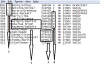
I have attached a snapshot which tells what needs to be splitted. The snapshot is taken from data pasted in a notepad. It will look different in excel.

I will be refering to the split data as numbers.

Numbers 1,2,3,4 is how the macro should paste the data in adjacent columns.Refer snapshot.

After this, macro should remove duplicates based on data as per number 1.

Once the duplicates are removed macro should paste -
Numbers 1 and 2 in Cells F2 and G2 in Sheet2, and,
Numbers 1,2,3,4 in Cells A2,B2,C2,D2 in Sheet3
Since the Column and Cell number will change, a remark should be inserted in the code to change them.

Your assistance will be greatly appreciated.

Have attached sample sheet with explanation.
 

Attachments


Hi !

No needs a remark, work with name cells or just read code, beginner level !

If source data come from a text file,
clever is to not paste data in a worksheet but directly work from source !
Attach it …
 
Hello Marc L,

I'm just a beginner. The Columns and Cells will change. Remarks will assist me in tweaking the code as and when required.

Notepad snapshot is provided to give an idea how the raw data in excel needs to be splitted. Thought it would be helpful.

A brief explanation -

In whichever column and row the raw data is pasted, first 3 cells will always be deleted

What the macro should split from the raw data in excel -

- All the numbers before the names, even numbers containing * symbol.
Ex -
002 01Antoine/Doinel 5AIPQS I HK 13NOV SWI1G
003 *02Aurora/Greenway ZA4VQT I HK 14NOV HDQ1PPER2

- All the names after the numbers
- 6 digit code after the names
- Single alphabets after the 6 digit code

How macro should paste the split data.
Macro should leave 1 column blank and paste data in adjacent columns as below -

6 digit code comes first, then the numbers, then the names and finally the single alphabets.

After this macro should remove duplicates as per data in first column ie 6 digit code. Then macro should sort the data as per last column ie single alphabets. Sorting criteria is F,A,Z,J,C,D,R,I,U,W,E,T,P,Y,B,H,K,M,L,V,S,N,O,Q,G,X

This final data is pasted as below -

First 2 data will be pasted in F2 and G2 in Sheet2, and
All 4 data will be pasted in A2,B2,C2,D2 in Sheet3

Have attached sample sheet with raw data and explanation in all 3 sheets
 

Attachments

I'm still waiting an answer !​
In whichever column and row the raw data is pasted
So, where source data come from ?
As I yet wrote, clever is not to paste data from source but directly read
and mod it, whatever if source is a text file or another worksheet !

If you prefer to stay with a Dumb & Dumber way, from your attachment,
you ever don't need a code but just apply an easy formula
for each column using MOD Excel worksheet function !​

Sorting criteria is F,A,Z,J,C,D,R,I,U,W,E,T,P,Y,B,H,K,M,L,V,S,N,O,Q,G,X
It's doable by tweaking your Excel version
with a personal list as explained in Excel inner help …

If you use the workbook on another computer,
you must create the same personal list first …

It's the way I use within my old Excel test version,
I"ll check on newer version this week-end …

If anyone else has another way, welcome on board !

Edit : another way to sort data without creating a personal list
is using an helper column either by formula or code …​
 
Last edited:
Hello Everyone,

I receive the raw data in excel from our client.

Formulas is being used, but, currently I'm trying to find an alternative to formulas and macros interested me.

I'm not a coder so requesting assistance in anyway possible.

Would like to change below part from my 02nd post

A brief explanation -

In whichever column and row the raw data is pasted, first 3 cells will always be deleted

Raw data will be pasted in Sheet1 Cell 5 in Column F. Remaining explanation remains the same.

Humbly request macro experts to assist me.
 
I receive the raw data in excel from our client.

Raw data will be pasted in Sheet1 Cell 5 in Column F
Clever is to not paste but directly work with raw data …
Any source raw data attachment ?

If you want to paste, as you're a beginner and your need is at beginner level, just before to use any formula, activate Macro Recorder
then enter formulas : you will have a free base of code !
It's a way beginners start to learn VBA with explanations in its inner help …
With sharing this base of code, you can submit special need or tweak on
particular technical point and then we can assist you to improve your code :
another way to learn for a beginner …
 
Have attached sample sheet with recorded macro. It does everything that I require.

If you can shorten the code, it will be great.
 

Attachments

I can't test for a while your workbook :
I have an older Excel version where I am …
I see it's easier with more recent version to sort upon a personal order.

So from your code, this is my director cut version :​
Code:
Sub Macro2()
                Application.ScreenUpdating = False
With Sheet1
         .[F5:F7].Clear
    With .[F8].CurrentRegion
         .TextToColumns , xlFixedWidth, _
                FieldInfo:=Array(Array(0, 1), Array(4, 1), Array(7, 1), Array(25, 1), _
                Array(31, 1), Array(33, 1)), TrailingMinusNumbers:=True
         .Clear
    End With
         .[G8].CurrentRegion.Columns(5).Clear
    With .Sort
         .SortFields.Clear
         .SortFields.Add Key:=.Parent.[G8].CurrentRegion.Columns(4), SortOn:=xlSortOnValues, _
                       Order:=xlAscending, DataOption:=xlSortNormal, _
                 CustomOrder:="F,A,Z,J,C,D,R,I,U,W,E,T,P,Y,B,H,K,M,L,V,S,N,O,Q,G,X"
         .SetRange .Parent.[G8].CurrentRegion
         .Header = xlNo
         .MatchCase = False
         .Orientation = xlTopToBottom
         .SortMethod = xlPinYin
         .Apply
    End With
         .[G8].CurrentRegion.RemoveDuplicates Columns:=3, Header:=xlNo
    With .[G8].CurrentRegion.Rows
        Sheet3.[A2:D2].Resize(.Count).Value = Application.Index(.Value, Evaluate("ROW(1:" & .Count & ")"), [{3,1,2,4}])
    End With
End With
With Sheet3.[A2].CurrentRegion.Columns
    .Item(3).AutoFit
    Union(.Item(2), .Item(4)).HorizontalAlignment = xlCenter
    .Item("A:B").Copy Sheet2.[F2]
End With
                Application.ScreenUpdating = True
End Sub
Do you like it ? So thanks to click on bottom right Like !
 
Hi Marc,

Your Director Cut version is Totally Rockin...
rocking-stickman-smiley-emoticon.gif


I Greatly appreciate for your time and patience...
cheering-clapping-smiley-emoticon.gif


animated-thank-you-image-0161.gif
 
Back
Top