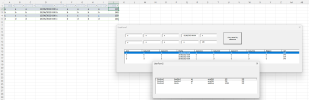
Hello,
I have just attached an excel vba macro which must show in UserForm1.ListBox the values(10 columns) of the row selected in the excelSheet1. For that reason I have configured the columnCount property of the Userform1.ListBox to 10. But it does not work, appears "Nombre" and i dont understand the reason.
Moreover, when you click on the buttom "view names by reference" (in Userform1), it should appear the userform2. The userform2.listbox1 is configured to show the names, apellido, per, email, tfno (information in Sheet2) that matches by the field "ref": This is, userform2.listbox1 shows the rows in Sheet2 which number in column F matches the number in column J of the row selected.
When I click on the buttom "view names by reference" appears the run-time error 424: object required in relation to the code line:
UserForm2.ListBox1.List(rowIndex, columnIndex - 1) = Sheet2heet.Cells(matchRow, columnIndex).Value
The full code is below and the excel file is attached.
I would appreciate if someone could help me on this.
Thankyou
Code for the Buttom:
>>> use code - tags <<<
I have just attached an excel vba macro which must show in UserForm1.ListBox the values(10 columns) of the row selected in the excelSheet1. For that reason I have configured the columnCount property of the Userform1.ListBox to 10. But it does not work, appears "Nombre" and i dont understand the reason.
Moreover, when you click on the buttom "view names by reference" (in Userform1), it should appear the userform2. The userform2.listbox1 is configured to show the names, apellido, per, email, tfno (information in Sheet2) that matches by the field "ref": This is, userform2.listbox1 shows the rows in Sheet2 which number in column F matches the number in column J of the row selected.
When I click on the buttom "view names by reference" appears the run-time error 424: object required in relation to the code line:
UserForm2.ListBox1.List(rowIndex, columnIndex - 1) = Sheet2heet.Cells(matchRow, columnIndex).Value
The full code is below and the excel file is attached.
I would appreciate if someone could help me on this.
Thankyou
Code for the Buttom:
>>> use code - tags <<<
Code:
Private Sub CommandButton1_Click()
Dim visualizacionSheet As Worksheet
    Dim Sheet1Sheet As Worksheet
    Dim Sheet1Range As Range
    Dim Sheet2Range As Range
    Dim searchValue As Variant
    Dim matchCell As Range
    Dim matchRow As Long
    Dim columnIndex As Long
    Dim rowIndex As Long

    ' Set the worksheet references
    Set Sheet1Sheet = ThisWorkbook.Sheets("Sheet1")
    Set Sheet2Sheet = ThisWorkbook.Sheets("Sheet2")

    ' Define the ranges for the columns J in Visualizacion and F in Asistentes
    Set Sheet1Range = Sheet1Sheet.Range("J:J")
    Set Sheet2Range = Sheet2Sheet.Range("F:F")

     ' Get the last row with information in Asistentes sheet
        lastRow = Sheet2Sheet.Cells(Sheet2Sheet.Rows.Count, 1).End(xlUp).Row

    ' Show the last row in a MsgBox
        MsgBox "Última línea en Sheet2: " & vbCrLf & Sheet2Sheet.Cells(lastRow, 1).Value, vbInformation

    ' Get the search value from UserForm5 TextBox10
    searchValue = UserForm1.TextBox10.Value
    MsgBox searchValue
    ' Verify if the search value is empty or null
    If IsEmpty(searchValue) Or IsNull(searchValue) Then
        MsgBox "Disculpe, el valor a buscar está vacío.", vbExclamation
        Exit Sub
    End If

    ' Find the match in the Asistentes sheet
    Set matchCell = Sheet2Range.Find(searchValue, LookIn:=xlValues, LookAt:=xlWhole)

    If matchCell Is Nothing Then
        ' No match found
        MsgBox "No se encontró una coincidencia.", vbInformation
    Else
        ' Match found, retrieve the values from the corresponding row
        matchRow = matchCell.Row

        ' Clear the ListBox1 in UserForm6
        UserForm2.ListBox1.Clear

        rowIndex = UserForm2.ListBox1.ListCount ' Get the index of the next row

        ' Set the column count of ListBox1 to 6
        UserForm2.ListBox1.columnCount = 6

        ' Add a new row to ListBox1
        UserForm2.ListBox1.AddItem

        ' Assign values to each column in the new row
        For columnIndex = 1 To 6
            UserForm2.ListBox1.List(rowIndex, columnIndex - 1) = Sheet2heet.Cells(matchRow, columnIndex).Value
        Next columnIndex

        ' Show the UserForm2
        UserForm2.Width = 900
        UserForm2.Height = 500
        UserForm2.Show
    End If
End Sub

'' Code in Module1:
Private Sub Worksheet_SelectionChange(ByVal Target As Range)
    ' Check if a single row is selected
    If Target.Rows.Count = 1 Then
        Sheet1_rowselection Target.Row
    End If
End Sub

Private Sub Sheet1_rowselection(ByVal selectedRow As Long)
    Dim lastCol As Long
    Dim dataRange As Range
    Dim cell As Range
    Dim ws As Worksheet ' Variable to reference the worksheet
    Dim columnCount As Integer
    Dim rowIndex As Integer
    Dim columnIndex As Integer

    ' Set the worksheet reference
    Set ws = ThisWorkbook.Sheets("Reuniones")

    ' Get the last column in the selected row
    lastCol = ws.Cells(selectedRow, ws.Columns.Count).End(xlToLeft).Column

    ' Clear the ListBox
    UserForm1.ListBox1.Clear

    ' Define the range of data from the selected row
    Set dataRange = ws.Range(ws.Cells(selectedRow, 1), ws.Cells(selectedRow, lastCol))

    ' Set the column count of ListBox1
    columnCount = dataRange.Columns.Count
    UserForm1.ListBox1.columnCount = columnCount

    ' Add each value from the selected row to ListBox1
    rowIndex = 0 ' Initialize the row index for ListBox1

    For Each cell In dataRange
        columnIndex = cell.Column - 1 ' Adjust the column index for ListBox1

        ' Add a new row in ListBox1 if necessary
        If rowIndex >= UserForm1.ListBox1.ListCount Then
            UserForm1.ListBox1.AddItem
        End If

        ' Assign the value to the corresponding column in ListBox1
        UserForm1.ListBox1.List(rowIndex, columnIndex) = cell.Value

        rowIndex = rowIndex + 1 ' Increment the row index for ListBox1
    Next cell

    ' Assign the values to the corresponding TextBoxes
    UserForm1.TextBox1.Text = UserForm1.ListBox1.List(rowIndex - 1, 0)
    UserForm1.TextBox2.Text = UserForm1.ListBox1.List(rowIndex - 1, 1)
    UserForm1.TextBox3.Text = UserForm1.ListBox1.List(rowIndex - 1, 2)
    UserForm1.TextBox4.Text = UserForm1.ListBox1.List(rowIndex - 1, 3)
    UserForm1.TextBox5.Text = UserForm1.ListBox1.List(rowIndex - 1, 4)
    UserForm1.TextBox6.Text = UserForm1.ListBox1.List(rowIndex - 1, 5)
    UserForm1.TextBox7.Text = UserForm1.ListBox1.List(rowIndex - 1, 6)
    UserForm1.TextBox8.Text = UserForm1.ListBox1.List(rowIndex - 1, 7)
    UserForm1.TextBox9.Text = UserForm1.ListBox1.List(rowIndex - 1, 8)
    UserForm1.TextBox10.Text = UserForm1.ListBox1.List(rowIndex - 1, 9)

    ' Clear ListBox2
    UserForm2.ListBox1.Clear

    ' Set the column count of ListBox2
    UserForm2.ListBox1.columnCount = 3

    ' Add each field as a column header in ListBox2
    UserForm2.ListBox1.AddItem "Nombre"

    ' Show UserForm1
    UserForm1.Show
End Sub


Sub RunRowSelection()
    Dim selectedRow As Long
    ' Check if a single row is selected
    If TypeName(Selection) = "Range" Then
        If Selection.Rows.Count = 1 Then
            selectedRow = Selection.Row
            Sheet1_rowselection selectedRow
        End If
    End If
End Sub
Attachments
Last edited by a moderator: