• Hi All

    Please note that at the Chandoo.org Forums there is Zero Tolerance to Spam

    Post Spam and you Will Be Deleted as a User

    Hui...

  • When starting a new post, to receive a quicker and more targeted answer, Please include a sample file in the initial post.

HOW TO FIND AND REPLACE RELATIVE CELL FORMULA

Muzzled

New Member
Too much work too little time. I made an error in a formula and now would like to quickly change it throughout the sheets.

The formula contains relative references so I cannot cut and paste without using [paste formulas]. That means I cannot use Find and Replace. What I want to do is use Find and Replace. Is that possible in 2007? [Find] only finds exact matches.

I did make a ribbon button for [paste formulas] which is a help.
 
Is it the same formula, just in multiple cells, or is each cell have a different formula (in structure)

E.g., these are the same:
=B2
=C2
=D2

These are different:
=SUM(B2:B10)
=C2*SUM(B2:B10)

If the former, select all the cells that need changed, type correct formula, then hit Ctrl+Enter. This will confirm formula to ALL selected cells.

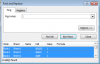
If it's a pain to select all the cells manually, use the Find All tool. In the dropdown that appears, click a row, then hit Ctrl+A to select all the cells.
upload_2015-2-19_15-1-33.png
Close the find dialogue, and you have all the cells selected in the worksheet.
 
Great answer! Select, type, and Ctrl+Enter worked. (You have no idea how long I looked for an answer.)

However, since the formulas are scattered and broken by merged cells, select is indeed a pain.

The formulas are the same, just the cell addresses are different. Like your first example above.

When [find] or [find and replace] are used they only find an exact match. (2007 in Windows 7)
 
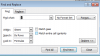
You may have to hit the Options button, and make sure your settings are something like so:
upload_2015-2-19_15-38-23.png
specifically the "Match entire cell contents"
 
Mr. "bobhc" for one. The merged cells cut off the columns of formulas.
Mr. Luke M for another. That solution (select, type, ctrl+enter) is very good. Perhaps this is solved. I don't have a Windows machine with Excel here to test with, so I'm not sure.
 
Back
Top