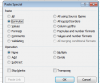
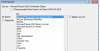
I'll give it a shot. Appearance of icons/layout may vary depending on your system settings, so I'll try to explain via other route.
If you started with everything closed, and then opened XL you should have a blank workbook visible. If you close just the workbook, but not XL, you'll see a gray space. The application though, is still open. This is the XL application, or instance. Within this instance, you can have one or many workbooks open. So, the instance is like the box holding all the open workbooks.
However, you can run another application of XL, which would create another instance (box). This box would have it's own set of workbooks. Makes sense!
Why this matters: As you've found, within an instance, XL can do much more in terms of copying and building formulas. It knows everything there is to know about the workbooks within it's box. If it tries to go to another instance, it's like grabbing data from a web page...it can see the visible text, but it can no longer see the full formatting or formulas.
How to check: The one way to check instances in all versions of XL seems to be the Windows menu. If you go to View - Windows - Switch Windows, you can see all the workbooks open in the instance of XL. If you don't see the workbook you want, it's in a different instance. Great information!
For the Screen shots, I tend to use the windows snipping capture tool (From start menu, search for 'Snip'. You can take a screenshot and crop, or any picture/shape and paste directly into the response box.